

TL;DR:
- You can manually embed Google Calendars on your WordPress site, but it lacks mobile responsiveness, customization options, and quick setup.
- The Simple Calendar WordPress plugin is designed to display as many Google Calendars as you want on your site, with quick setup, custom options, and 100% optimization for every screen size.
- It takes a maximum of 5 minutes or even less with Simple Calendar. It features custom styling options to match your site.
- If you want an easier setup and more features with the Simple Calendar plugin, here’s what you can explore:
- Google Calendar Pro addon for 1-click authentication
- Explore our pricing page with addon bundles to save more.
Add Google Calendar to WordPress in 5 Minutes (Quick Setup Guide)
Do you also find that manually embedding Google Calendars into your website looks unappealing? If yes, we’re on the same page. We understand how tiresome and frustrating lengthy technical steps can be, only to end up with an unattractive Google Calendar display on your WordPress site.
This is the reason the Simple Calendar plugin was developed. It aims to be lightweight, flexible, and allow customization despite being the easiest Google Calendar plugin available for WordPress.
In this blog, we’ll quickly understand how using the Simple Calendar WordPress plugin helps you achieve a customized Google Calendar display on your site in a maximum of 5 minutes. We carefully reviewed each step to ensure our time estimate is accurate.
What you’ll need:
- WordPress website (admin access)
- Google Calendar with events
- 5 minutes of your time
That’s it!
Connect Google Calendar to WordPress within 5 minutes
Step 1: Install the Simple Calendar plugin
Duration: 60 seconds
Method A: WordPress Dashboard
- Go to Plugins → Add New
- Search ‘Simple Calendar’
- Click Install Now on ‘Simple Calendar – Google Calendar Plugin’
- Click Activate
Method B: Manual Upload
- Download from https://wordpress.org/plugins/google-calendar-events/#description
- Upload via Plugins → Add New → Upload Plugin
- Activate
Step 2: Get your Google Calendar API key
Duration: 2 minutes
The next step is to connect Google Calendar to WordPress via the Google Calendar API key. It will take a minimum of 2 minutes for a technical person to create this.
Note: If you choose the ‘Auth via Simple Calendar‘ option, you can skip this entire process. Simple Calendar handles the connection for you so that you won’t face these technical steps at all. Using this option removes the need for API keys and Calendar IDs.
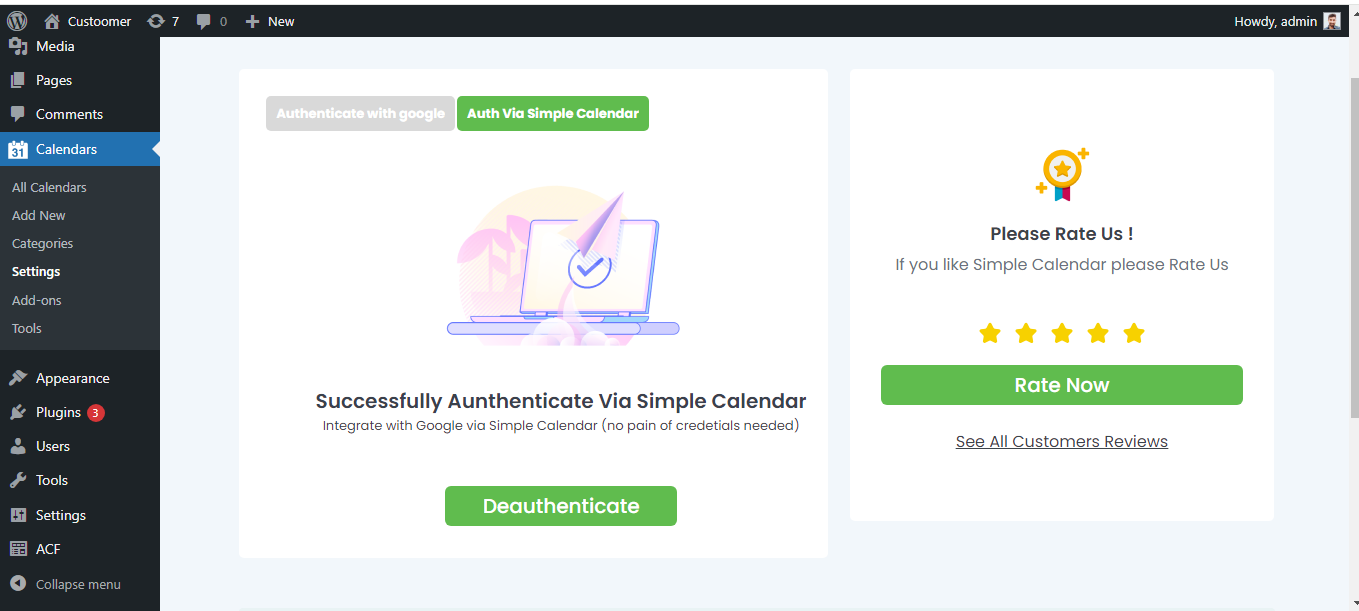
Our Google Calendar Pro add-on provides one-click authentication with Simple Calendar, eliminating all technical steps.
👉 Also see pricing and bundle offers here for bigger savings...
Perform the following steps if you choose Authenticate with Google option.
1: Visit Google Cloud Console
- Go to console.cloud.google.com
- Sign in with your Google account
2: Create a New Project
- Click ‘Select a Project’ → ‘New Project.’
- Name it ‘WordPress Calendar’ (or anything)
- Click Create
3: Enable Calendar API
- Go to APIs & Services → Library
- Search ‘Google Calendar API’
- Click it, then click Enable
4: Generate API Key
- Go to Credentials
- Click Create Credentials → API Key
- Copy the key
- (Optional) Click the Restrict Key for security
Step 3: Connect Google Calendar to WordPress
Duration: 60 seconds
Paste your API key and grab your Calendar ID. Navigate to your WordPress dashboard and perform the following actions.
1: Navigate to Simple Calendar Settings
- Go to Calendars → Settings
- Click the Google API Key tab
2: Add Your API Key
- Paste the API key from Step 2
- Click Save Changes
3: Find Your Calendar ID
- Open Google Calendar
- Click the three dots next to your calendar
- Select Settings and sharing
- Scroll to Integrate calendar
- Copy the Calendar ID (looks like: [email protected] or [email protected])
Step 4: Create your first customized Google Calendar display
Duration: 60 seconds
After spending a minimum of 4 minutes above, you’ve finally come to the ultimate step of creating a customized Google Calendar on your site. You can add a calendar to any page or post, or use the calendar widget with Simple Calendar’s easy interface.
Go to your WordPress dashboard and quickly perform the following actions.
- Go to Calendars → Add New
- Give it a name (e.g., ‘Events Calendar’)
- Paste your Google Calendar ID
- Choose display type:
-
- List View – Best for mobile and upcoming events
- Grid View – Traditional monthly calendar
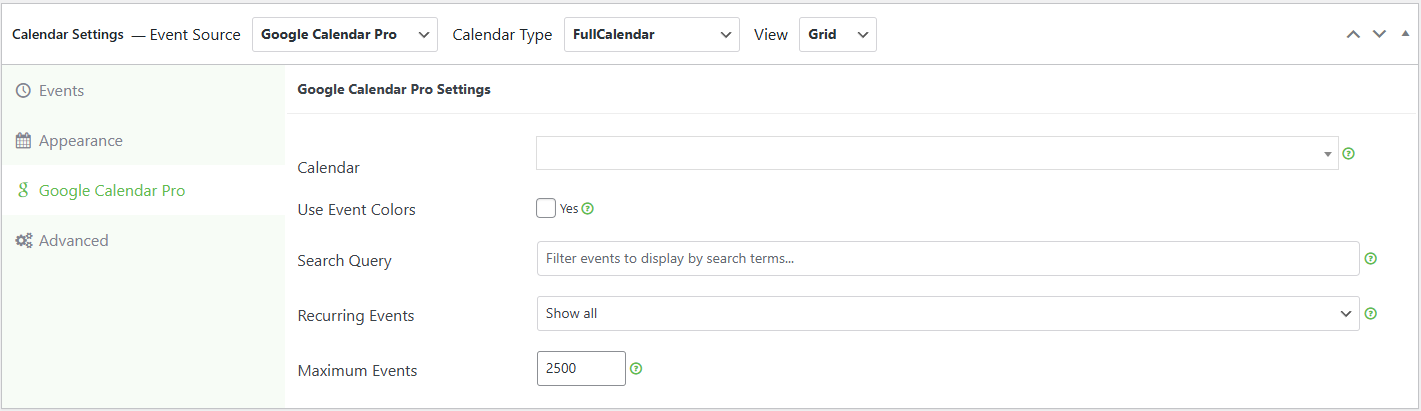
- Explore a few customization settings as shown below.
- Click Publish
- Copy the shortcode shown to make this calendar visible on any post or page.
Why Simple Calendar instead of manual embed?
Simple Calendar is superior to Google’s iframe embed code in every way. Here’s how:
- 100% optimized for every screen size (Google’s isn’t)
- Customizable styling to match your site
- Display multiple views (month/week/day)
- Better performance and faster loading
- SEO-friendly structure
- No awkward scrollbars or overflow issues
- Automatic updates when you change events
👉 See huge-saver addon bundles on our pricing page here to learn more.
Your questions, answered
How to embed Google Calendar in Squarespace?
You can easily add Google Calendar to Squarespace by using an embed code. It’s completely free to do, but has certain limitations. Here’s how you can embed code that ensures better mobile responsiveness on Squarespace websites.
Can I customize the Google Calendar embed?
No, you cannot customize the Google Calendar that you’ve manually embedded using an embed code on the site. You get customization options only when you use a dedicated plugin like Simple Calendar that’s strategically developed for these specific purposes.
How to display list-style Google Calendars on my website?
You can easily display list-style Google Calendars on your website using the free Simple Calendar plugin as well. There isn’t any option to display list-style calendars via manual embedding, so it’s best to use a plugin.