

TL;DR
- You can embed only public Google Calendars manually in WordPress.
- Manually embedding Google Calendars into sites also comes with the following limitations:
- Lack of mobile responsiveness
- Limited design and layout control
- Display of public Google Calendars only, hence it lacks security
- Integrating public Google Calendars on a website further exposes you to the following security risks:
- Public calendars are indexable by search engines
- Public calendars can be accessed and reused by anyone with the link
- Showing public calendars exposes the entire calendar structure
- Here’s why it’s safer to integrate private Google Calendars on your site:
- Private calendars are accessed via secure authentication
- Search engines cannot index private calendars
- Private calendars don’t have a shareable .ics or embed link that anyone can copy and reuse.
- You can sync private Google Calendars in WordPress with the Simple Calendar’s Google Calendar Pro addon.
- Simple Calendar’s Google Calendar Pro addon improves user experience with the following functionalities:
- Mobile responsiveness by default
- Customization options without any coding
- Display private Google Calendars securely, and also with a single click integration
How to sync private Google Calendar in WordPress (No public access required)
Embedding Google Calendar in WordPress may seem simple until you take all the necessary steps. Many site owners ask the same questions after trying manual Google Calendar embeds: Why does the calendar appear broken on mobile? Why do I have to make it public? And is there a safer way to show events without exposing everything?
The default Google embed works, but it comes with limits. In this blog, we’ll show you how to sync Google Calendar in WordPress in a better, safer, and more flexible way. We’ll also learn where the standard method falls short, and how plugins like Simple Calendar offer custom flexibility, mobile responsiveness, and secure support for private calendars.
Method 1: Embed Google Calendar Using Google’s Embed Code (Requires public access)
Google lets you embed a calendar on your WordPress site using a built-in embed code. This method works for simple, public event displays.
Step 1: Get the Google Calendar embed code
- Sign in to Google Calendar
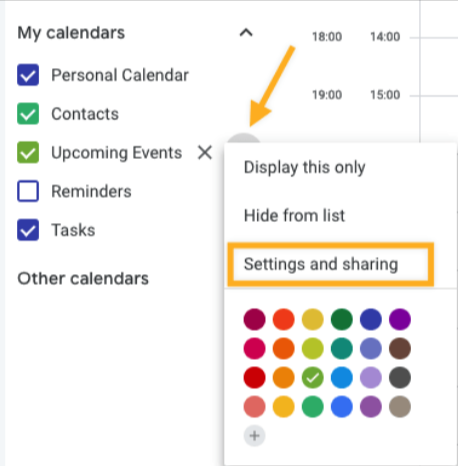
- In the left panel, under My calendars, click the three dots next to your calendar
- Select Settings and sharing
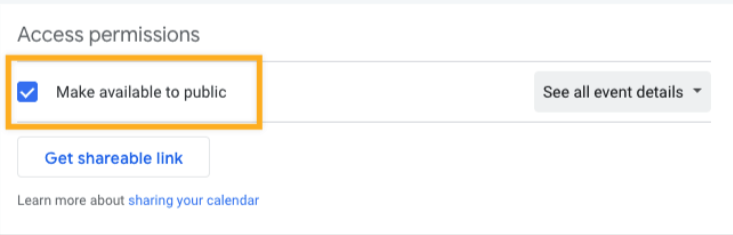
- Scroll to Access permissions for events
- Enable Make available to public (Google only provides embed codes for public calendars)
- Scroll to Integrate calendar
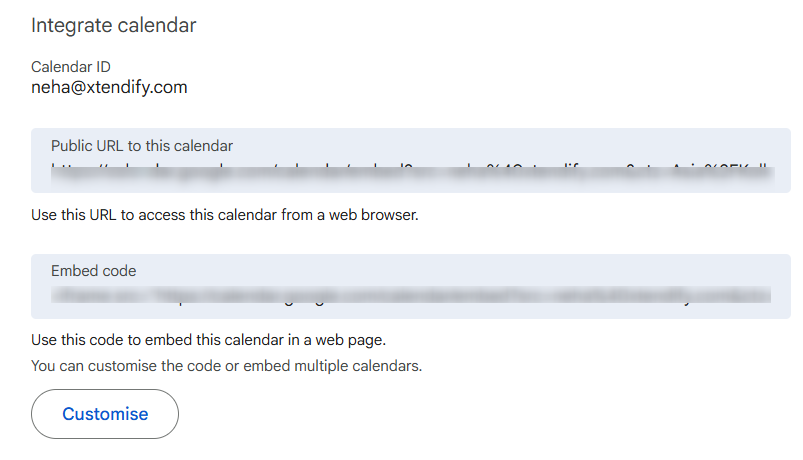
- Copy the code from the Embed code field
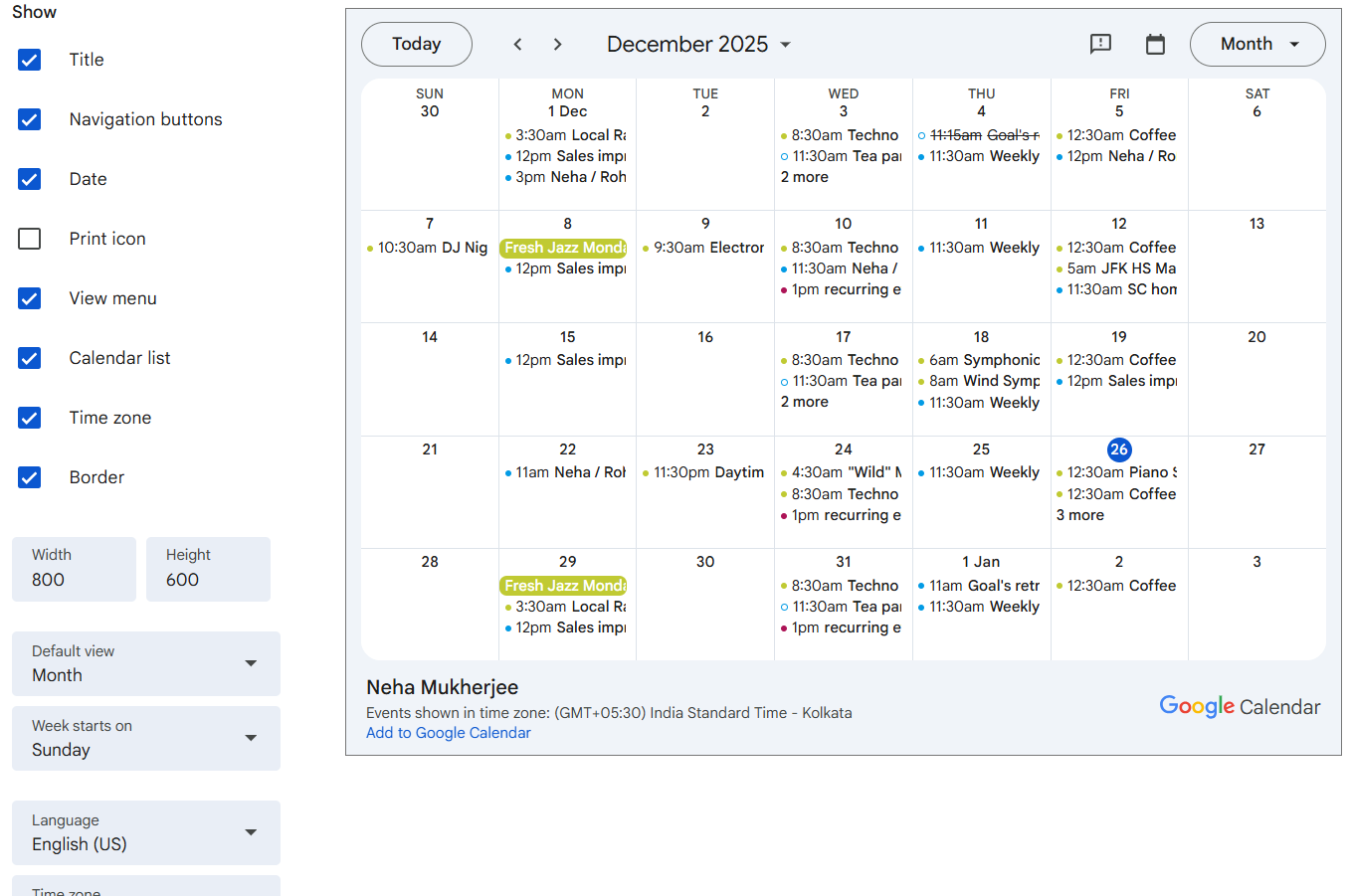
- Optional: Click Customize to adjust size, colors, language, or time zone
Step 2: Add the embed code to WordPress
- Open the page or post in the WordPress editor
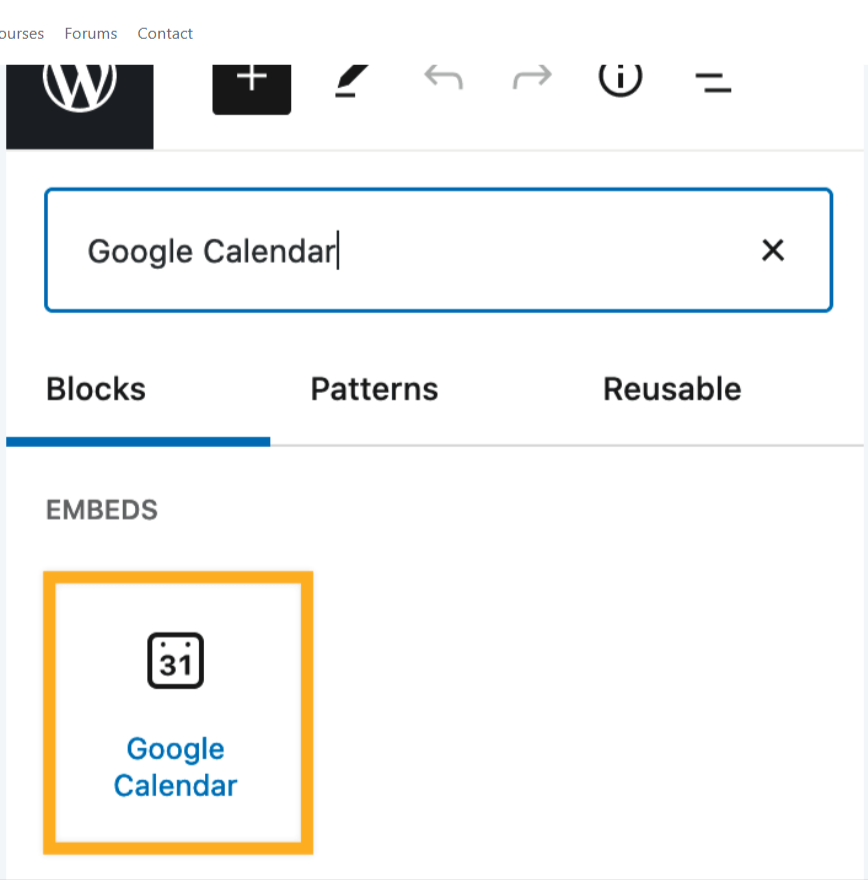
- Click the + block inserter
- Search for and add the Google Calendar block
- Paste the embed code into the block
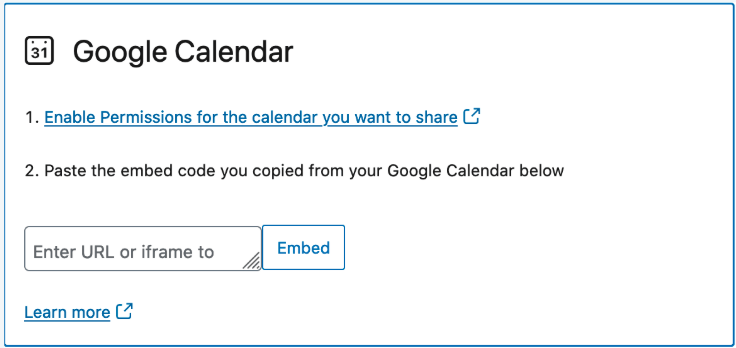
- Click Embed to display the calendar
Limitations of the default Google Calendar embed
Embedding Google Calendar using Google’s default embed code works only up to a point. The cracks start to show once your site grows or your needs change.
Not fully mobile responsive
Google Calendar embeds rely on fixed iframe layouts, which don’t adapt smoothly to smaller screens. Users often need to scroll horizontally on phones, zoom in, or struggle to tap events accurately. Experience can feel cluttered and frustrating for event-heavy calendars.
Some iPhone users even face difficulty seeing embedded Google Calendars. This becomes a usability problem rather than a minor inconvenience if a large segment of your audience actively visits calendars on mobile.
Limited Design and Layout Control
While Google allows basic tweaks like colors, width, and language adjustments, that’s not sufficient for enhanced customization. You can’t fully match the calendar to your WordPress theme, adjust spacing naturally, or choose alternative layouts, such as event lists or compact views.
Also, the manually embedded Google Calendar looks like an embedded widget rather than a part of your site. It breaks the visual consistency and branding of your site.
Display public calendars only
Google requires the calendar to be public to generate an embed code. This means your events can be indexed by search engines, accessed via the calendar URL, and reused elsewhere. Google Calendar is not private by default and lacks end-to-end encryption.
According to Forbes, public Google Calendars can unintentionally expose sensitive company data, as search engines can index them and make events discoverable to anyone, a risk that has previously led to internal information leaks at large organizations like Shopify.
When is the default embed good enough?
The default Google Calendar embed works well for simple needs. If you’re running a personal blog or sharing a fully public event schedule with no sensitive details, it gets the job done.
However, this approach starts to feel limiting once you care about mobile experience, visual consistency, or privacy. If your calendar includes internal notes, client meetings, or sensitive event details, and your website serves customers, members, or teams, it’s safer to look beyond the default embed and choose a more reliable option.
Method 2: Sync Google Calendar using Simple Calendar (No public access needed)
Instead of using Google’s embed code, you can use the Google Calendar Pro addon with the Simple Calendar plugin to connect both your public and private Google Calendars directly to WordPress. You will also have customization features, allowing your calendar to behave like a native part of your site, rather than an embedded widget.
Google Calendar Pro addon features an ‘Authenticate via Simple Calendar‘ option that uses Google’s OAuth system. You sign in once, approve access, and you’re done. There’s no need to add public calendar IDs or manage complex API settings.
You can customize how events appear, what details are displayed, and where the calendar is positioned using shortcodes. Most importantly, this method lets you display private Google Calendars without making them public.
Here’s how a private Google Calendar can still be shown safely on a website using Google Calendar Pro:
Private calendars are accessed via secure authentication
Private Google Calendars aren’t connected via embed code, and are accessed via secure authentication only. The Simple Calendar Google Calendar Pro add-on connects using Google’s API and permission-based access.
Search engines can’t index private calendars
Since the calendar data is fetched dynamically and isn’t publicly published by Google, it can’t be discovered via Google Search.
No public calendar URL exists
Unlike public calendars, private calendars don’t have a shareable .ics or embed link that anyone can copy and reuse.
Only what you allow is shown
You control which calendar, events, and details are displayed. The rest of the calendar stays hidden inside Google.
Who can see the events on the website?
- Website visitors can see the rendered events, just like any other page content.
- They cannot access the calendar itself, edit events, subscribe to it, or view anything beyond what’s displayed. (Learn more about changing the visibility of Google Calendar events here!)
- They cannot search or reuse the calendar data elsewhere.
Why is this safer than using a public Google Calendar?
Public calendars:
- Are indexable by search engines
- Can be accessed and reused by anyone with the link
- Expose the entire calendar structure
Private calendars with the Google Calendar Pro add-on:
- Stay unsearchable
- Use secure, permission-based access
- Show only curated event data on your site
Key benefits of using Simple Calendar
Simple Calendar focuses on solving the common problems that come with embedding Google Calendar in WordPress. It improves how calendars look, behave, and stay secure on your site. If you care about mobile users, layout flexibility, and privacy, these benefits matter in day-to-day use.
Mobile responsive by default
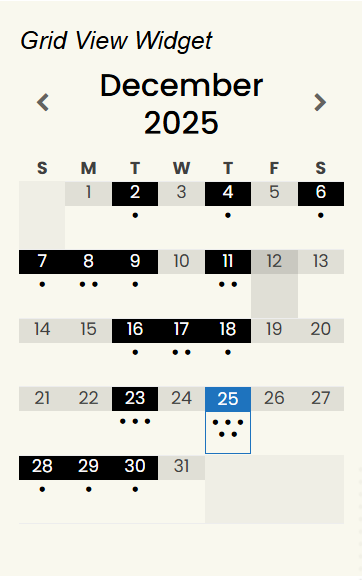
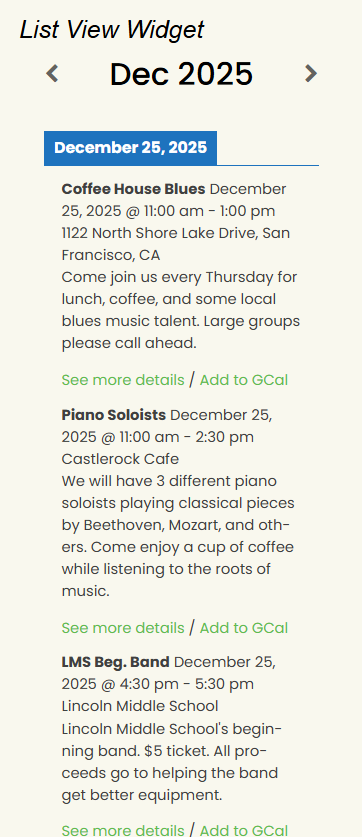
Simple Calendar is built with mobile users in mind. Calendars automatically adjust to different screen sizes, so events are easy to read and interact with on phones and tablets. There’s no need for zooming, sideways scrolling, or struggling to tap on event details.
Because the calendar isn’t embedded using an iframe, it behaves like regular WordPress content. This makes a noticeable difference on smaller screens. Whether someone is checking an event from a phone during a commute or browsing on a tablet, the experience stays smooth and readable.
Customization without code
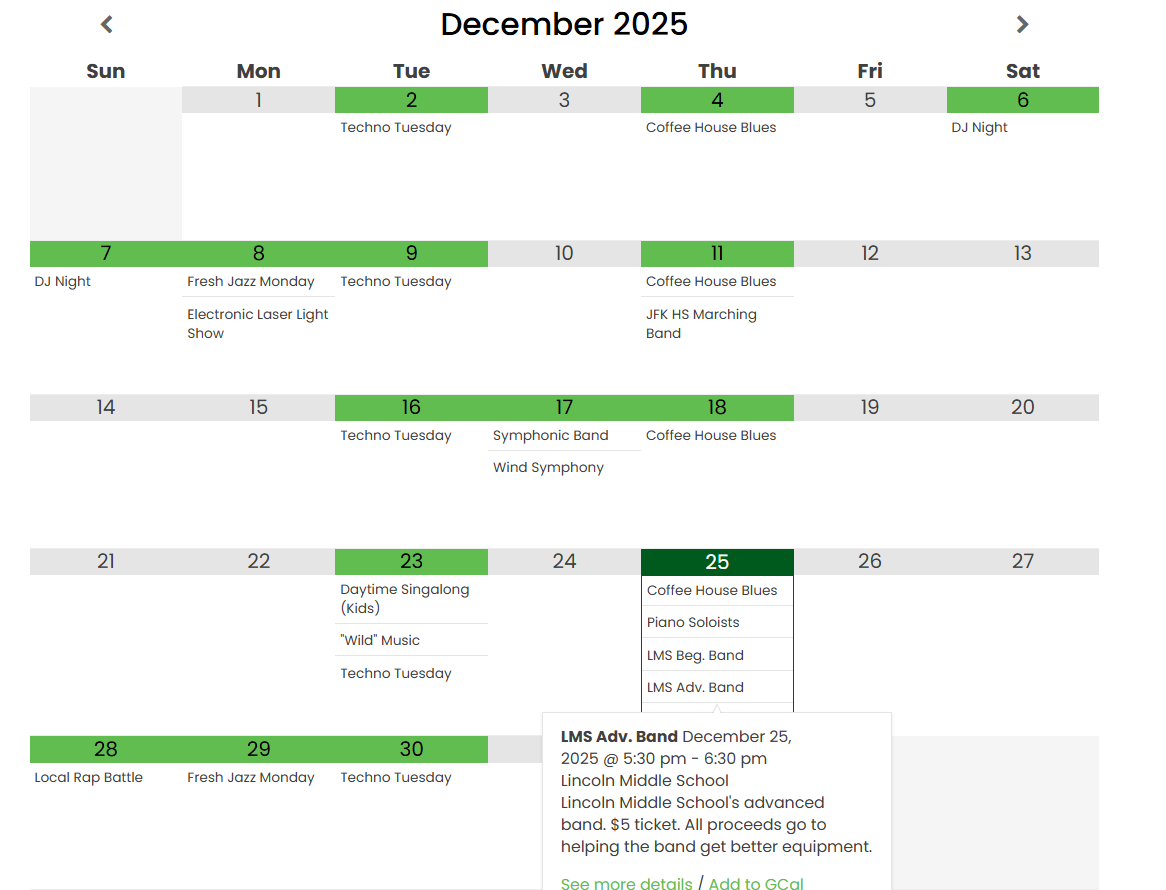
Simple Calendar gives you control over how events appear without asking you to touch code. You can choose different layouts, decide which event details are visible, and adjust spacing and presentation so the calendar fits naturally into your site.
You can place it anywhere using shortcodes and keep the design consistent with the rest of your pages. This is helpful if your site has branding guidelines or a clean layout you want to maintain.
Display private Google Calendars securely
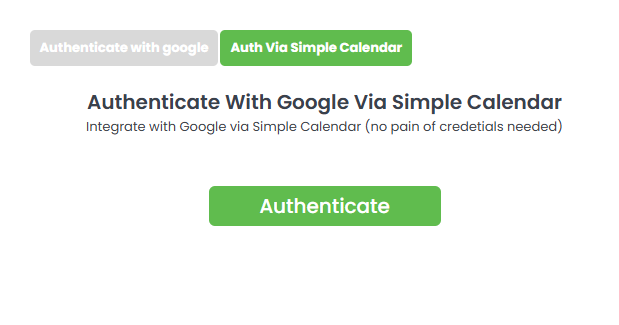
You can display events from private Google Calendars without making them public with the Google Calendar Pro addon. Visitors can see the events you choose to display, but they can’t access the calendar itself, reuse it, or see anything beyond what’s shown on your site. This makes it a safer choice for internal schedules, client meetings, or any situation where event details shouldn’t be publicly discoverable.
Final words
Syncing Google Calendar in WordPress can be simple or flexible, depending on your needs. The default embed works for basic, public calendars. But if you care about mobile experience, design consistency, or keeping event and client details private, Simple Calendar is the better choice. It gives you control without complexity and helps your calendar fit naturally into your site.
👉See Google Calendar Pro in action here.
👉 See huge-saver addon bundles on our pricing page here to learn more.
Frequently Asked Questions
What happens if you make a Google Calendar public?
Based on your calendar visibility settings, public Google Calendars allow anyone to access the event details after you share them. Public calendar is also searchable via the internet if embedded on a website, and anyone can subscribe to them and sync them with other applications.
How to share Google Calendar without making it public?
You can share a private or personal Google Calendar with specific people only, and not everyone, unlike a public calendar. Further, you can set the permission levels regarding what they can access.
How much does Google Calendar API cost?
Google Calendar API is completely free to use. Google says that even if you go over the request limits, you won’t be charged and your account will not be billed.
How to add Google Calendar to WordPress without the plugin?
You can manually embed Google Calendars to WordPress without using any plugin. However, you will have to set the calendar to public first and go through the technical hurdles of manually embedding, especially when you’re a tech noob.
How to embed Google Calendar in WordPress?
You have an option to embed Google Calendar in WordPress, i.e., via manual embedding or to sync Google Calendar on WordPress in real-time via using the Simple Calendar plugin. Using a plugin is always best as it’s equipped with features like mobile responsiveness, multiple views, secure authentication, and more.