
TL;DR
There are 3 main methods to embed a Google Calendar in WordPress:
- iFrame method → Fastest, but limited SEO and customization
- Plugin method (Simple Calendar) → Ideal choice for most users
- API method → Advanced, scalable, best for developers & automation
What’s the best choice?
- Blog/site → iframe/ plugin
- Business/events → plugin
- SaaS/advanced systems → API
You can embed a Google Calendar in WordPress using three main methods: an iframe embed code, a WordPress plugin like Simple Calendar, or the Google Calendar API for advanced integration. The iframe method is the fastest but offers limited customization and SEO. Plugins offer better design and functionality, while API integration provides full control, automation, and scalability for SaaS or highly advanced systems.
Embedding a Google Calendar in WordPress is one of the easiest ways to display events, schedules, bookings, or availability directly on your website. Flexible Google Calendar integrations are helpful for blogs, online businesses, coaching sites, and community engagement platforms.
In this guide, we will explore three methods to embed Google Calendar in WordPress, compare them in detail, and help you choose the best option based on your goals.
Method 1: Embed Google Calendar using iframe/ embed code
This is the simplest method and requires no plugin or coding knowledge.
Step-by-step process:
- Step 1: Open Google Calendar
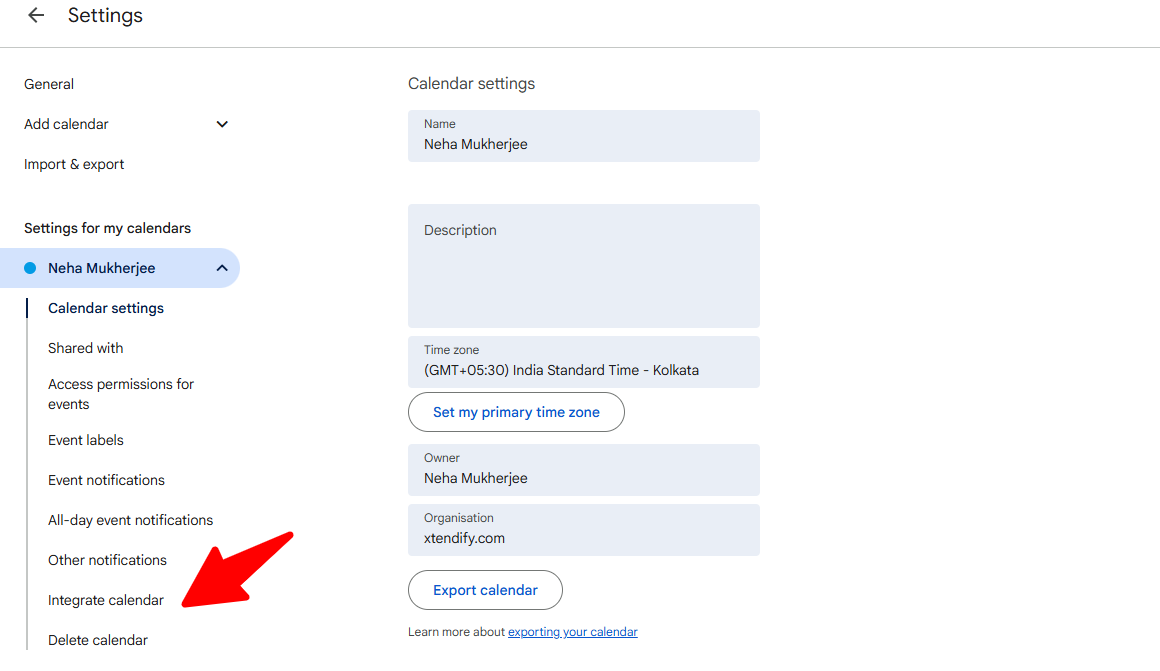
- Step 2: Go to Settings → Select Calendar
- Step 3: Click ‘Integrate Calendar’
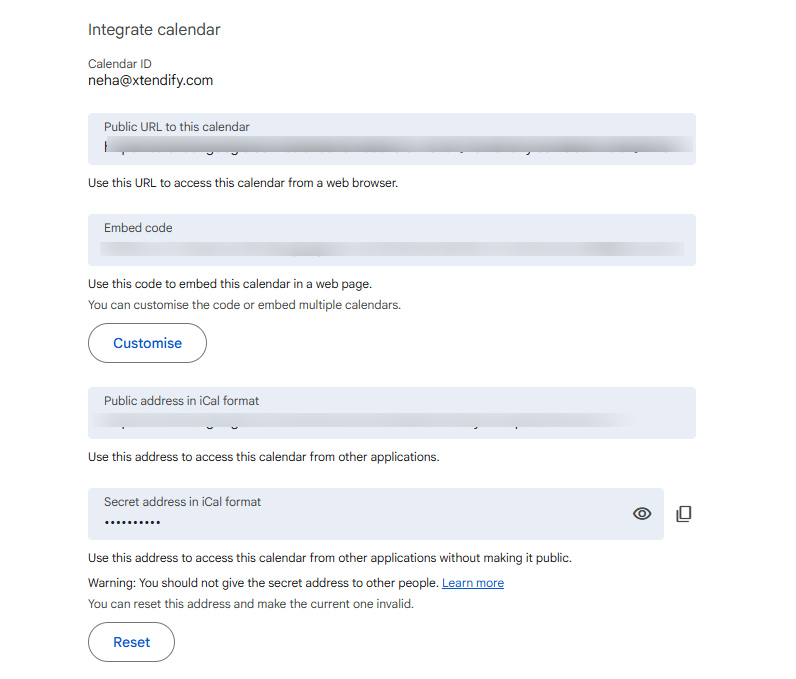
Step 4: Copy the iframe embed code
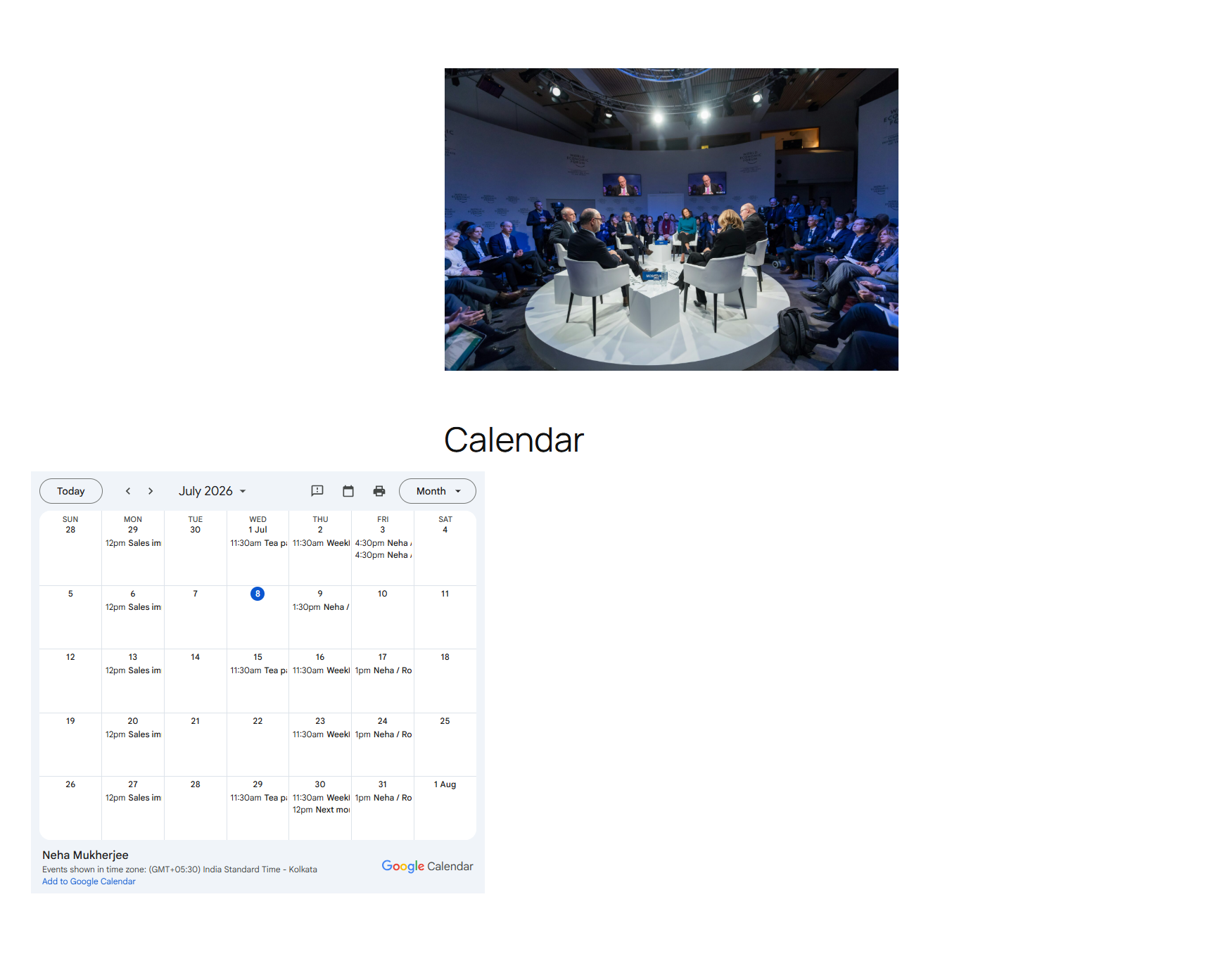
Step 5: Paste it into WordPress using a Custom HTML block
Pros & cons of embedding Google Calendar using iframe/ embed code
Pros:
- Very easy setup
- No plugin required
- Works instantly
Cons:
- No SEO indexing of events
- Limited design customization
- Poor scalability
- Weak mobile control unless manually adjusted
Who can embed Google Calendar in WordPress using the iframe method?
You’ll probably prefer this method if you don’t expect much site traffic from the calendar or you don’t expect many conversions from it. Here’s when it’s appropriate to use an iframe embed:
Personal blogs/ hobby sites
An iframe is a good method if you have a personal or side-project calendar, along with hobby blog posts or a personal blog. You probably don’t care about search engine visibility, or you don’t need a custom style. You need the calendar to display the dates. This method works well in this scenario.
Simple event display
If visitors only need to view dates (a class schedule, office hours, and so on) and won’t be searching, filtering, or booking anything, the iFrame’s limitations won’t be felt.
Quick setup needs
Adding a calendar via the iframe embed method is good for site owners with short-term goals for their sites. Examples include testing the value of a calendar or inserting a calendar for a temporary event display or promotion.
Still, for those specific circumstances, the original option is not as ideal as the free Google Calendar plugin Simple Calendar. You get an advanced version of the same layout with high-reliability sync, better display, and a lot of integration work done for you, and all for zero cost.
As a bonus, the free Blog Feed add-on of the Simple Calendar plugin can display your WordPress blog posts as calendar entries on their publish dates, making it easy to combine content and events in a single view.
Method 2: Embed Google Calendar using a WordPress plugin (recommended for most users)
Instead of embedding a Google Calendar using an iframe, the Simple Calendar WordPress Google Calendar plugin connects directly to your Google Calendar and displays your events natively in WordPress.
You can connect using the plugin’s built-in authentication (no API keys or technical setup required) or by creating your own Google API credentials for more advanced control. Once connected, your events are displayed in a fully customizable list/ grid view and month/day/ week view that matches your site’s design.
Since the calendar isn’t embedded in an iframe, it’s fully responsive, updates automatically whenever your Google Calendar changes, and can be added anywhere on your site using a simple shortcode.
Step-by-step process:
Core Simple Calendar plugin (Free)
Step 1: Install and activate Simple Calendar.
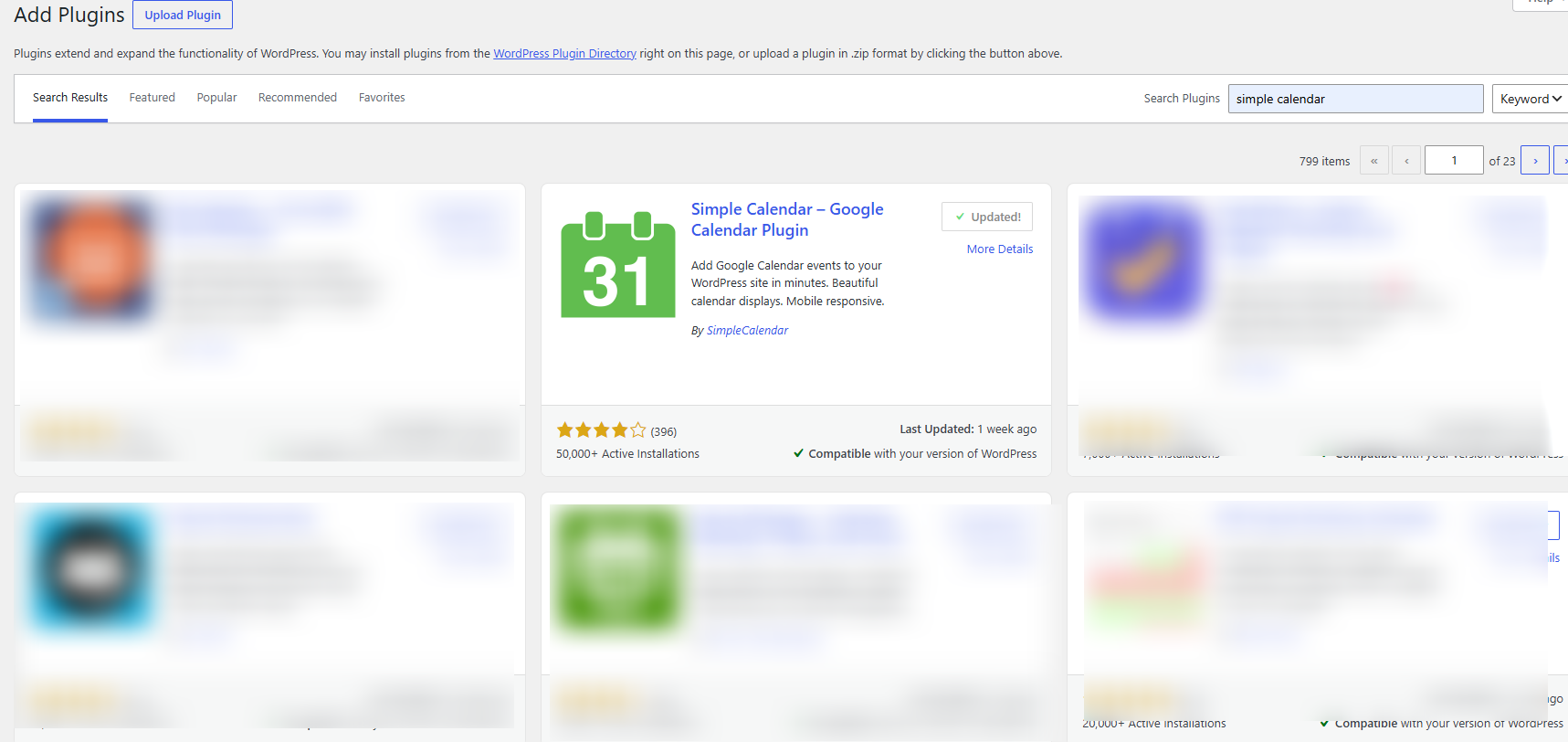
Step 2: Create a Google Calendar API key
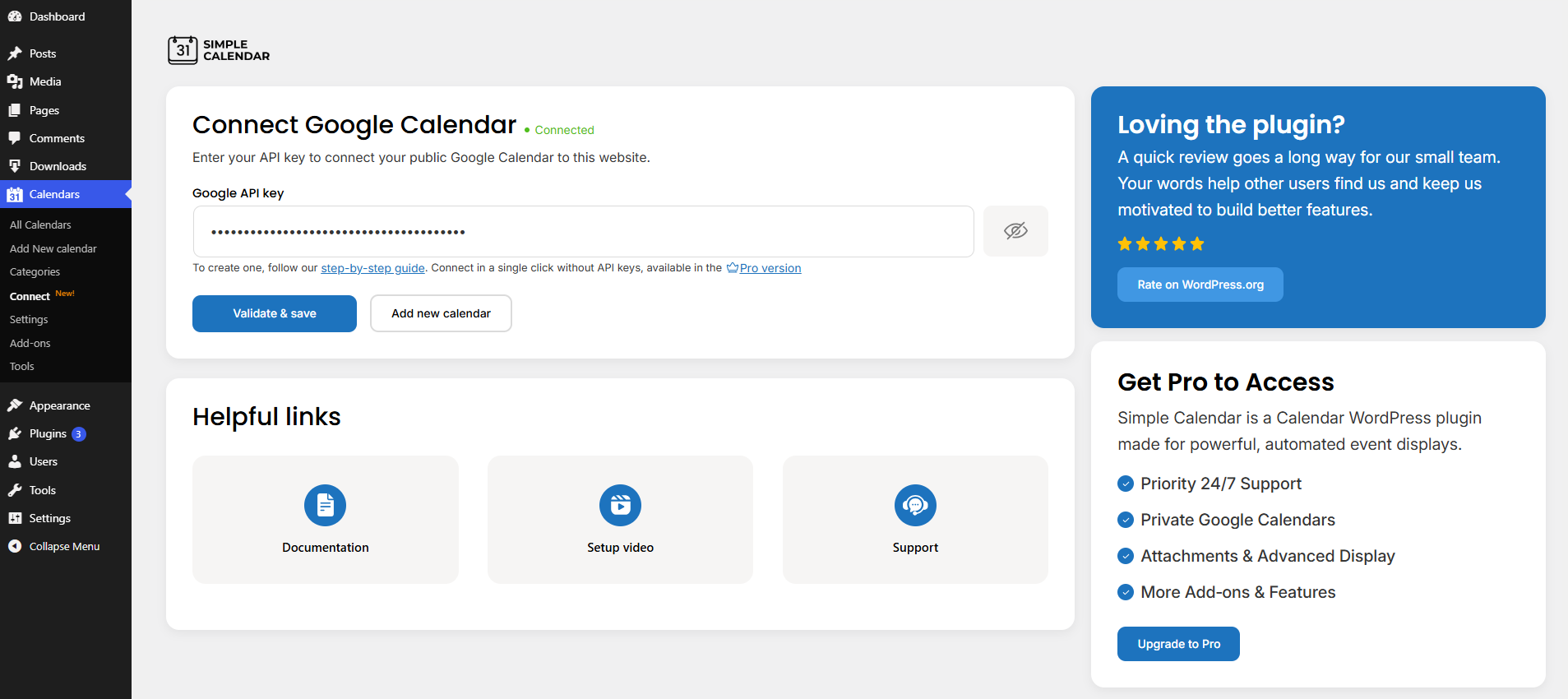
Use the Simple Calendar plugin with its premium addons
You can explore one of the following paid addons to extend the core plugin’s functionality. We’ve defined below what these addons will offer you in return.
Google Calendar Pro
This addon lets you securely connect and display both public and private Google Calendars on your site using OAuth2 authentication, so you’re never forced to make a calendar public just to embed it. It can display image previews and attachments on hover. It’s the go-to upgrade for anyone who needs privacy control alongside richer event detail.
FullCalendar Extended
Built on the open-source FullCalendar library, this addon upgrades the display with interactive month, week, and day views instead of the default static month grid. It’s best suited for sites that need a more dynamic, app-like calendar experience.
Book an Appointment
It syncs two-way with Google Calendar in real time, so bookings appear instantly and you can control which days and time-slot gaps are open for scheduling. It’s designed for businesses, coaches, or service providers who want to automate appointment intake straight from their WordPress site.
Pros & cons of using the Simple Calendar plugin to integrate Google Calendar in WordPress
Pros
- Better design control
- Mobile responsive
- Can display event lists
- SEO-friendly
- Ease of integration
- Advanced customization in paid addons
Cons
- Limited advanced automation on the free version
- Some features require the paid addons
Who can use the Simple Calendar plugin to integrate Google Calendar in WordPress?
Anyone who wants to display their Google Calendar events on their WordPress site easily can use this plugin. You have two options for using this plugin: either free or paid to access advanced capabilities. And we believe it’s a win-win either way!
Business websites
Using an embedded calendar rather than an external Google Calendar widget makes your page look more professional. An embedded calendar prevents potential customers from leaving your site.
Coaches & consultants
Adding your availability and allowing clients to book their own appointments through the Book an Appointment addon eliminates the frustration of scheduling appointments through email.
Event-based websites
Many people use their phones to look for events. Therefore, websites that list events that feature, especially in the list view, benefit from their calendars being legible on mobile.
Service providers
Clinics, studios, and agencies handling client meetings often need private calendar sync (via Google Calendar Pro) so internal scheduling details aren’t exposed publicly. With Google Calendar Pro, your calendars aren’t indexed by search engines and thus are only shown to one who has the URL or navigate specifically to that page via your site.
Method 3: Google Calendar API Integration (Advanced)
This method eliminates the need to embed anything. Rather than showing Google’s calendar or a plugin’s output on your WordPress site, your site will communicate with the Google Calendar API directly. This allows your site to pull the raw data of the events and display it however you want.
How it works:
Your site can access the Google Calendar API by providing an API key or by authenticating via OAuth. Google will respond with the event data in JSON format. Then you can build your own logic to display the data. Since you build the logic, there is no format or structure that you have to adhere to.
Pros & cons of custom Google Calendar API integration
Pros
- Unlimited design freedom
- Real-time updates, no re-embedding
- Can trigger automations
Cons
- Requires developer time to build and maintain
- Subject to Google API rate limits and quotas
- You own all security handling (API key protection)
- Breaks if Google updates the API, and no one maintains the code
- Costlier than a plugin, with no guaranteed payoff unless you need this level of control
Who this method is for
This method is far from complex for an end-user like you. It should only be chosen when you are a professional plugin developer and have the required resources to invest time, money, and effort in implementing or building this functionality from scratch.
Developers and agencies building custom client sites
If a client needs something no plugin offers as core or paid functionality, you can consider this method to build everything from scratch.
SaaS & product teams
Companies that want to build calendar functionality into their product offering need this level of control because, for them, the calendar is part of their product, not just a feature on a page.
Sites combining calendars with automation
You need to build the logic from the ground up if you want events to trigger the sending of emails, updating your CRM, or integrating with other systems.
Who this method is not for
If you don’t have a developer on hand, don’t need calendar data to feed into anything beyond the page it’s displayed on, or want something live this week rather than after a build cycle, this method will cost you more time and money than it returns.
For that far more common case, such as a business site, a coach’s booking page, an events calendar, Simple Calendar’s plugin (Method 2) already covers list/grid/month views, private calendar sync, and appointment booking without writing a line of code. Method 3 is the ceiling of what’s technically possible, not the default starting point.
Infographic: Compare All Google Calendar Embedding Options
Need a quick overview? This infographic summarizes the pros, cons, and ideal use cases for iFrame embeds, WordPress plugins, and Google Calendar API integrations in one easy-to-scan visual.
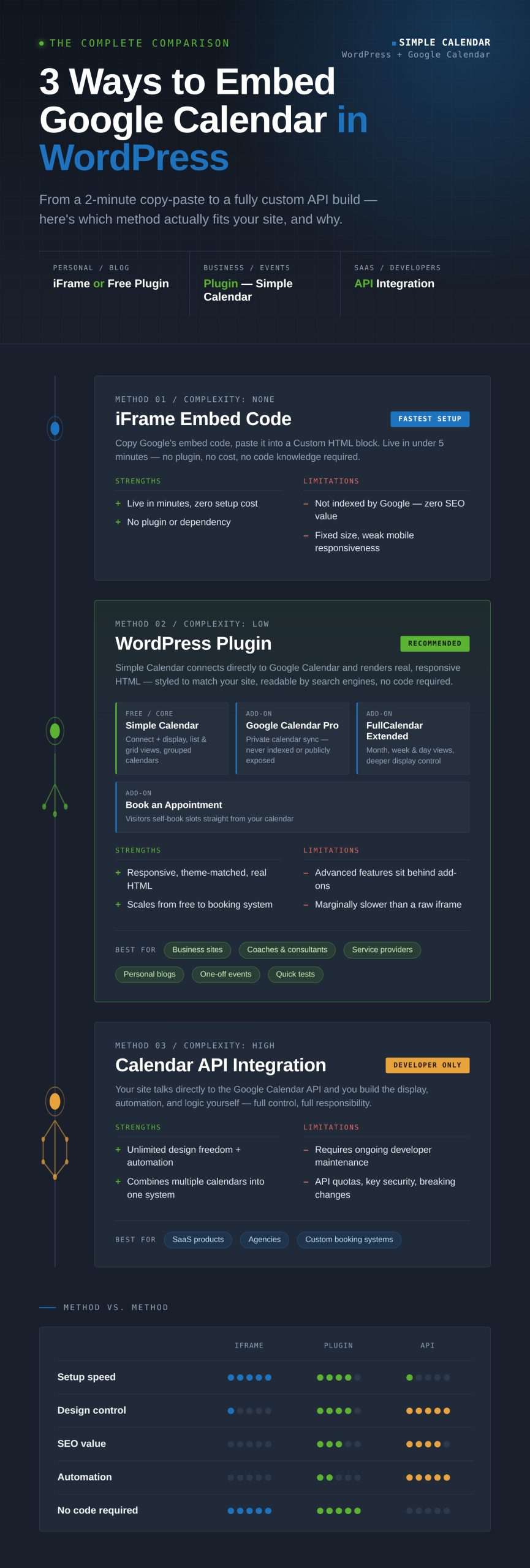
How to Embed Google Calendar in WordPress Infographic
Tabular comparison to explore methods to embed a Google Calendar in WordPress
Criteria |
iframe/ embed code |
Simple Calendar plugin |
API integration |
Setup difficulty |
Very easy — copy/paste code |
Easy — install, activate, connect |
Advanced — requires a developer |
SEO/Indexing |
No SEO indexing of events |
SEO-friendly |
Depends on custom build |
Design customization |
Limited |
Better design control, matches the site theme |
Unlimited design freedom |
Mobile responsiveness |
No |
Fully mobile responsive |
Depends on custom build |
Automation/Real-time updates |
None |
Updates automatically with Google Calendar changes |
Real-time, can trigger automations (emails, CRM, etc.) |
Cost |
Free |
Free (core), paid add-ons for advanced features |
Costliest — dev time + maintenance |
Maintenance burden |
None | Low |
High — breaks if Google updates the API |
Best for |
Personal blogs, hobby sites, simple date display, short-term/test use |
Business sites, coaches/consultants, event sites, service providers |
Developers/agencies, SaaS/product teams, sites needing deep automation |
Common problems & fixes
Even the simplest embed methods run into a handful of recurring issues. Here are the most common ones site owners hit, along with what actually causes them and how to fix each one.
Calendar not showing
The calendar may not be set to public, or the embed code may be incorrect, or a caching plugin may be displaying an outdated page. For the iframe method, double-check under Google Calendar → Settings → Access Permissions that ‘Make available to public‘ is turned on.
If you’re using Simple Calendar, verify the Calendar ID matches exactly and clear your site cache after reconnecting; the plugin will usually show a clear connection error rather than a silent blank space, which makes this easier to diagnose than a failed iframe.
‘Access denied’ error
The ‘access denied’ error pops up when the calendar’s sharing settings don’t correspond with those expected by the embed method. Public iframe embeds, as well as the free version of the Simple Calendar plugin, require your calendar to be made public.
If you need to keep the calendar private for security reasons, that’s where Google Calendar Pro’s OAuth-based sync is the fix, since it authenticates directly with your Google account instead of relying on public sharing at all.
iframe not responsive
This is not a bug, but an inherent design constraint of the iframe method of embedding. The embed code provided by Google is fixed to a specific height and width. As a result, the embed code is either truncated or horizontal scrolling is forced.
Custom JavaScript and CSS are usually required to force an iframe to maintain the aspect ratio of the fixed height and width code. However, calendars embedded via plugins are responsive and do not have the issues that Google’s embed code has.
Wrong timezone issue
Google Calendar’s iframe typically displays events based on the calendar owner’s timezone setting, not the visitor’s, which causes mismatches for global audiences. To fix it, go to Google Calendar → Settings → Time zone and set it explicitly rather than relying on ‘automatically detect.’
Plugin-based displays generally offer clearer timezone handling in their settings, so this is worth checking directly if events are displaying at the wrong time.
Privacy/ public calendar issues
Both the iframe method and the free plugin route require your calendar to be set to public, which means the calendar’s ICS link is technically discoverable, even if it isn’t linked anywhere. For most use cases (schedules, public events), this is a non-issue.
But if you’re displaying anything with client information, internal meetings, or sensitive scheduling data, that’s specifically what Google Calendar Pro’s private sync is built to solve.
Frequently asked questions
Can I embed Google Calendar in WordPress for free?
Sure! You can embed Google Calendar into a website using an iframe or with the free version of the Simple Calendar plugin. Implementing an iframe is a quicker option, but the free plugin will provide a better, more reliable, and more responsive embedded Google Calendar at no cost.
Does Google Calendar affect SEO?
No, it will not. If you embed a calendar using an iframe, it won’t be indexed as part of your page content because it will be loading a separate document. If you use a plugin to render your calendar, it will output HTML that search engines can crawl, thus giving you a slight SEO advantage for your event content. Yet, this indexability applies to public calendars only.
If you’re syncing a private calendar through Google Calendar Pro, that data stays out of search engines entirely by design, so you get the plugin’s SEO benefit for any public-facing events, while sensitive or internal scheduling details remain unindexed and unexposed until you share the URL or a user navigates to it while surfing your official site.
Can I customize the embedded calendar’s design?
Customization is zero to very minimal with the iframe method. On the contrary, a plugin like Simple Calendar gives you full layout control (list, grid, month/week views) that matches your site’s design, with even more customization available through its paid addons of Simple Calendar.
Is a plugin better than an iframe?
The answer is yes for most site owners. Plugins do a better job at mobile responsiveness, design integration, and calendar sync than an iframe.
Can I sync multiple calendars?
Yes. Simple Calendar supports grouped/multiple calendars even in the free version, letting you combine several Google Calendars into a single display.
Summarize with:
Related posts
Simple plugin. Pro features. Easy from day one.
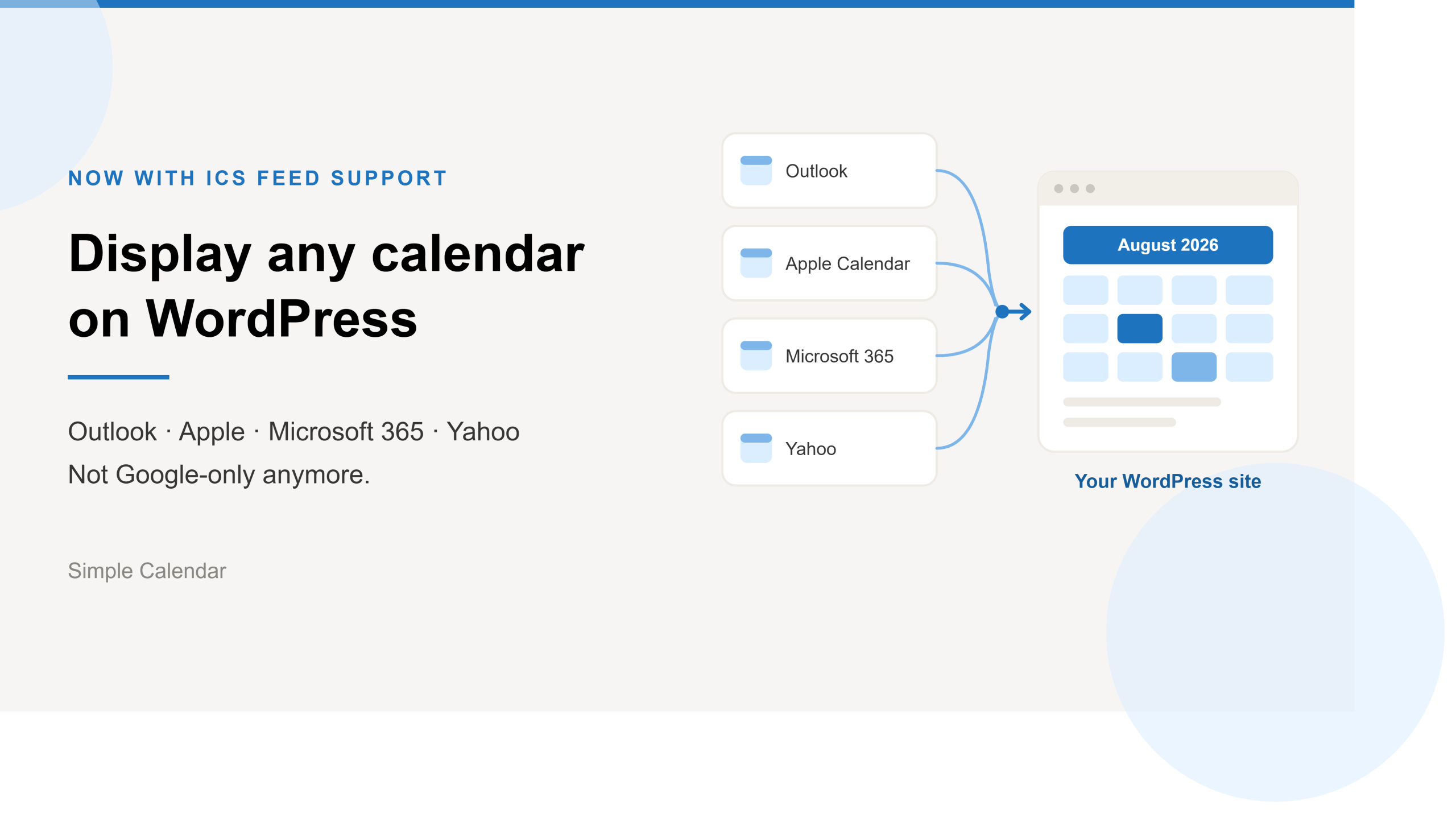
Simple Calendar now imports ICS feeds and connects live ICS feed URL. Learn step-by-step workflows for displaying Outlook, Microsoft 365, Apple, and Yahoo calendars.
After 13 years of building a WordPress calendar plugin, we know a Google Calendar embed looks like the easy answer. But it rarely stays that way. It’s only after you embed the Google Calendar manually and open the page on your mobile that you realize the calendar decided to live by its own rules. A […]
Best WordPress Event Calendar plugins, compared Search ‘best calendar plugin for WordPress‘ and you’ll get ten posts recommending the same three plugins. Not because those three are wrong; they’re genuinely good- but because most roundups are written by ranking plugins against each other in the abstract, feature column by feature column. Whether you’re searching for […]