
TL;DR
You can add Google Calendar to WordPress without a plugin by embedding Google’s free iframe code in a Custom HTML block. It’s quick and works well for public calendars, but you’ll trade off responsive design, customization, private calendar support, instant event updates, and long-term flexibility. If you need a more reliable solution, the free WordPress calendar plugin, i.e., Simple Calendar, is a better choice and can be extended with add-ons as your needs grow.
Looking to add Google Calendar to WordPress without a plugin? Google’s embed code provides a free way to display a public calendar on your site. Still, it also comes with several tradeoffs that can affect customization, mobile experience, and future scalability. In this guide, you’ll learn how to embed it and when a dedicated calendar plugin may be the better option.
Step-by-step guide to add Google Calendar to WordPress without a plugin
Generate Google Calendar embed code
- Open Google Calendar.
- Click the Settings icon and select Settings.
- Choose the calendar you want to display from the left sidebar.
- Under Access permissions, enable Make available to public (if it isn’t already).
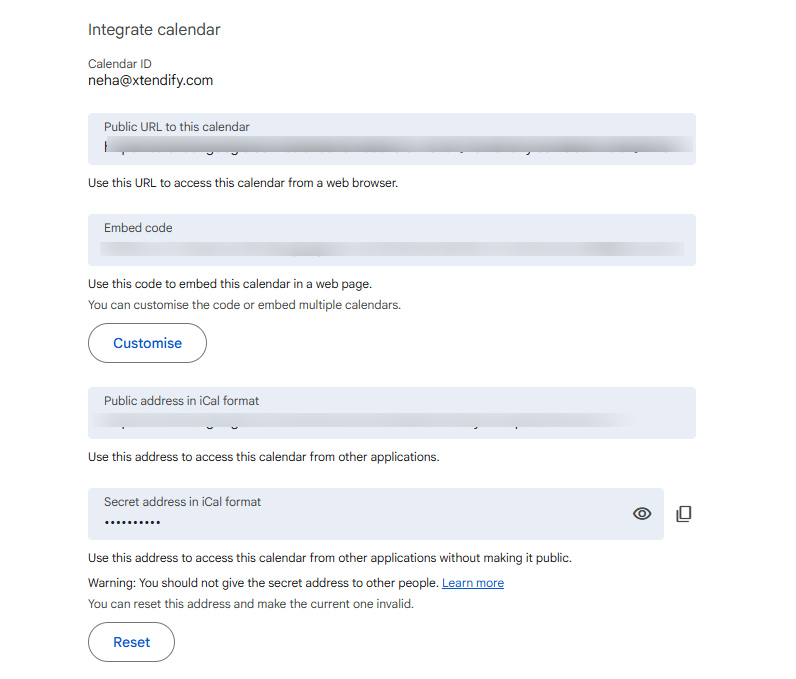
- Scroll to Integrate calendar and copy the Embed code.
Embed Google Calendar in WordPress
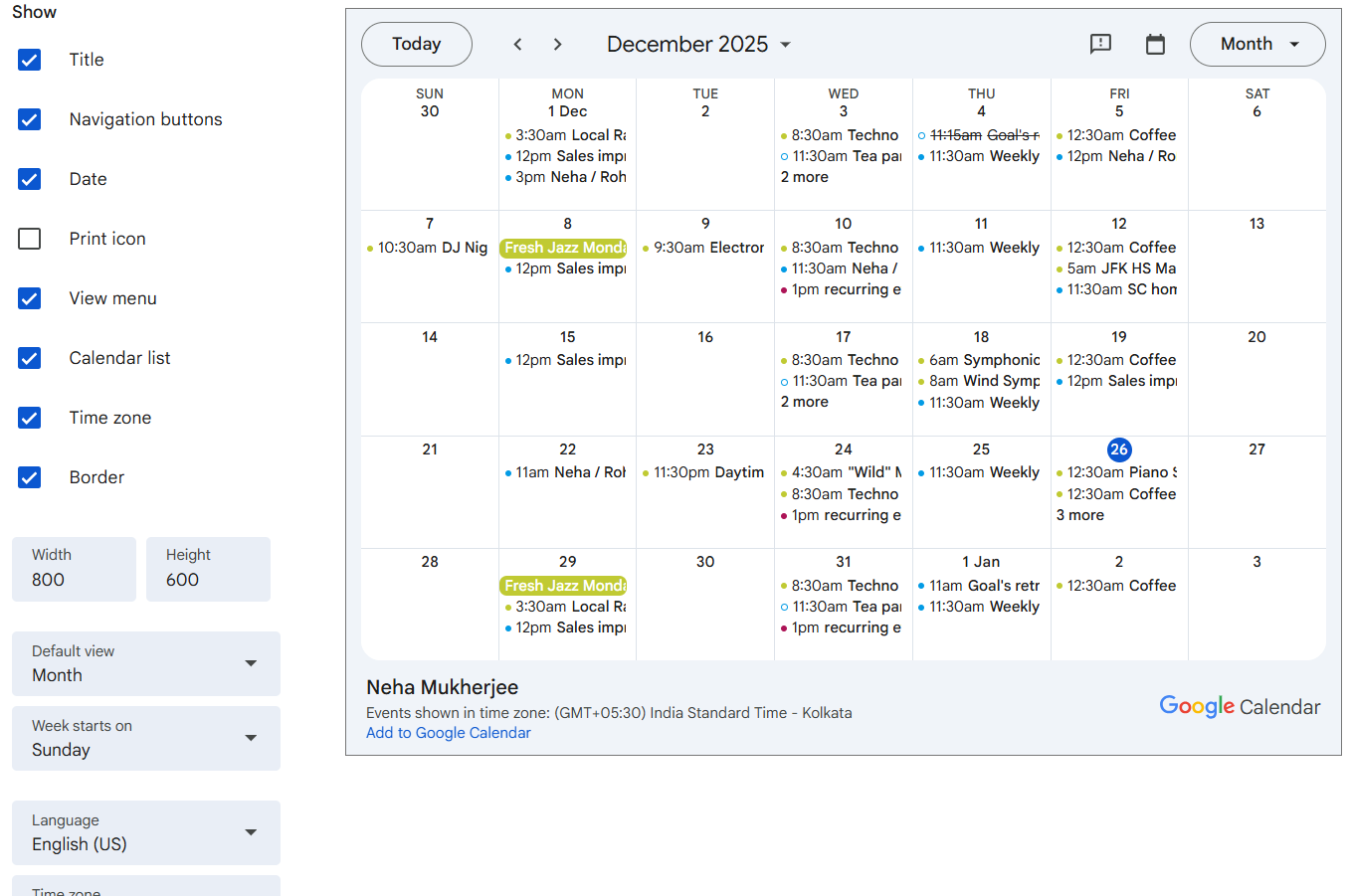
Open the page or post where you want the calendar to appear, add a Custom HTML block (or your page builder’s HTML widget), paste the iframe code, and publish or update the page.
The tradeoffs of using Google’s embed code
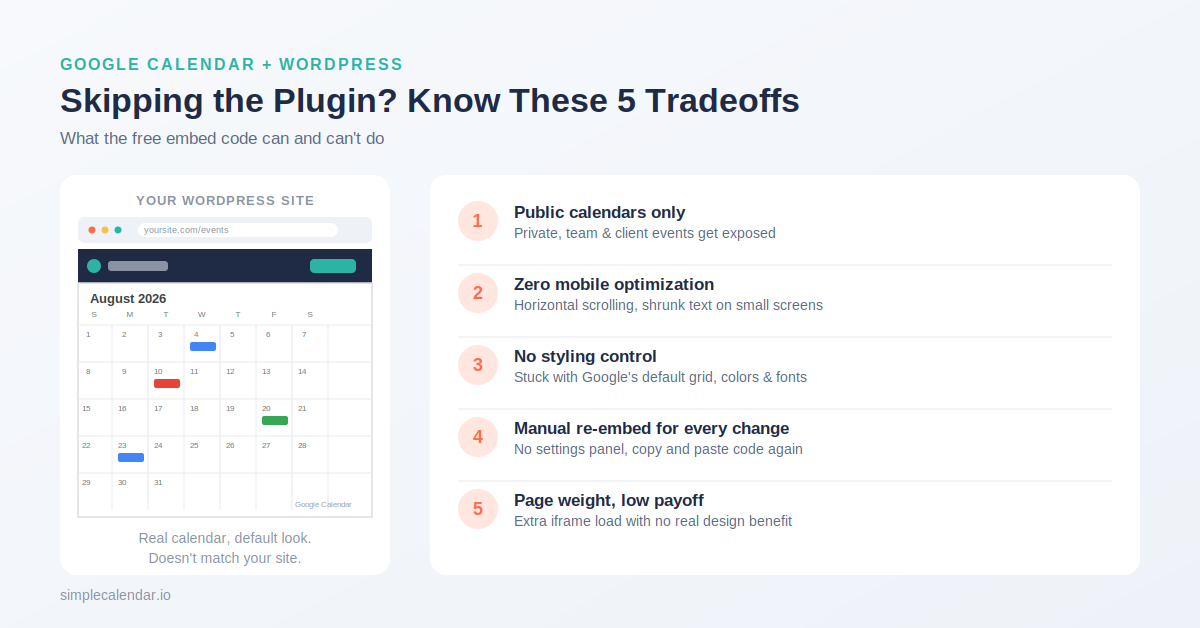
The manual method for adding Google Calendar to WordPress without a plugin is not bad for simple use cases, though it is important to be aware of its frustrating limitations.
Displays public calendars only
Google’s embed method only supports public calendars. If you need to display private schedules, staff availability, member events, or appointment calendars, this approach won’t work without exposing your events publicly.
Limited to zero customization at all
The embedded calendar always uses Google’s interface. You can’t easily match your WordPress theme, customize layouts, adjust typography, control event presentation, or enjoy any enhanced features that a dedicated free WordPress calendar plugin is developed for.
Poor mobile experience
The calendar is embedded in an iframe. This makes the calendar less accessible than a native WordPress calendar. Smaller screens often require additional scrolling and provide a worse user experience.
Delayed event updates
Although embedded calendars do reflect changes made in Google Calendar, updates aren’t always shown immediately on your WordPress site. This delay frustrates if you need real-time synchronization of Google Calendar events.
Less flexibility as your site grows
Making changes usually means returning to Google Calendar settings and updating the embedded iframe. If you later want multiple calendars, different layouts, etc, here’s where the reality of this method’s limitation hits.
Performance considerations
Embedded iframes can add extra page weight and offer fewer optimization opportunities compared to a native WordPress integration.
The best free way to add Google Calendar to WordPress
If you expect your calendar to become more than a basic public schedule, Simple Calendar offers a much smoother experience while still providing a free way to display Google Calendar events in WordPress.
Instead of embedding an iframe, Simple Calendar connects directly to your Google Calendar and displays events as native WordPress content. This gives you a cleaner design, better responsiveness, shortcode support, and much more control over how your calendar looks.
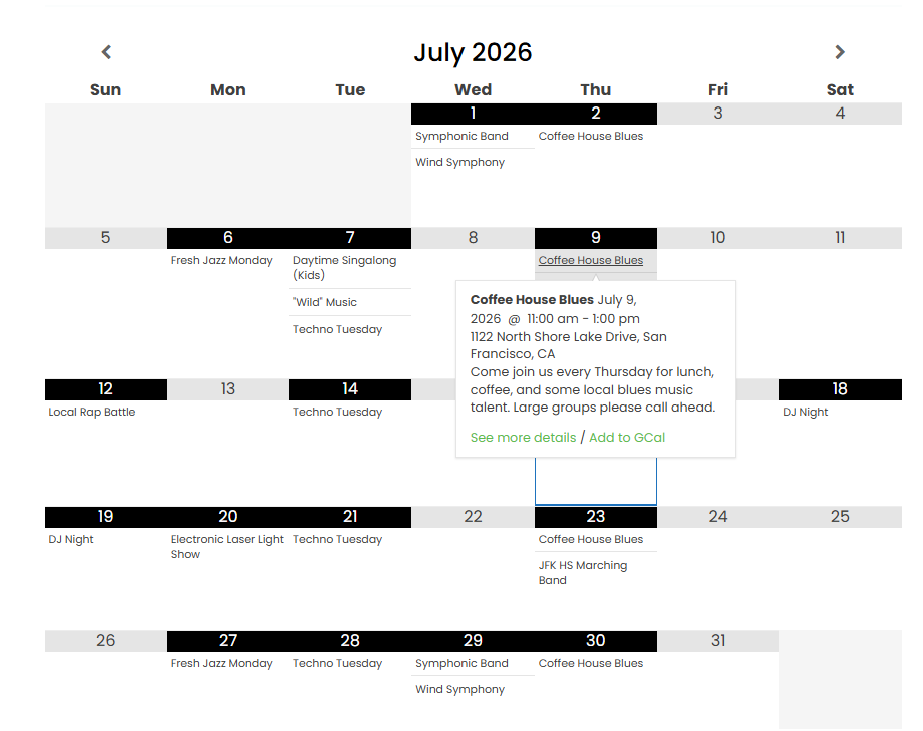
As your needs grow, you can extend the plugin with optional add-ons that unlock features such as:
- Multiple calendar layouts, including Grid, List, and FullCalendar views
- One-click, secure authentication for private Google Calendars
- Booking and appointment scheduling
- Calendar widgets and mobile-friendly displays
- Custom Google Calendar colors
- Grouped calendars and advanced display options
- Simple Calendar’s own advanced custom fields addon
- Advanced customization with event template tags
Final words
Embedding Google Calendar with Google’s free iframe is a perfectly valid option if you only need to display a single public calendar and don’t require much customization.
However, if you care about responsive design, branding, private calendars, customization, or future flexibility, starting with the free WordPress calendar plugin will save time and make it much easier to expand your calendar as your website grows.
Summarize with:
Related posts
Simple plugin. Pro features. Easy from day one.
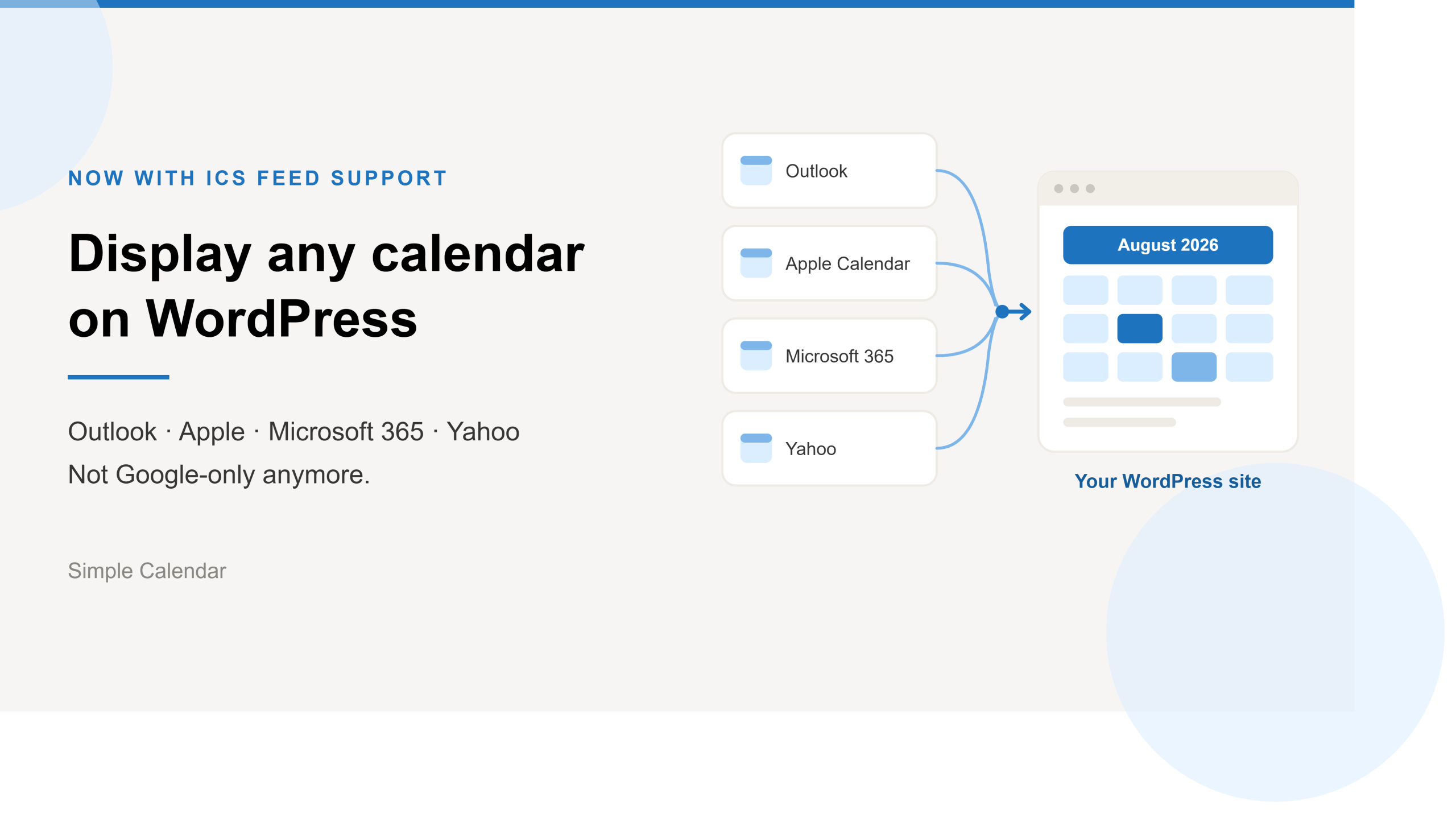
Simple Calendar now imports ICS feeds and connects live ICS feed URL. Learn step-by-step workflows for displaying Outlook, Microsoft 365, Apple, and Yahoo calendars.
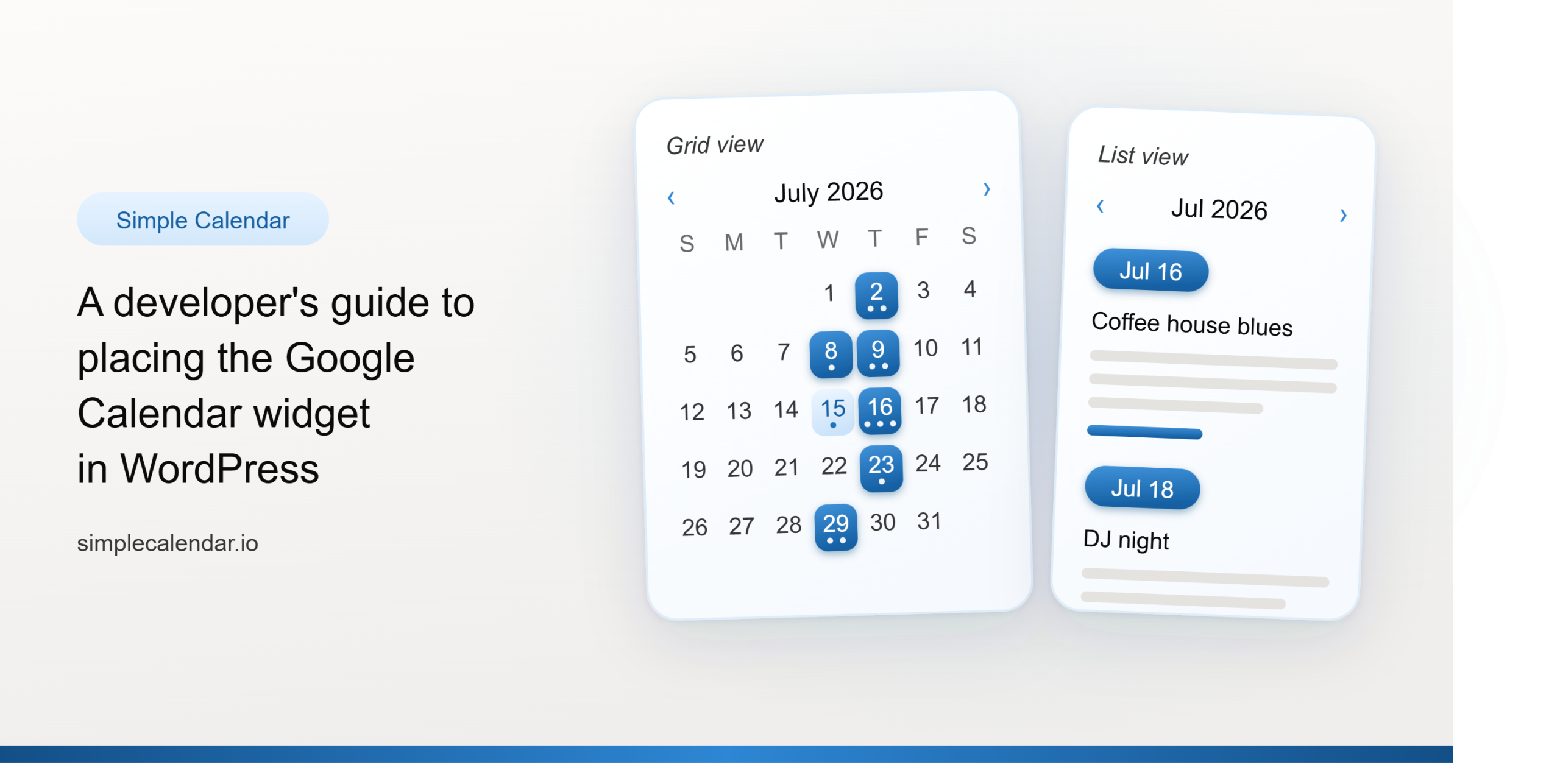
After 13 years of building a WordPress calendar plugin, we know a Google Calendar embed looks like the easy answer. But it rarely stays that way. It’s only after you embed the Google Calendar manually and open the page on your mobile that you realize the calendar decided to live by its own rules. A […]
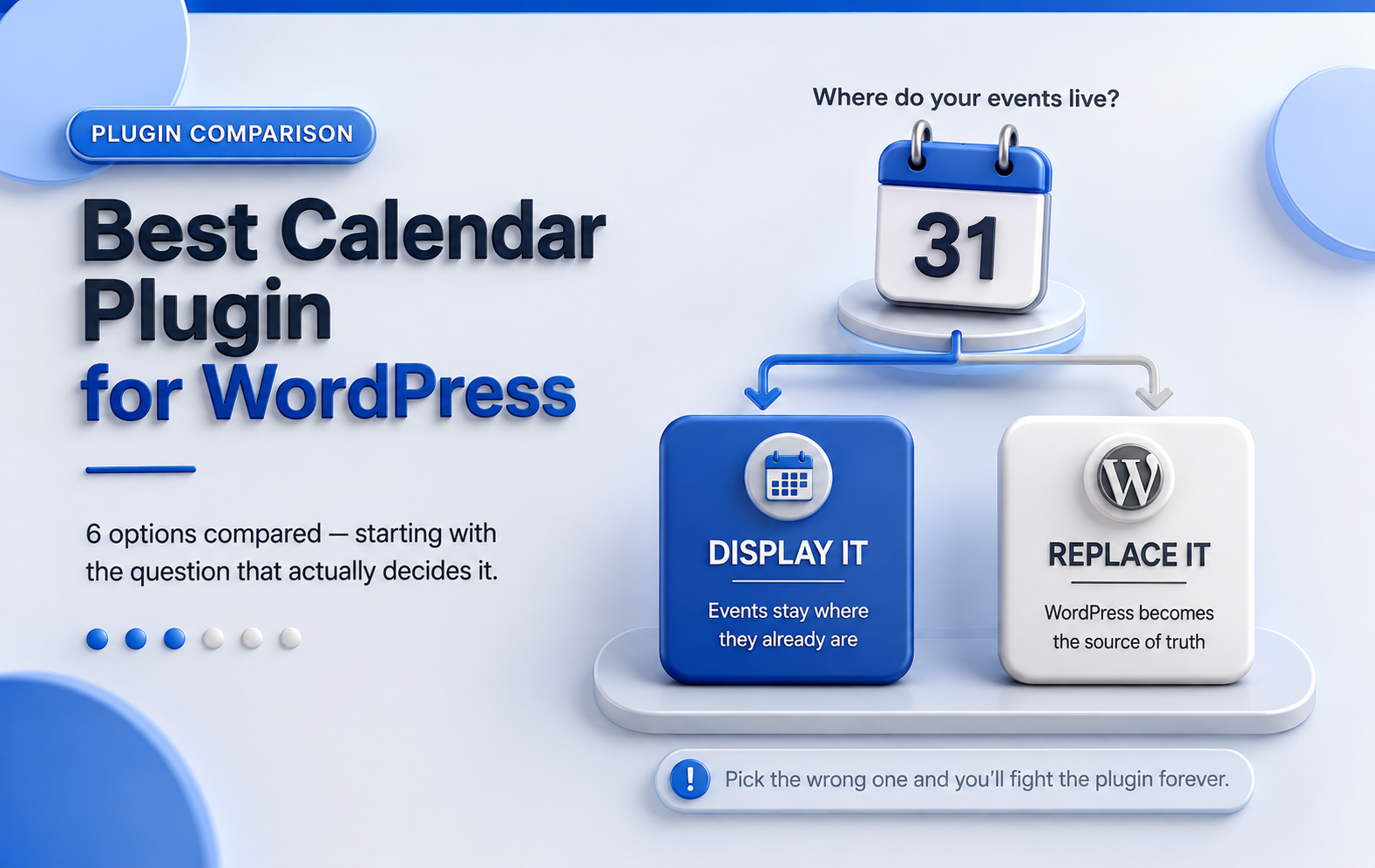
Best WordPress Event Calendar plugins, compared Search ‘best calendar plugin for WordPress‘ and you’ll get ten posts recommending the same three plugins. Not because those three are wrong; they’re genuinely good- but because most roundups are written by ranking plugins against each other in the abstract, feature column by feature column. Whether you’re searching for […]