
TL;DR
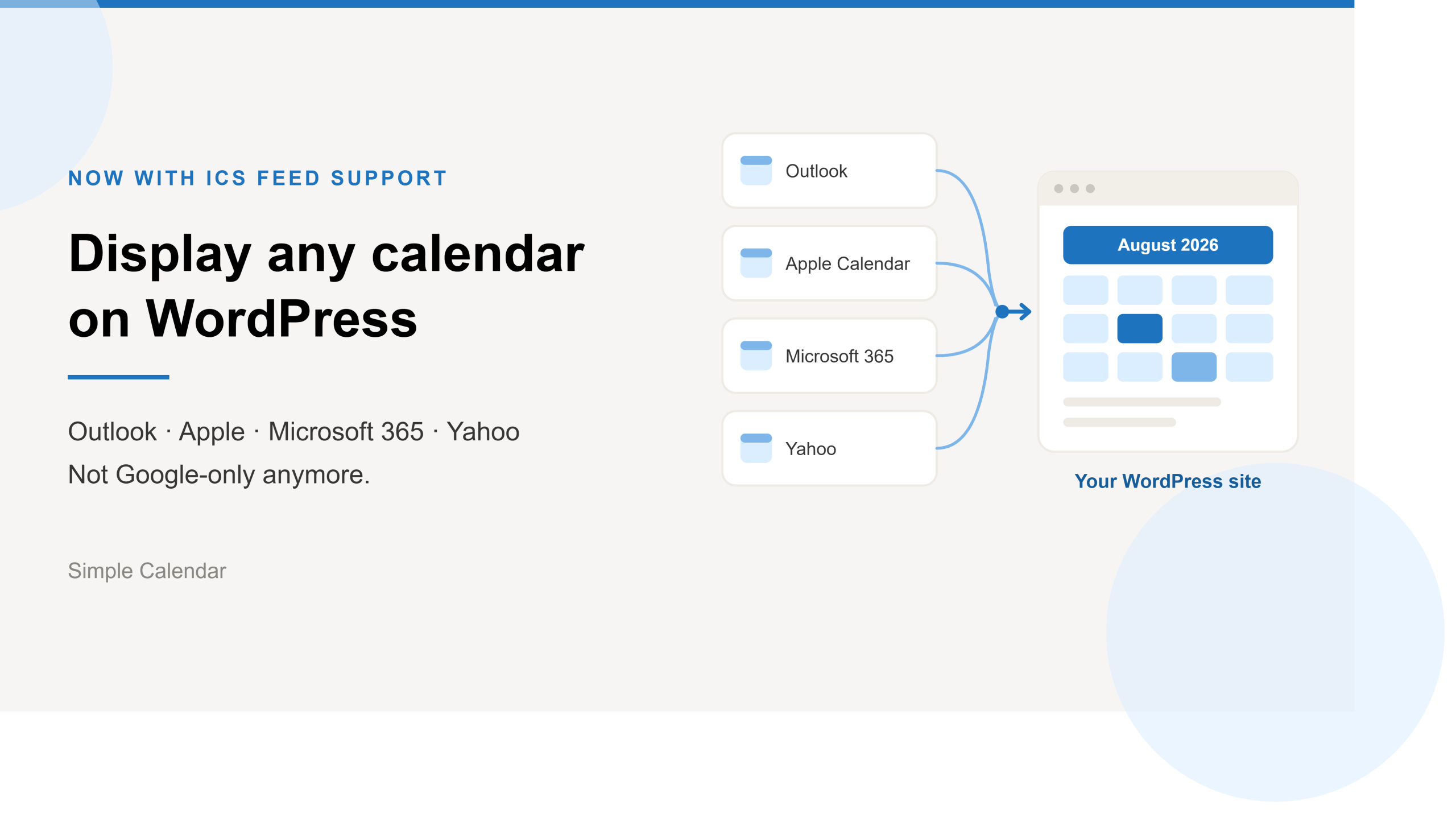
- Simple Calendar now reads ICS feeds, so it’s no longer Google-only. Outlook, Microsoft 365, Apple Calendar, Yahoo, and anything else supporting the iCalendar standard will display on your WordPress site.
- You can either upload an ICS file, available in a free plugin, or connect a live ICS feed URL, available in the Google Calendar Pro addon.
- Public ICS feeds can be accessed with the free plugin, while private ICS feeds require the Pro addon.
- Visitors can also download, subscribe to, or print your calendar once you enable the buttons in Appearance settings.
We’re thrilled to know that Simple Calendar has been successfully recognized as a dedicated Google Calendar plugin for over a decade. And we’re more than happy to share that we’ve been expanding our support to more calendar applications from this month forward.
Simple Calendar now offers integration with calendar applications supporting ICS feeds. So, if you don’t maintain your schedule in Google Calendar but you want to enjoy the goodwill of our plugin, this will be your happiest hour. You can now connect Microsoft 365, Apple iCloud, Outlook, Airbnb, Basecamp, or any other calendar application that publishes an ICS feed.
What you will learn in this post is how Simple Calendar plugin’s both core and paid versions work with and connect to ICS feeds. I’ll be sharing live examples of a few calendar applications supporting ICS feeds and how you can easily connect them via our plugin.
What is an ICS feed?
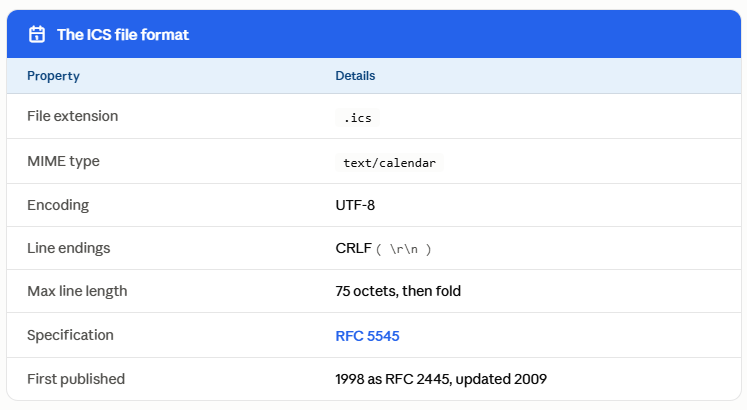
An .ics or iCalendar file is the common format that nearly every calendar app supports and publishes. This iCalendar file contains event data that an ICS feed contains in the form of a URL.
Numerous calendar applications provide a live ICS/iCal feed URL, including Google Calendar, Microsoft Outlook/ Microsoft 365, Apple Calendar/ iCloud, Fastmail Calendar, Zoho Calendar, Yahoo Calendar, AOL Calendar, Tuta Calendar, Proton Calendar, and the list goes on. Even some project management software like Basecamp, Asana, ClickUp, Trello, and Teamwork, etc. also provides an iCalendar feed URL. Every modern calendar application can read and write the ICS file format.
Simple Calendar plugin reads that URL and displays the events automatically on your WordPress site. If you are using the free Simple Calendar plugin, you will have to upload the ICS file. If you’ve access to Simple Calendar’s Google Calendar Pro addon, you can connect it directly to a publicly accessible ICS feed, which you won’t have to manually update again when the events at the source are updated or changed.
Three ways to get your calendar onto WordPress with Simple Calendar
| Basis of comparison | Uploaded .ics file | Live ICS feed URL | Direct Google connection |
| Needs | Free plugin | Google Calendar Pro | Google Calendar Pro |
| Stays current | No, frozen at upload | Yes, refreshes on a set interval | Yes, refreshes on a set interval |
| When you change the source | Re-upload the file by hand | Picked up automatically | Picked up automatically |
| Private calendars | Not applicable | Via secret iCal link (unlisted URL) | Via one-click OAuth |
| Event colors | No | Yes | Yes |
| Attendees, organizer info, attachments | No | No | Yes |
| Setup | Export, upload | Paste a URL | One-click, no API key |
| Best for | A fixed schedule published once | Outlook, Apple, Microsoft 365, other apps | Anyone already on Google Calendar |
How to export your calendar events to an ICS file?
Below, we’ll walk you through a step-by-step guide to exporting calendar events into an ICS file from a few calendar applications. Please note that the steps can differ slightly in each of your calendar apps, but the process is almost similar. You will have to open the calendar’s settings, find the export or download option, and save the .ics file.
Export a Google Calendar ICS file
Open your web browser and go to calendar.google.com. Now, sign in to your Google account if you’re not signed in already. You will then be redirected to the Google Calendar home screen.
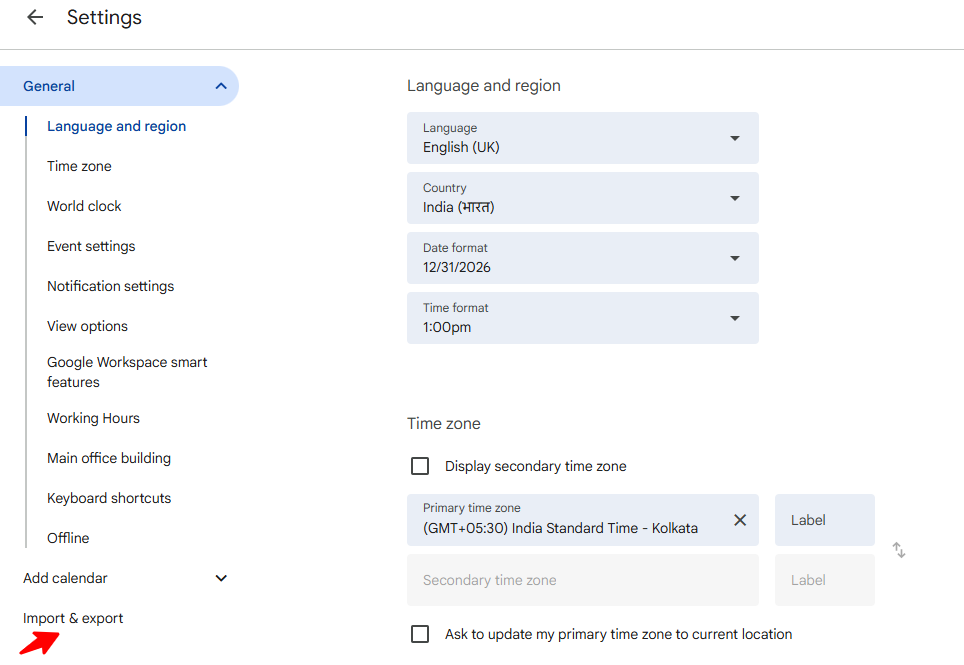
Click Settings and go to the Import & export option on the left side of the screen. You can check this guide for reference.
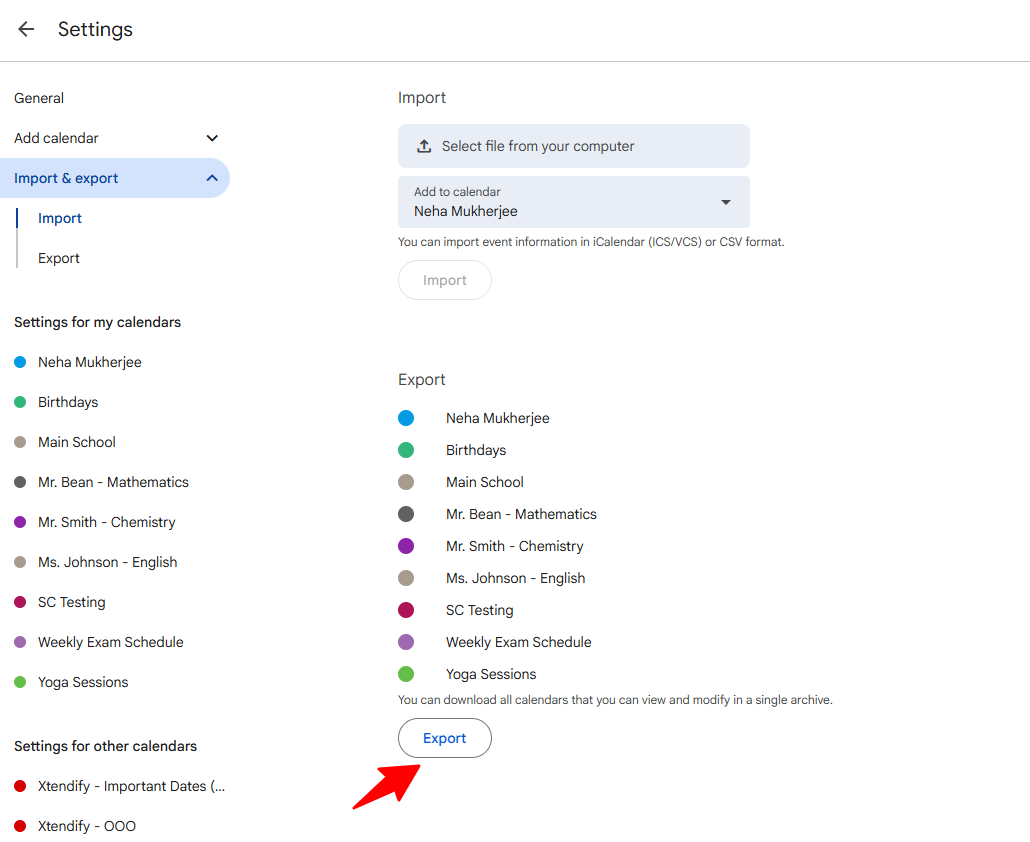
Navigate to the Export section and click the Export button. Your gmail.ical.zip file will be downloaded to your computer. ICS file for your individual calendars is present in the zip folder of your iCal file. Extract the zip folder and find the individual ICS files of your calendar.
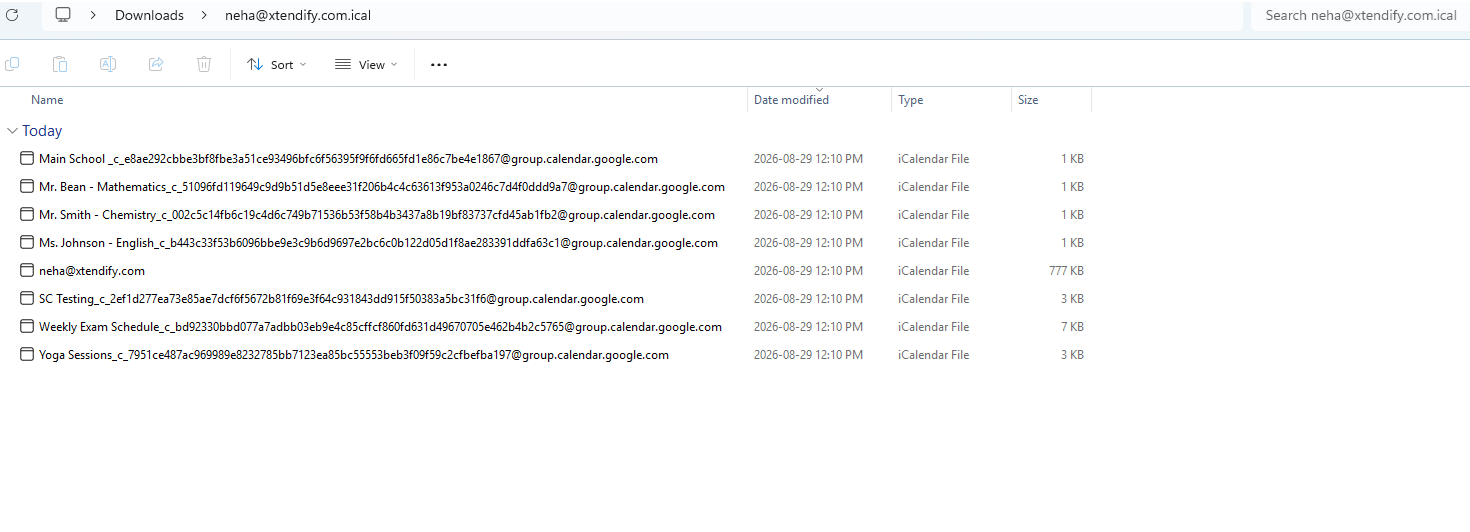
Export your Outlook calendar as an ICS file
Step 1: Open the Outlook calendar you want
Switch to the Calendar view in your Outlook desktop app, then click the calendar you want to export.
Step 2: Go to File> Save Calendar
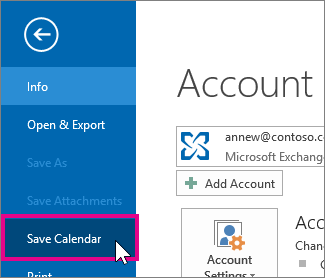
This opens a save dialog with a summary of what you’re about to export: the calendar name, the date range, and how much detail it will include.
Step 3: Name the file
The default name is fine, or type your own. If the summary already looks right, skip to step 5.
Step 4: Adjust the range and detail (optional)
Click More Options to change two things:
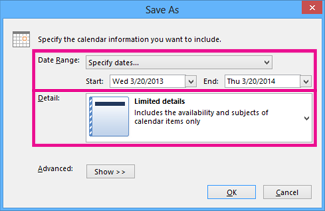
- Date Range — how much of your calendar to include. You can pick a preset or choose “Specify dates” for a custom range.
- Detail — how much information each event carries.
Step 5: Save
Click OK, then Save. You now have an .ics file ready to upload to Simple Calendar. Check this guide for reference.
Export individual Apple Calendar events into an ICS file
Open the Calendar app on your Mac and find the calendar you want in the left sidebar. If the sidebar isn’t showing, go to View → Show Calendar List to bring it up. Click the calendar’s name to select it, then go to File → Export → Export. Choose where to save the file and click Export. You’ll get an .ics file, ready to upload. Please check this guide for reference.
How to get an ICS feed URL for your calendar?
Getting your Google Calendar ICS feed URL
Step 1: Open Google Calendar and find the calendar you want
Go to calendar.google.com and make sure you’re signed in. Your calendars are listed in the left sidebar. Hover over the one you want and click the three-dot icon that appears next to its name.
Step 2: Go to Settings and Sharing
Click “Settings and sharing” from the menu that appears.
Step 3: Copy the secret iCal link
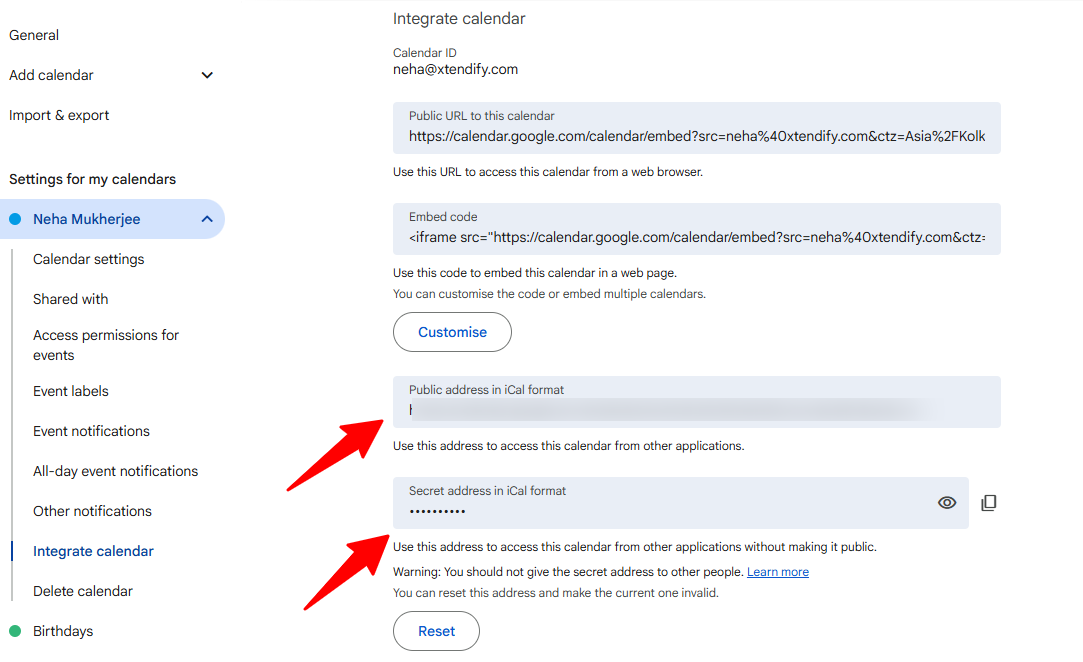
Scroll down until you see ‘Secret address in iCal format.‘ Copy that link.
Getting your Outlook & Microsoft 365 ICS feed URL
Step 1: Open Outlook in your browser and navigate to Settings
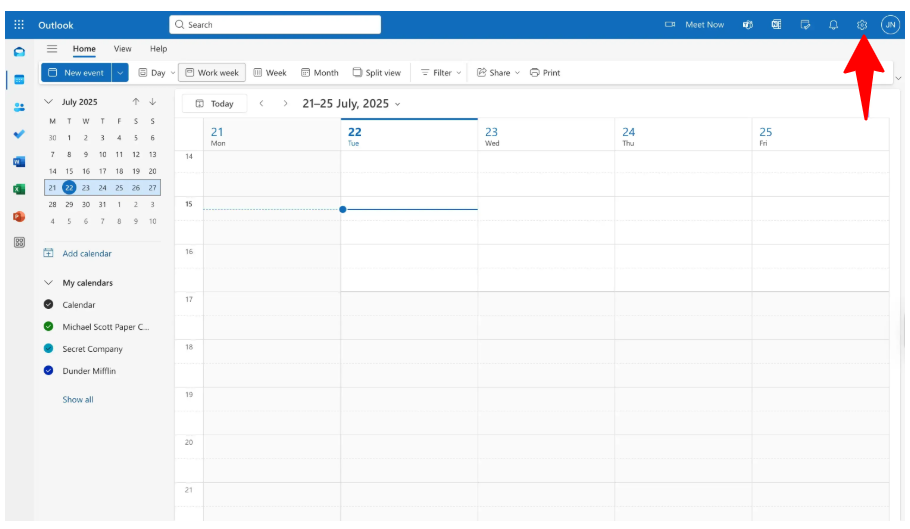
Go to outlook.live.com/calendar and sign in. This works in the browser version, as the desktop Outlook doesn’t have the publish option directly. Click the gear icon in the top right corner.
Step 2: Go to Calendar → Shared calendars
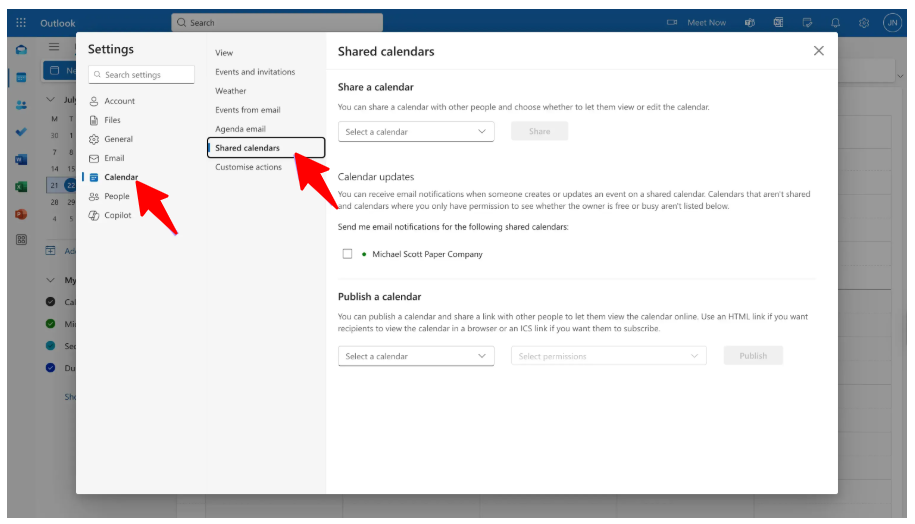
Click Calendar on the left in the Settings panel, then Shared calendars.
Step 3: Publish your calendar
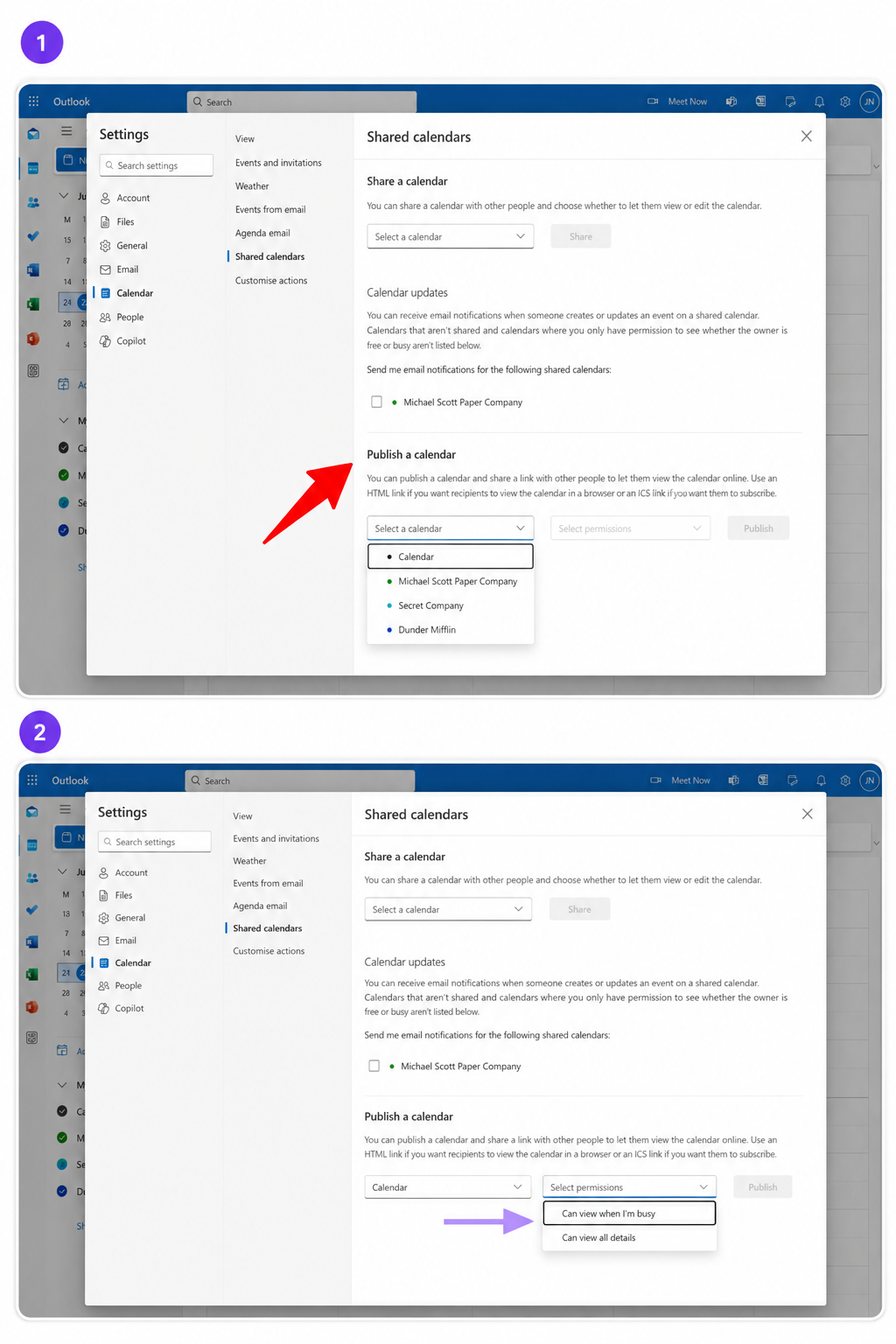
Under ‘Publish a calendar,’ choose the calendar you want from the dropdown, then select a permission level. ‘Can view all details‘ shows full event information, while ‘Can view when I’m busy‘ shows only free and busy blocks. Click Publish.
Step 4: Copy the ICS link
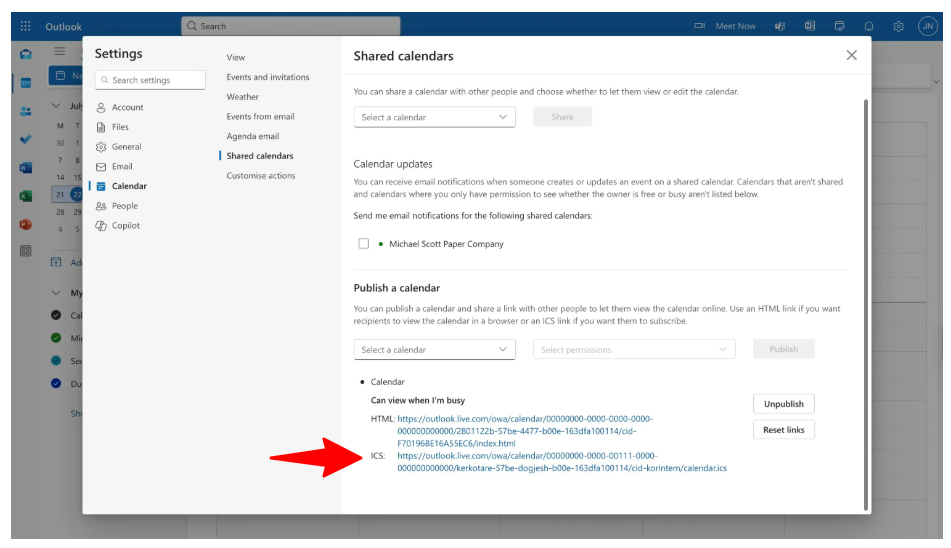
Two links appear, i.e., an HTML link and an ICS link. Copy the ICS link and paste it into Simple Calendar.
Getting your Apple Calendar/ iCloud ICS feed URL
Step 1: Open the iCloud calendar in a browser and find your calendar
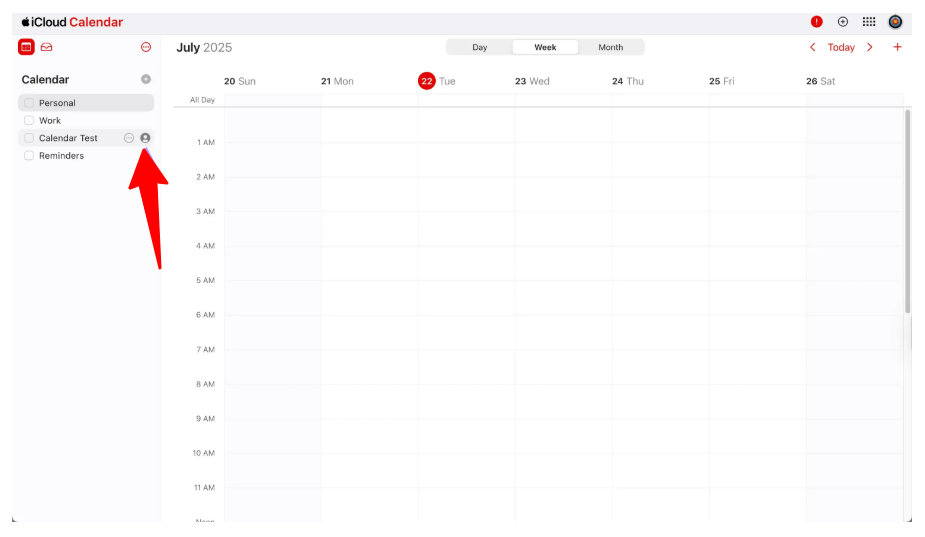
Go to icloud.com/calendar and sign in with your Apple account. Hover over the calendar name in the left sidebar and click the person icon that appears next to it.
Step 2: Turn on Public Calendar
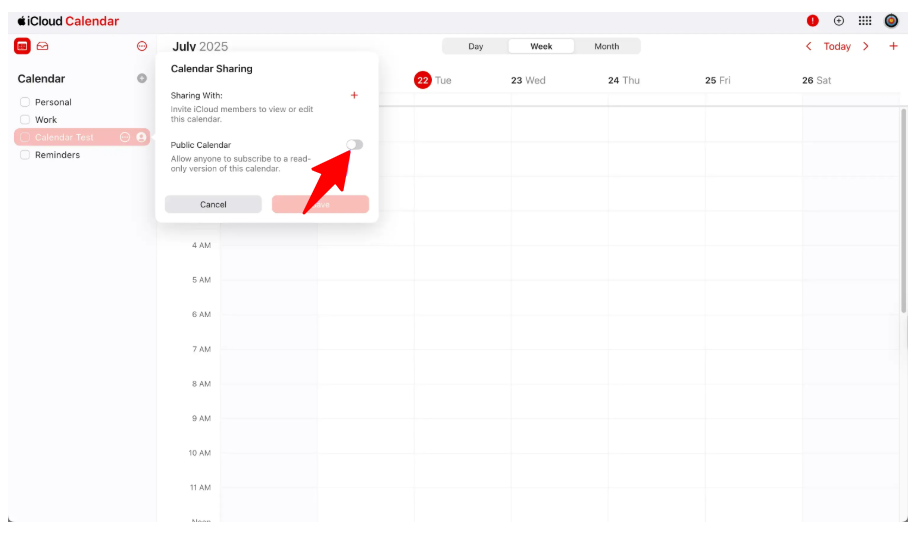
Toggle the ‘Public Calendar‘ switch on. This generates a shareable link.
Step 3: Copy the link and swap the prefix
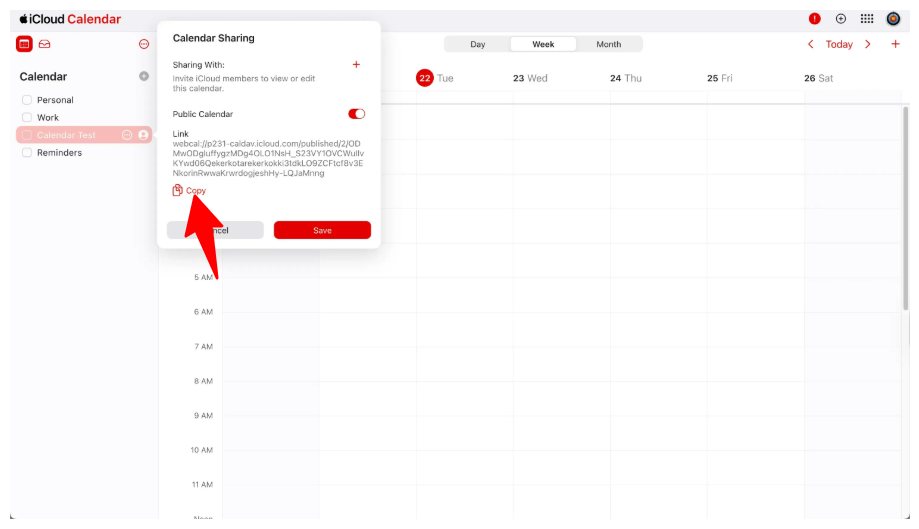
Click Copy. The link Apple gives you starts with webcal:// — change that prefix to https:// before pasting it into Simple Calendar. Everything after the:// stays the same.
How to upload an ICS file in Simple Calendar?
You can upload an ICS file with the Simple Calendar free plugin. Here are the exact steps you need to follow:
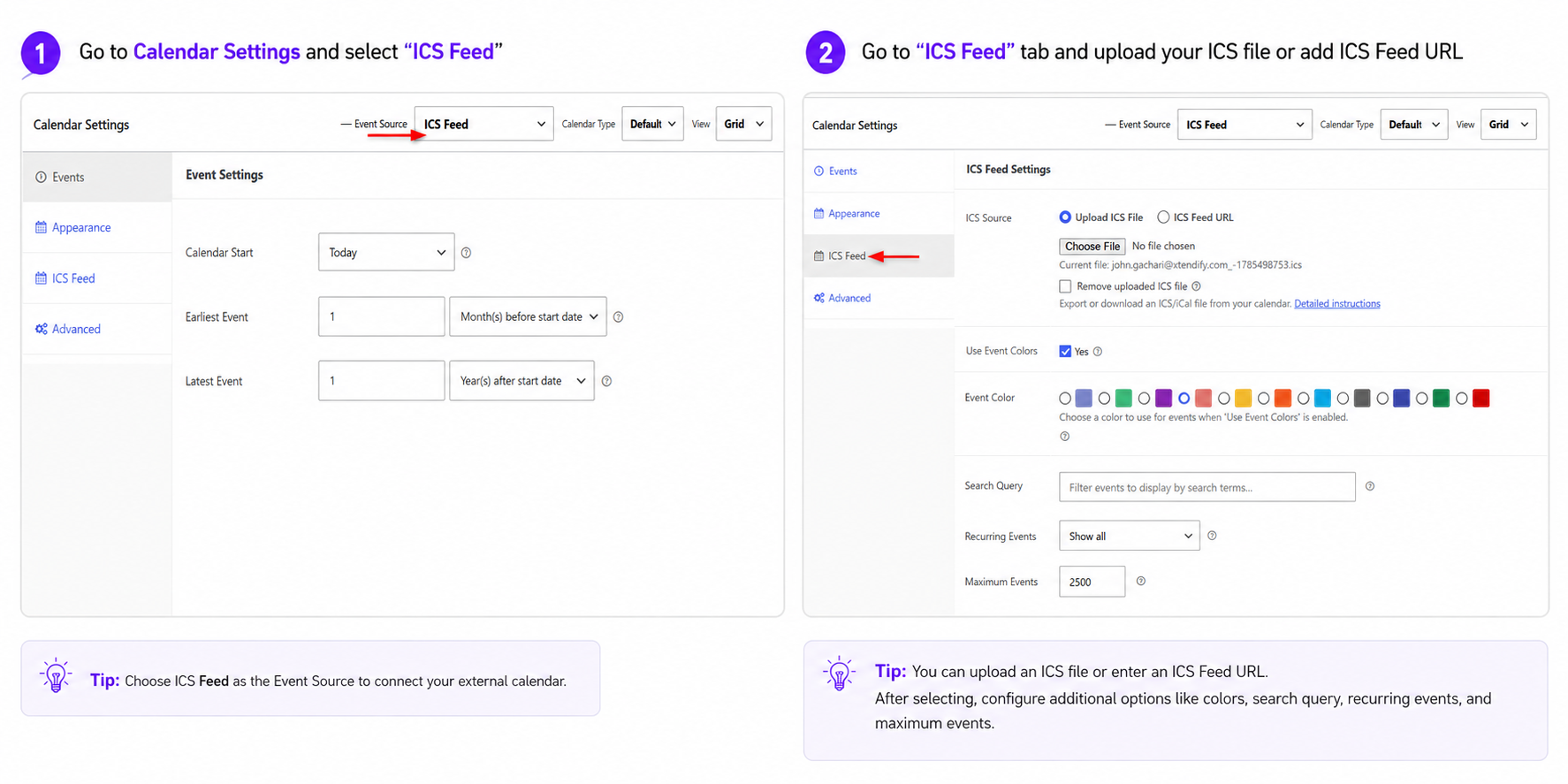
- In your WordPress dashboard, go to Calendars → Add New Calendar.
- Under Calendar Settings, set Event Source to ICS Feed. A new ICS Feed tab appears.
- Click the ICS Feed tab.
- Under ICS Source, choose Upload ICS File.
- Click Choose File, select your .ics file, and wait for the filename to appear beneath the upload field — that confirms the upload worked.
- Click Publish.
The uploaded file is a manual job you need to repeat every time the source calendar updates. If you update your calendar later, you’ll need to export a fresh file and upload it again. For a schedule that changes, the feed URL route below is the better option.
How to connect a live ICS feed URL with Google Calendar Pro?
With our latest release, you can also connect a live feed URL with Simple Calendar’s Google Calendar Pro addon. This keeps your site in step with your source calendar automatically. You’ll need the Google Calendar Pro addon installed and activated.
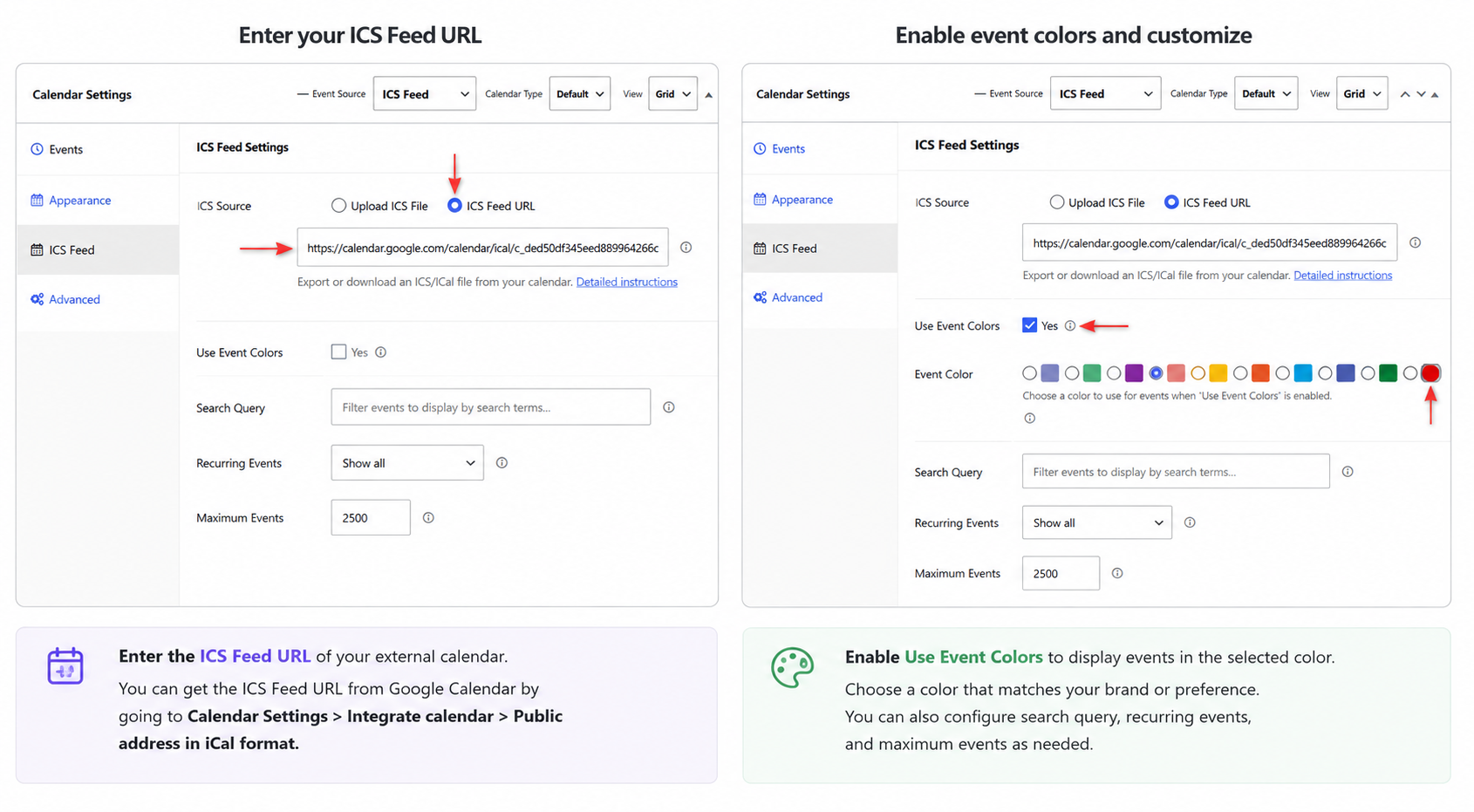
- Go to Calendars → Add New Calendar.
- Set Event Source to ICS Feed, then click the ICS Feed tab.
- Under ICS Source, choose ICS Feed URL. (This option only appears with Google Calendar Pro active.)
- Paste your calendar’s ICS link into the ICS Feed URL field.
- Click Publish.
Before you paste the URL, open it in your browser first. It should download a text file. If it asks you to sign in instead, the link isn’t publicly accessible and won’t work. Use your calendar’s public or secret iCal subscription link instead.
Optional: With Google Calendar Pro active, you can also turn on Use Event Colors and assign a colour to calendar events.
How to add download, subscribe, and print buttons with Simple Calendar?
Once you display a calendar on your site using the ICS method, you can give your visitors three ways to take it with them: download, subscribe, and print.
- Download: Let visitors download the calendar as an ICS file and import the events into their preferred calendar app.
- Subscribe: Visitors can subscribe to your calendar feed and keep it connected to their own calendar app. This also means your
WordPress site can act as a calendar feed source for other apps and calendar platforms. When the calendar is updated on your site, those changes can be picked up by apps that support ICS subscriptions. - Print: Give visitors a print-friendly version of the calendar so they can keep a physical copy of the schedule.
You can enable these buttons from Appearance settings and choose which options you want to make available to your visitors.
How to enable download, subscribe, and print buttons
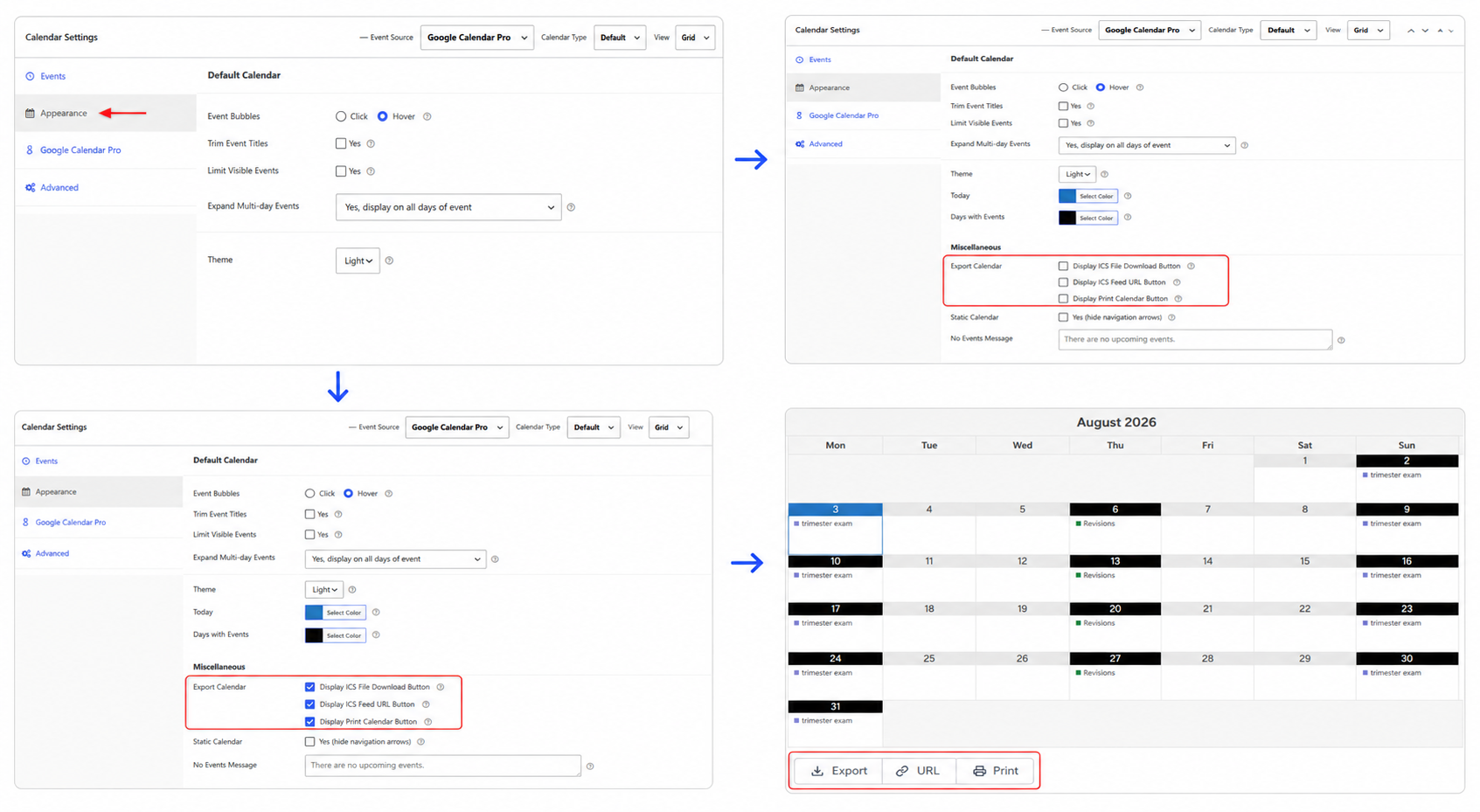
- In your WordPress dashboard, go to Calendars and open the calendar you want to edit.
- Click the Appearance tab under Calendar Settings.
- Scroll down to the Miscellaneous section and find Export Calendar.
- Switch on whichever buttons you want to show.
- Click Update.
Frequently asked questions
What is an ICS URL?
An ICS URL is a web address in the iCalendar format that points to your calendar. There are many calendar apps that support this iCalendar format, including Google Calendar, Outlook, and Apple Calendar, etc.
You can simply paste this URL into Simple Calendar, and it displays events on your WordPress site with automatic syncing.
What can I use an ICS URL for?
The most common use is displaying a calendar from one app on your WordPress site without retyping anything. It’s also how you share a live-updating schedule with anyone, including the students, clients, and congregation members, so they always see the current version without you sending updates manually.
Is ICS import free?
Uploading an .ics file works on the free plugin. Connecting a live ICS feed URL requires the Google Calendar Pro addon.
Why won’t my feed URL import?
It mostly happens because it isn’t publicly accessible. If the URL asks anyone to sign in, Simple Calendar can’t read it. Use your calendar’s public or secret iCal subscription link instead.
Can I display a private calendar with an ICS feed?
Yes, you can display a private calendar using its secret iCal link. A secret link is unlisted rather than authenticated, so anyone holding the URL can read the calendar. That’s weaker than the OAuth connection Google Calendar Pro uses for private Google Calendars
Can I get an ICS URL for a single event rather than a whole calendar?
Most calendar apps only generate feed URLs for entire calendars, not individual events. If you only want certain events visible, the cleanest workaround is to create a separate calendar containing just those events and generate the ICS link for that.
What’s the difference between https:// and webcal:// links?
webcal:// is a signal to your device to open the link in a calendar app rather than a browser. Google Calendar and Outlook use https://; Apple iCloud uses webcal://. If Simple Calendar rejects a webcal:// link, swap the prefix to https:// while keeping the rest of the URL the same.
I can’t find the “Secret address in iCal format” in Google Calendar.
Your Google Workspace administrator has likely disabled secret calendar URLs. Ask them to re-enable it, or make the calendar public and use the public iCal link instead.
Why don’t my changes appear on the site immediately?
Simple Calendar checks the feed at a set interval and retrieves whatever has changed. The source calendar app also controls how often it updates the feed on its end, which can add further delay.
Changes should appear within a reasonable window, though the exact timing varies by calendar app. If something urgent needs updating immediately, a manual cache clear from the calendar settings will prompt a fresh fetch.
Summarize with:
Related posts
Simple plugin. Pro features. Easy from day one.
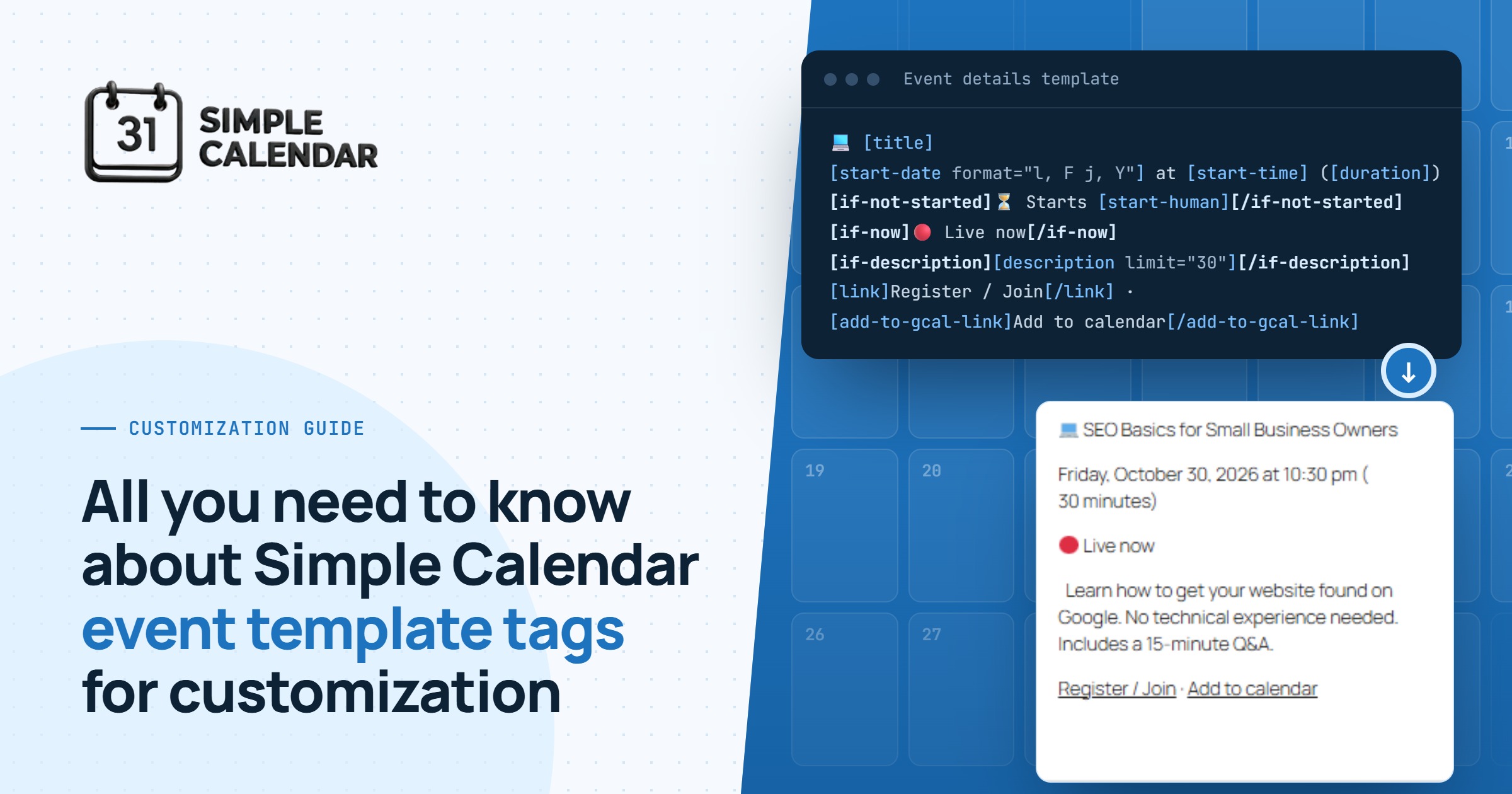
Want more control over how events display on your WordPress calendar? Simple Calendar’s event template tags let you customize every detail with simple shortcode-like tags. Free plugin, no code needed.
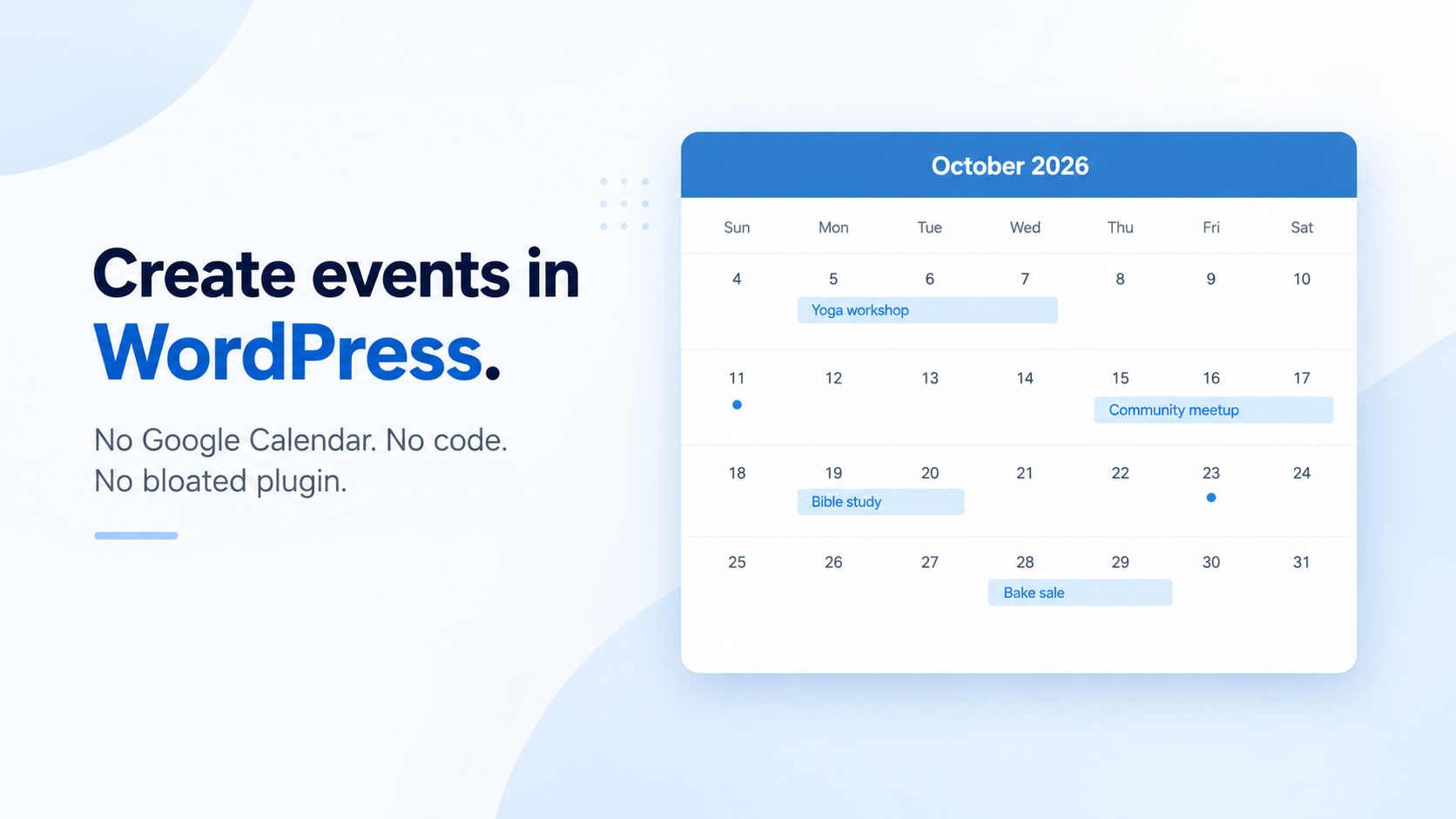
Learn how to create events in WordPress without Google Calendar using Simple Calendar’s free SC Events feature. A lightweight event post type for any site.
We read the top 10 Google results for ‘best WordPress calendar plugin’ in September 2026. 8 of 10 recommended an event-management plugin to readers who only needed a display. But you already know it’s not enough for the specific choice you need to make. And that advice generally falls apart when you realize that each […]