
TL;DR
Simple Calendar’s event template tags let you control exactly what event details you want to show on your WordPress calendar, including the title, description, location, time, duration, and more, without writing any code. There’s a long list of tags available in our free plugin. Our plugin also supports conditional tags that show or hide content based on an event’s status, so you have immense flexibility to customize your event details for different use cases like churches, fitness studios, venues, and schools.
Need a custom tag that doesn’t exist yet? Reach out to our team so we can build new tags based on your requirements.
Simple Calendar not only displays events from external calendars or events you create directly on your WordPress site, but also lets you customize how they appear. You can display titles, descriptions, locations, times, durations, links, and more using Simple Calendar’s event template tags. These tags work like shortcodes. Add them to your calendar’s event template field, and the plugin will display the corresponding event data for each event.
We’ll explain what event template tags are and how they work. You’ll also learn about all the tags available in the free plugin, conditional tags for showing or hiding content based on an event’s status, and practical templates for churches, fitness studios, venues, and more. Finally, we’ll cover the additional tags available exclusively in the Google Calendar Pro addon.
Choosing the right calendar plugin is only the first step. If you’re still comparing your options, explore our guide to WordPress calendar plugins to find one that fits your needs.
What are Simple Calendar event template tags?
Hopefully, if you’ve been using Simple Calendar for a while, you’re already familiar with event template tags. We’ve set some event template tags as defaults, but there’s a whole library of tags to give you more flexibility in customizing your events. These tags let you control what information appears in your event description.
In simple terms, Simple Calendar event template tags are shortcode-like tags that you add to your calendar’s event template. They tell Simple Calendar what information to display for each event and how to display it. You don’t need to add any PHP, override templates, or edit your theme. Simply add the tags to a text field.
This is one of the most flexible features of our plugin, and most of it is available for free. Below, we’ll cover every available tag in more detail, explain how to use them in practical scenarios, and explore conditional tags that let you change what’s displayed based on an event’s status.
How event template tags work in Simple Calendar?
Event template tags may feel familiar to you if you’ve ever used a WordPress shortcode (that you might be using already to display created calendars).
Each tag is wrapped in square brackets and outputs a specific piece of event data. For example, [title] displays the event title. [description] displays the event description. [location] displays the event location.
Some tags are self-closing. Others wrap around link text, like [link]View details[/link], which creates a clickable link pointing to the original event entry.
Many tags also accept optional attributes to fine-tune their output. For example, [description html="yes"] allows HTML formatting in the description, and [title limit="10"] truncates the title to 10 words.
Where to add event template tags
You need to add event template tags while you’re creating calendars. When you edit a calendar in Simple Calendar, you’ll find a content editor field for the event template. This is where you build the layout for how each event will be displayed.
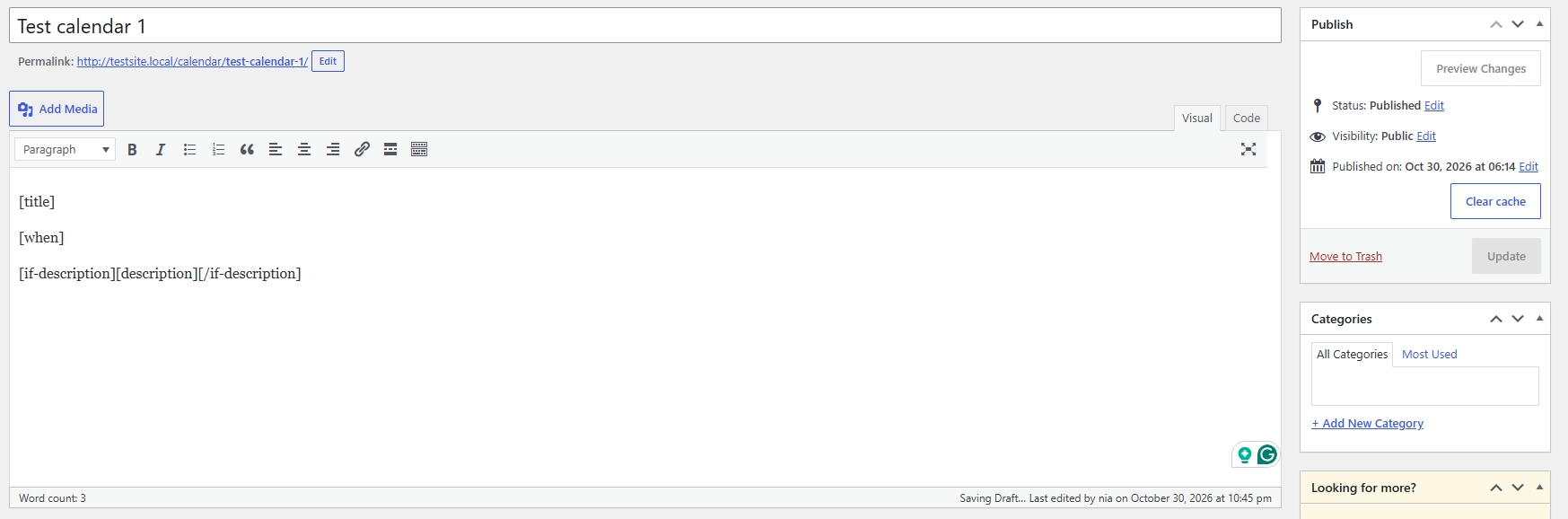
Anything you enter in the text field, i.e., HTML markup, text, or event template tags, renders that information for every event on the frontend display of the calendar. It offers you the flexibility to create completely customized layouts for different calendars on the same site or align the frontend display as per your requirements.
List of event template tags available for free in Simple Calendar
Here’s the full list of event template tags available in the free Simple Calendar plugin.
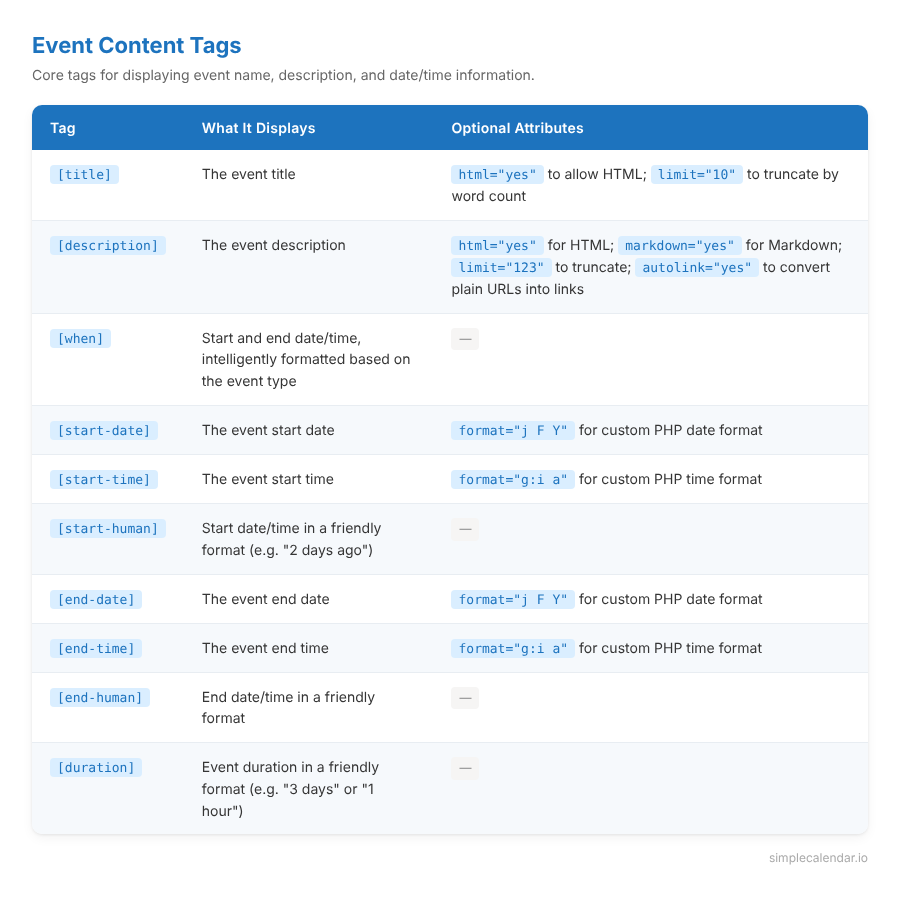
Event content tags
You’ll mostly use these core tags. They pull the main details of an event, such as its name, description, and all the date/time information your visitors need.
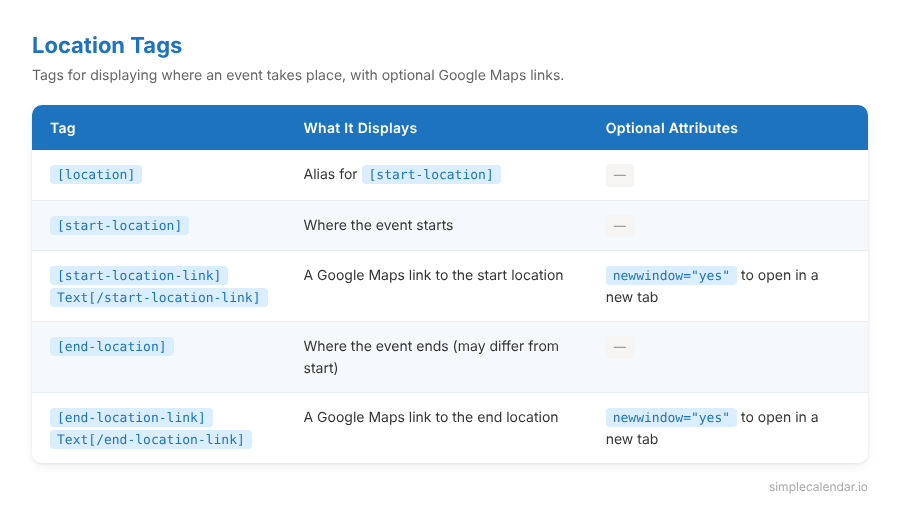
Location tags
These tags display where an event takes place. If your events have a location set in Google Calendar or SC Events, these tags render the address and can link directly to Google Maps.
Link and identifier tags
These tags are made to handle linking while directing visitors to the original event. These tags create clickable links and show event identifiers. The first two are the ones you’ll use most. They let visitors view the full event or save it to their own Google Calendar. The rest (URL, IDs, calendar name) are mostly useful for advanced setups or troubleshooting.
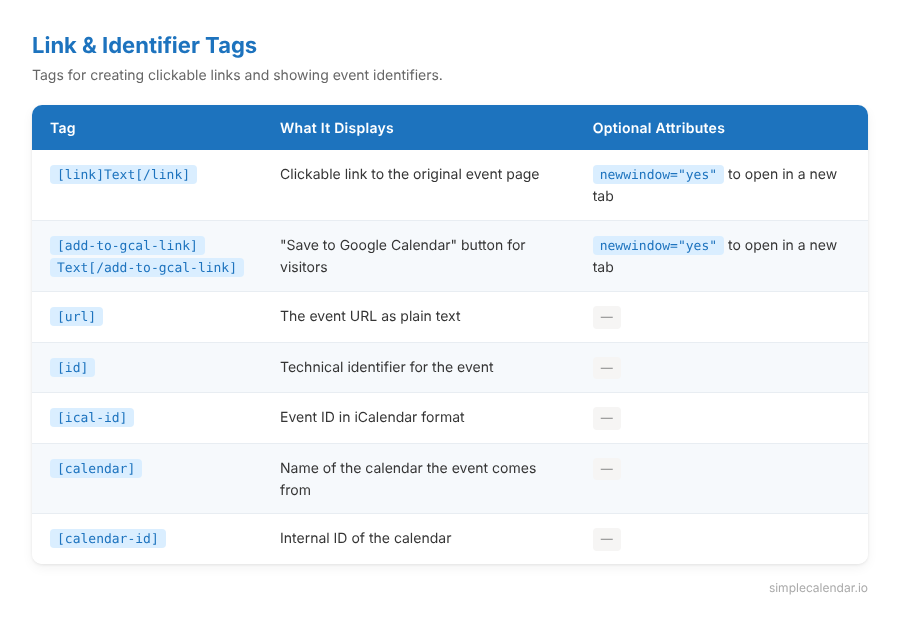
All of the event template tags mentioned above are available in the free Simple Calendar plugin.
List of conditional event template tags to show or hide event details based on status
As the name says, conditional tags let you wrap content so it only shows up when a condition is true.
The syntax is simple: [if-today]This event is happening today![/if-today]
That text only appears for events that fall on the current day. For all other events, it’s invisible.
You can put any combination of text, HTML, and other event template tags inside a conditional block.
For example:
[if-now]🔴 Happening now: [title][/if-now]
This shows a “happening now” label with the event title, but only for events currently in progress.
Time-based conditional tags
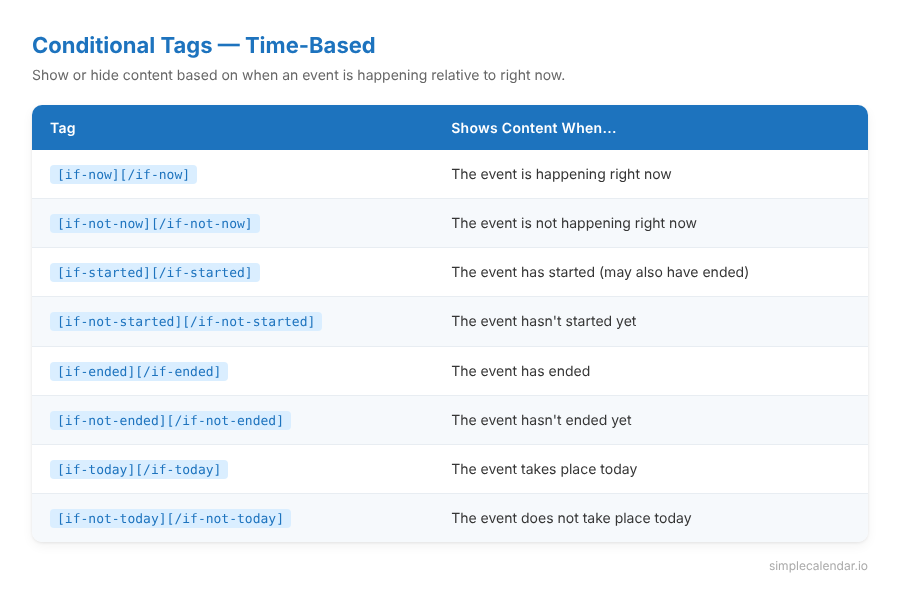
Event property conditional tags
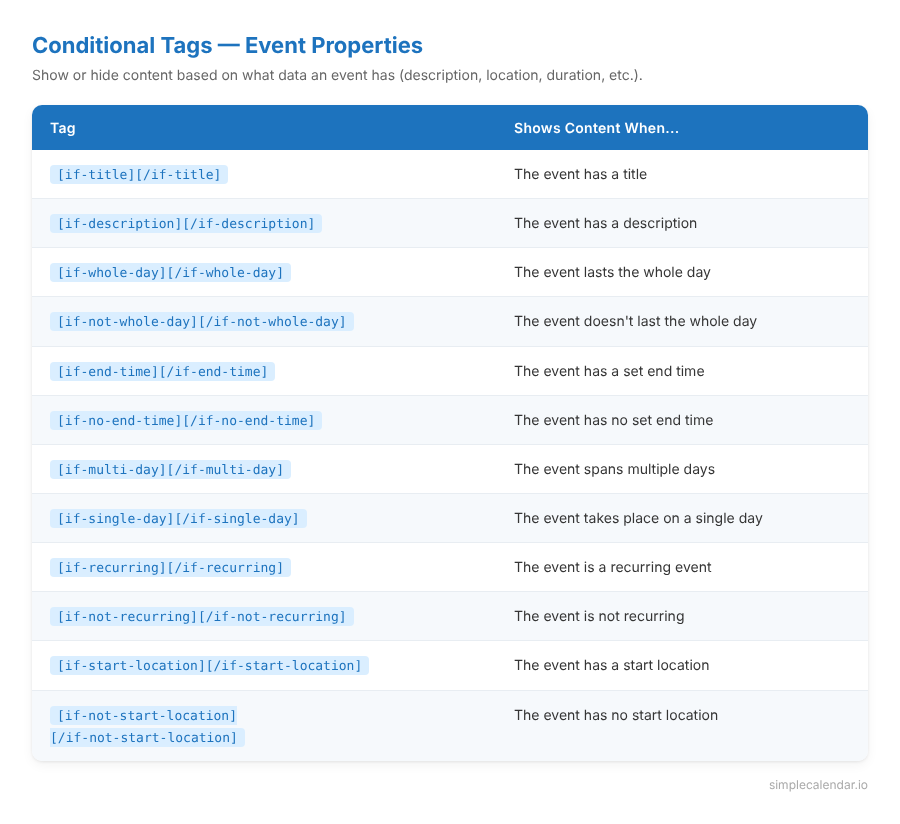
All of the conditional event template tags are available for free in the Simple Calendar plugin.
Ready-to-use event template examples
Here are ready-to-use event template combinations for common use cases. Copy any of these into your calendar’s event template field.
Basic: Title + time + description
The simplest useful template. Good for any general-purpose calendar.
[title]

[when]

[if-description][description][/if-description]
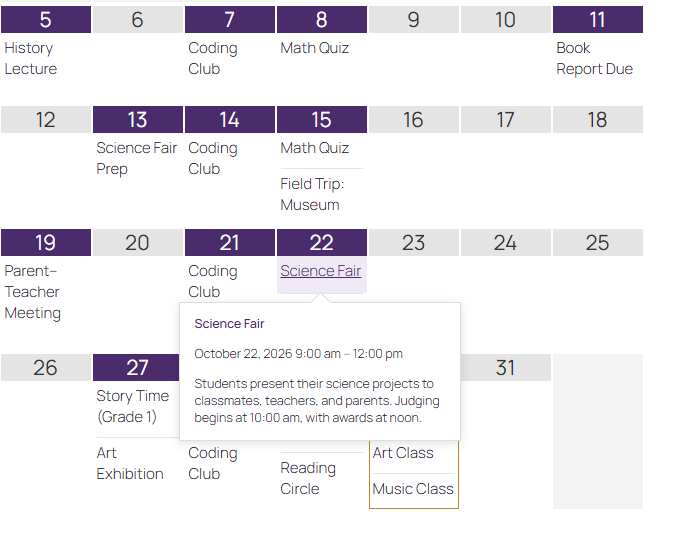
This shows the event title, the date and time (auto-formatted), and the description only if one exists.
Church service calendar
Churches typically need the service name, time, location, and a way for members to save it to their own calendar.
[title]

[when]

[if-start-location]📍 [start-location-link]View on map[/start-location-link][/if-start-location]

[if-description][description][/if-description]

[add-to-gcal-link]Add to Google Calendar[/add-to-gcal-link]
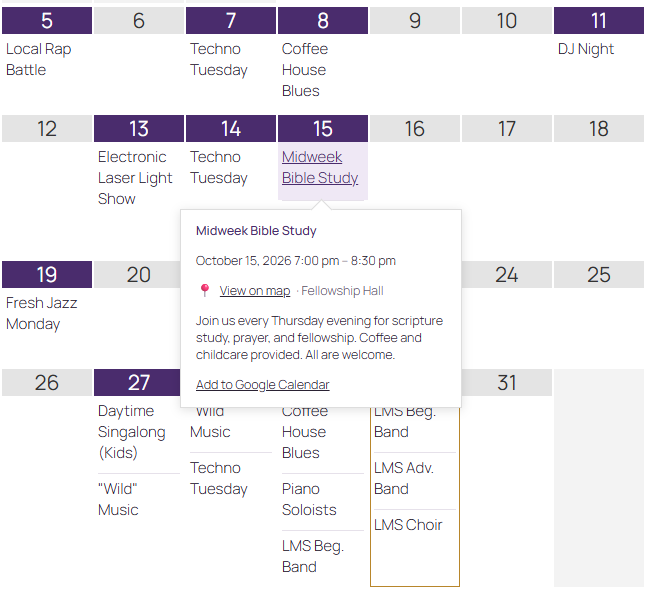
Because we wrapped the location in [if-start-location], it only appears when the event actually has a location set. So if your Sunday service always happens at the same building and your members already know where it is, just leave the location field empty for that event, and the calendar won’t show a location line at all. But for a special off-site event like a picnic at a park, add the location, and it’ll show up automatically with a map link.
Fitness studio/yoga class schedule
Classes benefit from showing the duration and a “happening now” indicator for live schedules.
[if-now]🔴 In progress[/if-now]

[title]

[start-time] - [end-time] ([duration])

[if-start-location]📍 [location][/if-start-location]

[if-description][description limit="20"][/if-description]
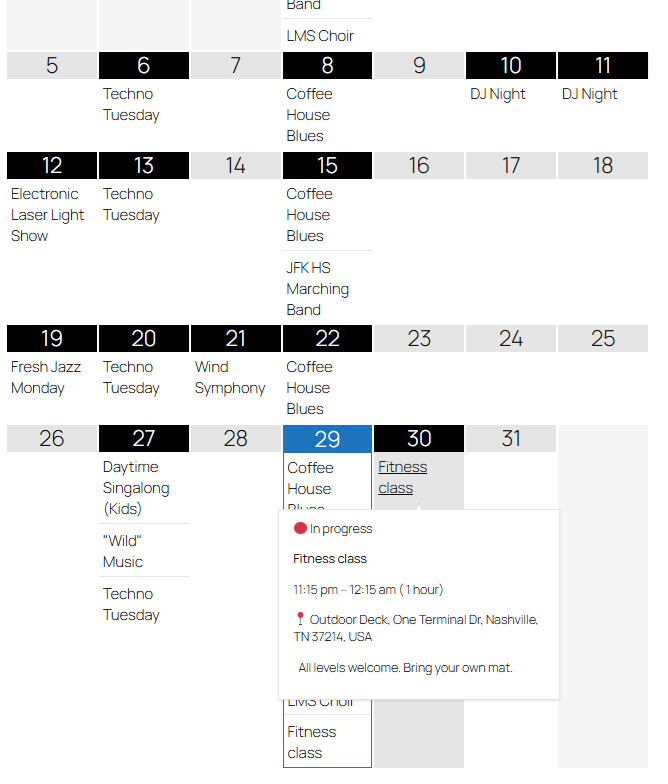
The [duration] tag is useful here because class length matters to attendees; “1 hour” or “45 minutes” is more helpful than asking them to calculate from start and end times.
Multi-day event (conferences, retreats)
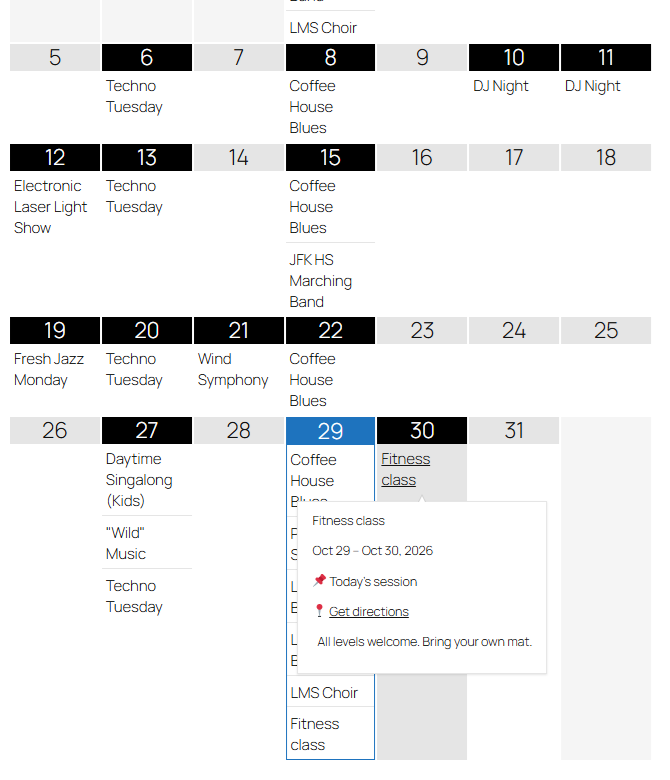
For events that span multiple days, show the full date range and use conditional tags to highlight today’s activity.
[title]

[start-date format="M j"] – [end-date format="M j, Y"]

[if-today]📌 Today's session[/if-today]

[if-start-location]📍 [start-location-link]Get directions[/start-location-link][/if-start-location]

[if-description][description][/if-description]
Minimal list (title and date only)
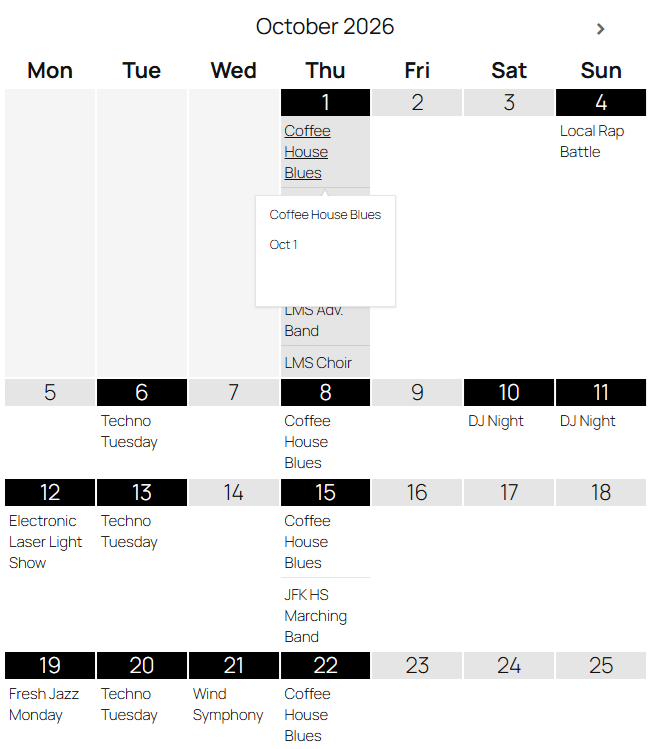
For sidebars or compact calendar widgets where space is tight.
[title] — [start-date format="M j"]
Nonprofit fundraiser or volunteer event
Nonprofits often run events where the description carries the most weight, including what the cause is, how to help, and what to bring. This template leads with the event name and date, shows the description in full with HTML support (so links and formatting from Google Calendar come through), and adds a Google Calendar save link so supporters don’t forget.
[title]

📅 [start-date format="l, F j"] at [start-time]

[if-start-location]📍 [start-location-link]View location[/start-location-link][/if-start-location]

[if-description][description html="yes"][/if-description]

[add-to-gcal-link]Save to your calendar[/add-to-gcal-link]
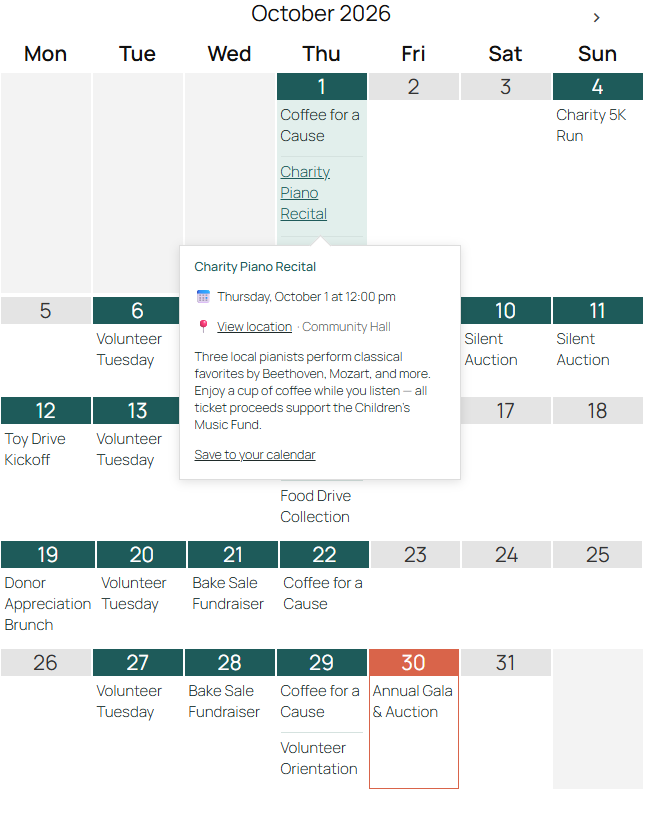
Notice the format=”l, F j” part in the [start-date] tag. By default, a date might appear as 2026-11-15. Adding this format displays it as Sunday, November 15, making it easier to read. The letters follow standard PHP date formatting (l = weekday, F = month, j = day). You can combine them to display dates in your preferred format.
School or university events
Schools have a lot going on, including parent-teacher nights, sports events, exam dates, and open days. This template keeps each event short and highlights anything happening today so parents can quickly find what matters.
[if-today]📌 Today: [/if-today][title]

[start-date format="D, M j"] · [start-time][if-end-time] – [end-time][/if-end-time]

[if-multi-day]([duration])[/if-multi-day]

[if-start-location]📍 [location][/if-start-location]

[link]More info[/link]
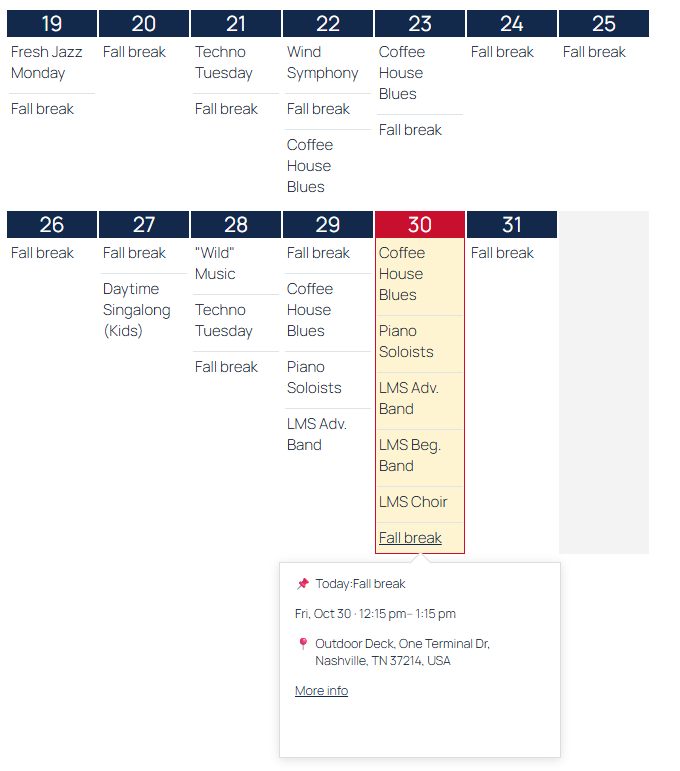
Let’s break down two tags used in this template.
First, [if-end-time]. Some events have an end time (like a class from 2pm to 4pm), and some don’t (like an exam deadline at 5pm). Wrapping the end time in this tag means it only shows up when an end time actually exists. Without it, events with no end time would display a blank space after the dash.
Second, [if-multi-day]. This shows the duration, such as “5 days”. But, it appears only for events that run across multiple days. A one-day event like a parent-teacher meeting won’t show a duration, because it doesn’t need one. But a week-long event like exam week will automatically show how many days it spans.
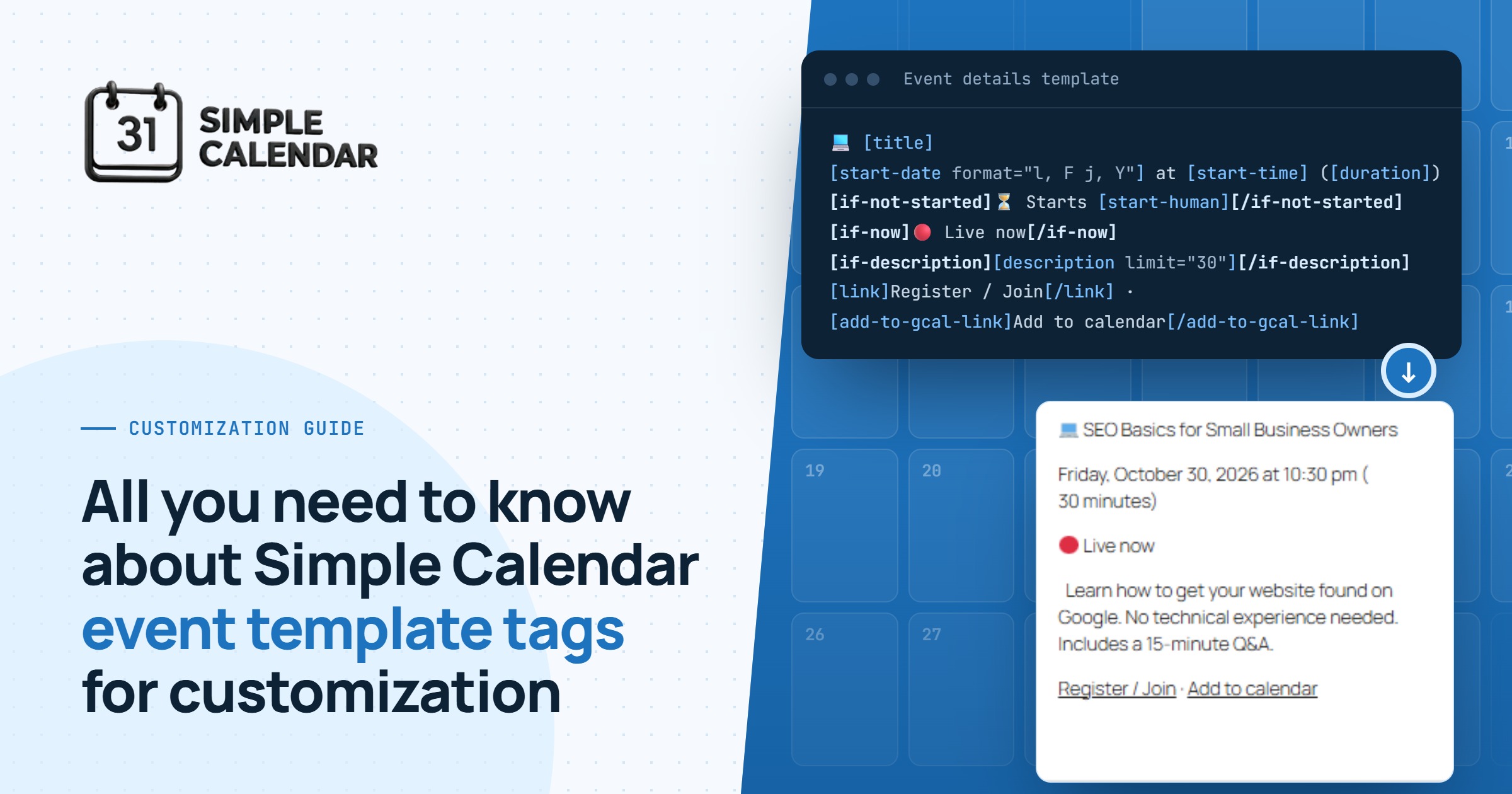
Online workshop or webinar
Physical location is irrelevant for virtual events. What matters is the time, a description of what attendees will learn, and a link to the event page where they can register or join.
💻 [title]

[start-date format="l, F j, Y"] at [start-time] ([duration])

[if-not-started]⏳ Starts [start-human][/if-not-started]

[if-now]🔴 Live now[/if-now]

[if-description][description limit="30"][/if-description]

[link]Register / Join[/link] · [add-to-gcal-link]Add to calendar[/add-to-gcal-link]
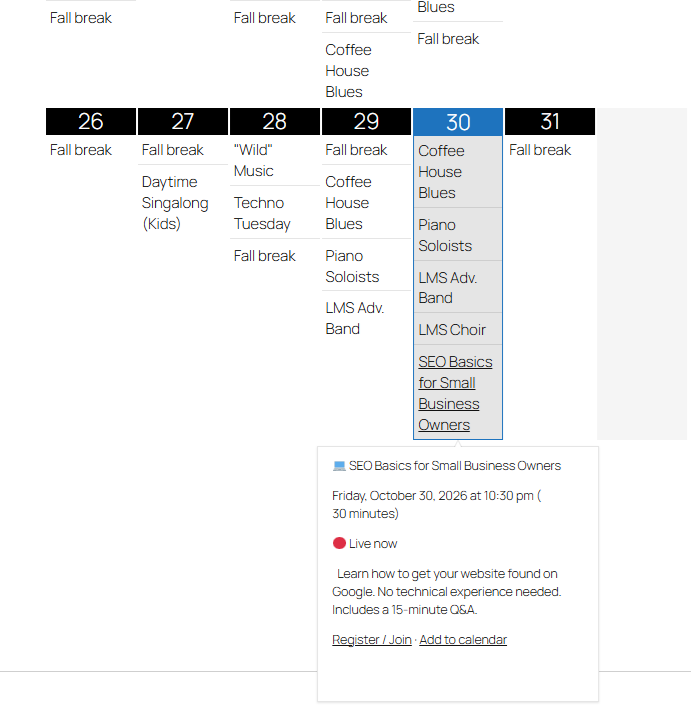
The [start-human] tag inside [if-not-started] shows a countdown like “in 3 days” or “tomorrow”, which creates urgency without you having to update anything manually. Once the event goes live, the “Live now” label takes over.
Need a custom combination?
These examples cover the most common setups, but every site is different. If you need help putting together a specific tag combination for your use case, or if you need a custom event template tag that doesn’t exist yet, reach out to our team. We’re happy to help you find the right setup or build new tags based on your requirements.
Google Calendar Pro Event Template Tags
If you’re using the Google Calendar Pro addon, you get three additional event template tags that pull data from Google Calendar’s richer event fields.
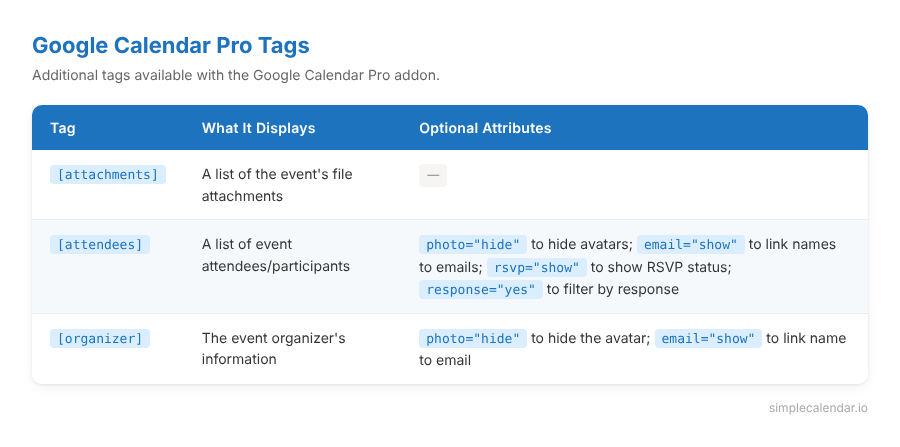
These are particularly useful for organizations that manage RSVPs and invites through Google Calendar. For example, you could add this to your event template:
[title]

[when]

[organizer]

[attendees rsvp="show" response="yes"]
This shows the event, who organized it, and a list of confirmed attendees with their RSVP status; that’s all pulled automatically from Google Calendar.
The [attachments] tag is handy for events that include agendas, slide decks, or other documents attached in Google Calendar. They’ll appear as downloadable links on your WordPress calendar.
These three tags require the Google Calendar Pro addon. Everything else in this guide works with the free plugin.
Start customizing your event display
Simple Calendar event template tags give you full flexibility over how events appear on your WordPress calendar without touching a single line of code.
You can simply pick the tags that matter for your use case, combine them with conditional logic, and your calendar shows visitors exactly what they need to see.
View the event template tags documentation for the full tag reference. If you’re using the Google Calendar Pro addon, the additional template tags docs cover the additional attendee, organizer, and attachment tags.
Download Simple Calendar now, available for free on WordPress.org
Summarize with:
Frequently asked questions
After activating the Simple Calendar plugin, go to your calendar’s settings and find the event template field. Here, you can add event template tags like [title], [when], [description], and [location] in the order you want to display the event details. Each tag pulls the corresponding data from your event and renders it on the frontend, which doesn’t require any coding or theme editing.
Yes, you can use all the core event template tags like title, description, when, start/end date and time, duration, location, conditional tags, and link tags using the free plugin. Certain tags like [attachments], [attendees], and [organizer] require the Google Calendar Pro addon of Simple Calendar.
Yes. Each calendar in Simple Calendar has its own event template field. You can set up completely different tag combinations for each calendar.
Use the [if-now] conditional tag. Wrap any text or tags inside[if-now]...[/if-now], and that content only appears for events currently in progress. For example: [if-now]🔴 Live now[/if-now] adds a live indicator that automatically appears and disappears based on the event’s start and end time.
Yes. Tags like [start-date] and [start-time] accept a format attribute that uses standard PHP date formatting. For example, it [start-date format="l, F j"] displays “Saturday, November 15” instead of the default format. You can mix and match format letters to get the exact date or time style you want.
Related posts
Simple plugin. Pro features. Easy from day one.
We read the top 10 Google results for ‘best WordPress calendar plugin’ in September 2026. 8 of 10 recommended an event-management plugin to readers who only needed a display. But you already know it’s not enough for the specific choice you need to make. And that advice generally falls apart when you realize that each […]

Keep students, faculty, and parents informed about important dates and campus activities with the best Google Calendar WordPress plugin.
Best WordPress Event Calendar plugins, compared Search ‘best calendar plugin for WordPress‘ and you’ll get ten posts recommending the same three plugins. Not because those three are wrong; they’re genuinely good- but because most roundups are written by ranking plugins against each other in the abstract, feature column by feature column. Whether you’re searching for […]