
TL;DR
Short on time? Here’s who should use which WordPress calendar plugin, based on hands-on testing and a feature-by-feature comparison.
- Displaying a Google/Outlook/Apple calendar on your site → Simple Calendar (free). Connects via API or ICS feed, supports multiple calendar sources in one view, and the free version is pretty functional on its own. Runner-up: ICS Calendar if you want zero-API setup, or Google Calendar Pro (Simple Calendar’s best-selling addon) if you want secure OAuth 1-click integration.
- Creating and managing events inside WordPress → The Events Calendar if you need enterprise-scale depth and can budget $259/yr. Modern Events Calendar, if you want similar features for $89/yr. Sugar Calendar, if you want something simple and clean at $49.50/yr.
- Accepting bookings and appointments → Amelia for the best customer-facing booking flow. Bookly for multi-staff service businesses. If you already use Simple Calendar, its Book an Appointment addon adds booking without a separate plugin.
- Merging multiple calendars into one display → Simple Calendar handles Google Calendar API feeds and ICS sources in one view with color-coding per source.
- Simplest possible calendar on your site → Simple Calendar’s free version now lets you create events directly in WordPress without connecting Google Calendar at all. Pie Calendar, if you want to turn existing posts into calendar events. My Calendar if accessibility compliance (WCAG) is a requirement.
Disclosure: This guide is published by the Simple Calendar team. We’ve been upfront about that throughout, and every plugin listed here was tested and evaluated honestly based upon their actual features. The detailed write-ups below explain exactly where each plugin wins and where it falls short. Keep reading for the full breakdowns, comparison tables, and testing methodology, or jump to your scenarios directly as described below.
We read the top 10 Google results for ‘best WordPress calendar plugin’ in September 2026. 8 of 10 recommended an event-management plugin to readers who only needed a display. But you already know it’s not enough for the specific choice you need to make. And that advice generally falls apart when you realize that each calendar plugin for WordPress serves a different purpose and means completely different things to different people.
We understand that a person who just wants to show their Google Calendar on their website has nothing in common with an event management company that needs to sell 500 tickets with tiered pricing. They may not even bother with heavyweight event management plugins. So before we get into any plugin recommendations, let’s figure out your goals first. That one decision will save you hours of installing, testing, and uninstalling plugins that were never built for your situation.
A quick note before we start: We build Simple Calendar, which is one of the plugins in this guide. To keep the comparison fair, we’ve listed the downsides of each type, including ours. If another type fits your needs better, we’ll say so.
5 Types of WordPress calendar plugins (and when to use each)
Every person searching for a ‘WordPress calendar plugin’ falls into one of these categories.
Understanding these types matters because the single biggest mistake people make is installing the wrong type. A five-star plugin that’s the wrong type for your situation will always underperform a three-star plugin that’s the right type. Thus, it’s a useful exercise before you know how to choose a calendar plugin for WordPress.
Type 1: External calendar display plugins
As the name suggests, these calendar plugins for WordPress don’t create or store any events in WordPress. They allow you to connect to a calendar you already maintain in a calendar application, including Outlook, Apple Calendar, Google Calendar sync, or any other calendar application via different connection methods, including the ICS feed, Google Calendar API key, or an OAuth connection.
When you update an event in your calendar app, it automatically updates on your website. They’re lightweight by design because your WordPress database isn’t storing event data at all. Their job is to pull and render events mainly.
Type 2: Native event management plugins
These calendar plugins for WordPress provide you with a full event system inside WordPress. They create a custom post type in your dashboard, complete with their own categories, venue fields, organizer profiles, and calendar views. I’d like to call them event management WordPress plugins, with calendar integration as one feature.
Most of these plugins let you create and edit events the same way you’d write a blog post. However, they add significant weight to your database and admin panel because every event, every venue, and every organizer added is a WordPress record.
Type 3: Booking & appointment plugins
Booking and appointment plugins are designed to provide you with reservation systems with a calendar interface. Their underlying purpose is to manage availability and let visitors claim time slots rather than displaying events. Most of the dedicated plugins in this category handle payment gateways, confirmation emails, or cancellation policies.
Type 4: All-in-one calendar plugin suites
These calendar plugins for WordPress try to combine display, event management, and sometimes booking into a single plugin. Yet, their obvious tradeoff is that you’d be loading the code for every feature even if you only use one. So, a site that only needs a Google Calendar display ends up carrying the weight of a ticketing feature it never activates.
Type 5: Lightweight display-only calendars
They are minimal by intent, as they won’t contain custom post types, complex settings panels, or heavy addon ecosystems. They render a clean visual calendar on your page using either the calendar app’s own native widget or a simple ICS feed pointed to for minimal rendering without any settings panel, or a simple Google Calendar sync (as, it’s the most widely used calendar application) feature. They’re ideal when you want a calendar element on your site without adopting a whole new system inside WordPress.
Which WordPress calendar plugin fits your situation?
We’ve been able to explain this section better because most of the customers who reached our support team explain their scenarios better than a product team ever could. They usually ask questions like “Our schedule’s in Google Calendar, how do I get it on the site?” or “I need people to book me without double-booking me.”
The five scenarios below are the ones we hear most, based on the 10+ years of support ticket resolutions and general query handling for Simple Calendar. Each scenario is pretty quick to explore and ultimately points you to the exact or similar plugin type you need.
Scenario 1: Display your existing calendar on WordPress
“Our schedule already lives in Google Calendar (or any other calendar application); I just want to display that schedule on my website.“
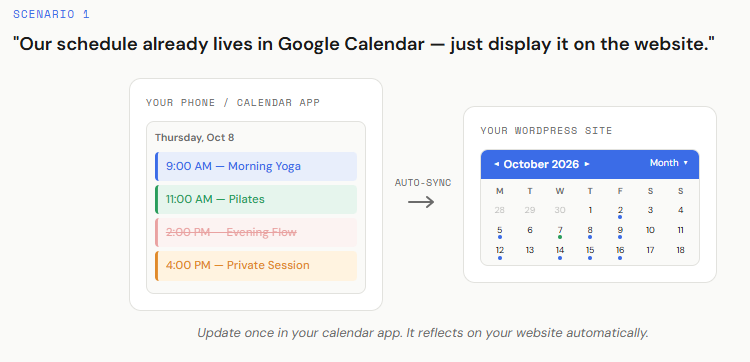
You need: An external calendar display plugin (Type 1)
This scenario goes well for a yoga studio owner or anyone who already maintains their schedule in the calendar application they already use, whether it’s Google Calendar, Outlook, or any other third-party calendar application.
Let’s assume that a yoga studio owner adds and cancels classes from her phone between sessions. She isn’t going to log in to WordPress to enter the same change twice, and she shouldn’t have to. The same goes for a team calendar in Outlook, or a church management system or school platform that publishes an ICS feed. So, the schedule already exists in the above scenario, and the purpose is to display the exact calendar events on the website.
What plugin to look for: Here, you most probably need a plugin that connects through an ICS feed, the Google Calendar API for Google Calendar sync, or OAuth. And it needs to refresh on a schedule that you can control and not be heavily dependent on the calendar app you use (which is not the case every time).
→ Jump to: Best WordPress calendar plugins for displaying external calendars
Scenario 2: Create events, manage RSVPs, and sell tickets
“I want to create events inside WordPress, take RSVPs, and maybe sell tickets.“
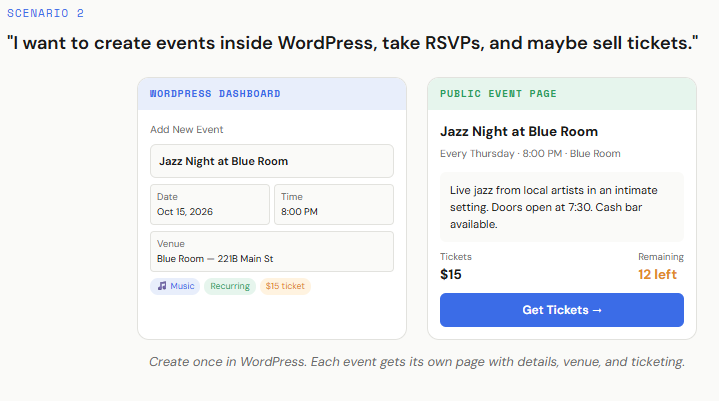
You need: An event management plugin (Type 2), or an all-in-one suite (Type 4) if you also need appointment booking
Let’s suppose a community center runs a list of events in their space where every show needs its own page with a description, cast photos, venue details, and a ticket link, etc.
This is where dedicated event management plugins with deep functionality might be the strongest contenders. Each event you create with these plugins is a real WordPress page that you can completely control.
What plugin to look for: The plugin with recurring events functionality is a big plus here. Let’s suppose your show runs every Thursday for eight weeks, and for one week, you need to move it to Friday. You should be able to move that one date without rebuilding the whole series.
The venues and organizer information that you enter is another big feature here. If most of your events happen in the same hall, you shouldn’t have to type the address into every event. Good plugins let you save the venue once and pick it from a list after that.
Another considerable feature to look for in this plugin type is RSVPs and ticketing. Many event plugins are free to install, but selling tickets is often a paid addon.
Don’t need tickets or RSVPs? There’s a lighter option.
Plenty of sites just want their events in WordPress, each with its own page, without running a full event system. A library’s author talks or a church’s community events, are good examples.
Disclosure: This is a feature we recently added to Simple Calendar. The free plugin now includes its own event type. You create events in the WordPress dashboard with a title, description, location, and start and end times, add categories, tags, and a featured image, and each event gets its own page.
Create and manage your WordPress events for free with Simple Calendar →
However, it doesn’t allow you to sell tickets, take RSVPs, or manage organizer and venue profiles. A dedicated event management plugin is an ideal choice if you need these features in-depth.
→ Jump to: Best WordPress calendar plugins for full event management
Scenario 3: Let clients book appointments from your site
“Clients should be able to book time with me, and those bookings need to land in my calendar.”
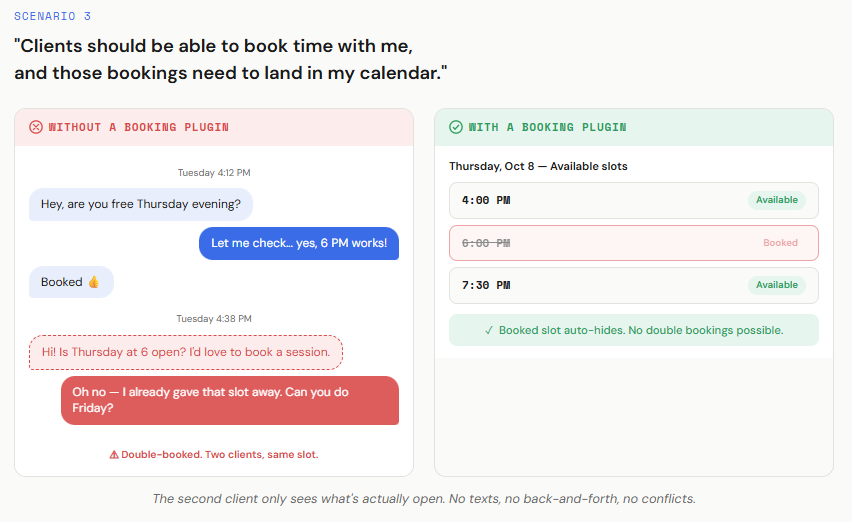
You need: A booking & appointment plugin (Type 3), or a Type 1 display plugin with a booking addon if your schedule already lives in Google Calendar
A personal trainer is one of the good examples for this scenario. Let’s assume that he or she books clients over text. Someone asks, ‘Are you free Thursday evening?‘ She checks her schedule, offers 6 p.m., and two messages later it’s confirmed.
Meanwhile, another client has also been offered Thursday at 6, because she forgot to update her notes between conversations. Now she has two people turning up at the same time, and she spends her evenings replying to messages instead of resting. A dedicated or even a simple booking & appointment plugin replaces all of this chaos. The plugin helps set her working hours once, how long a session lasts, and a 15-minute break between clients so she has time to reset.
Her website then shows only the open slots. A client picks Thursday at 6 and gets a confirmation email, and that slot disappears from the page so no one else can book it. The day before, both of them get a reminder. She never had to reply to a single message.
Disclosure: this is how our own Book an Appointment addon for Simple Calendar works. You set your availability and buffer time in WordPress. Once a slot is booked, it disappears from your site, and the appointment appears on both your Google Calendar and your client’s. We review it alongside dedicated booking plugins, so you can compare.
What plugin to look for: You definitely need a plugin that can handle the booking and appointment workflow like a breeze. You need a plugin where setting availability and preventing double bookings isn’t tough.
You may also look for features, such as automatic confirmations, reminders, or calendar sync, so every booking shows up in the calendar you already check each day. You may also want a payments feature in it, which you should specifically check for each dedicated or general appointment booking that we have listed.
→ Jump to: Best WordPress calendar plugins for bookings & appointments
Scenario 4: Merge multiple team calendars into one view
“We have several calendars from different teams or locations, and I need one view on the website.”
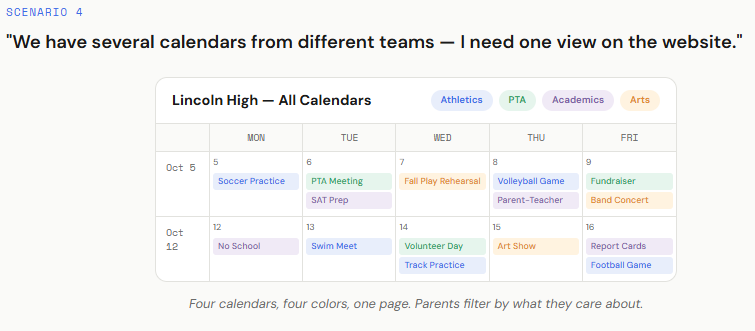
You need: An external display plugin (Type 1) that supports multiple calendars in one view
Let’s take an example of a school that has separate calendars for athletics, the PTA, and academics! Another good example of the scenario is a gym chain where each location runs its own class schedule. Each calendar has a different owner, and visitors want to see all of them in one place.
Disclosure: Simple Calendar handles this with its grouped calendars feature available in the free core plugin. We include other multi-calendar options in the comparison below.
What plugin to look for: Multiple calendars in a single view, color-coded by source so visitors can tell the soccer schedule from the PTA meeting, and filters so a parent can show only the calendars they care about. If your locations are in different time zones, check how the plugin displays them, because some plugins convert everything to the site’s time zone.
→ Jump to: Best WordPress calendar plugins for grouped calendar display
Scenario 5: Simple Calendar display with no extras
“I just need a simple calendar on one page. Nothing fancy.”
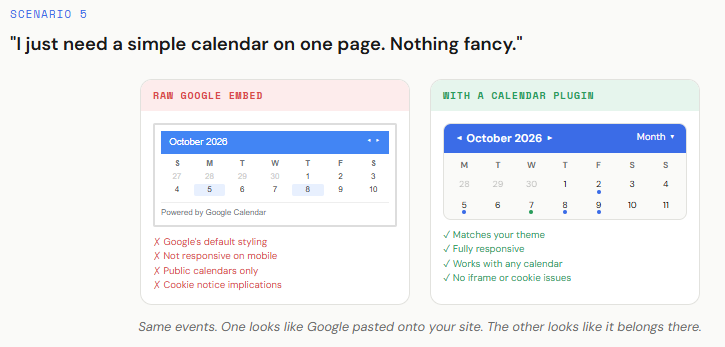
You need: A lightweight display-only calendar (Type 5), or sometimes no plugin at all
Let’s take an example of a small library that posts its monthly opening hours! They most probably need a simple calendar display on their site. For this purpose, they can go through either a simple plugin route (a free plugin can do this simple job, like Google Calendar sync); or they can go through displaying it with Google Calendar’s embed code (provided they are okay with the limitations of this, and somewhere technically sufficient)
What plugin to look for: Honestly, people with these scenarios start with Google Calendar’s own embed code. Or, you can move to a plugin when you notice the limitations: its embed uses Google’s styling rather than your theme’s, it can look cramped on phones, and loading Google’s iframe may need to be covered in your cookie notice if you have EU visitors.
→ Jump to: Best lightweight WordPress calendar plugins
Best WordPress calendar plugins for displaying external calendars
Thanks, if you’ve skipped directly to this section, it won’t waste your time reading about features you won’t be looking for.
Here is the list of recommended calendar plugins for WordPress that help you display the calendars you are already managing externally. These plugins don’t store events inside WordPress. They connect to your external calendar and display it. These plugins definitely exist to provide ease of integration with your external calendar applications.
Simple Calendar – Best overall for external calendar display
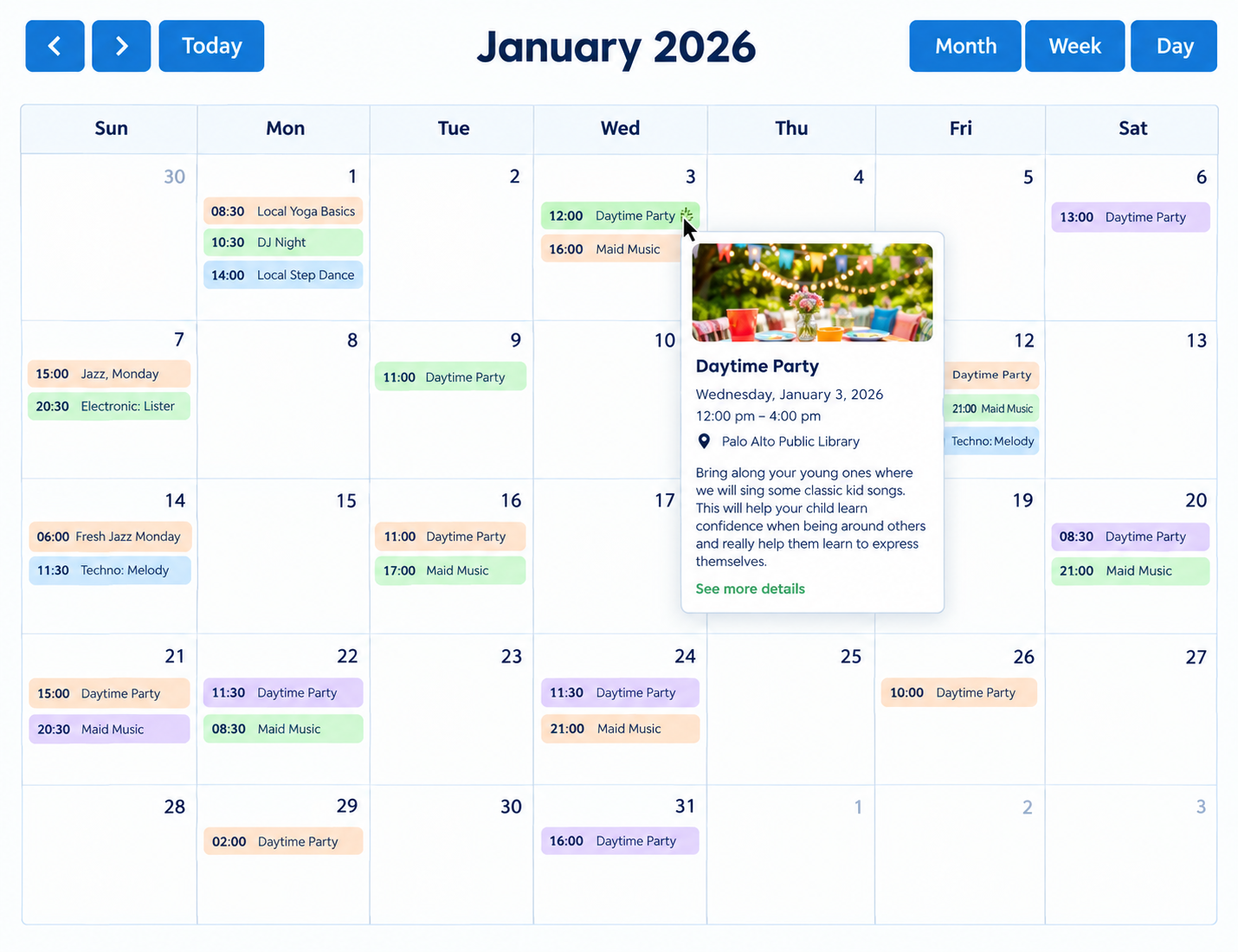
Simple Calendar is an API-first WordPress calendar plugin that was primarily a dedicated Google Calendar sync plugin till July. We’ve recently expanded our calendar display options beyond Google via ICS feed support. We’re also one of the most installed calendar display plugins since launch.
How the Simple Calendar WordPress calendar plugin works
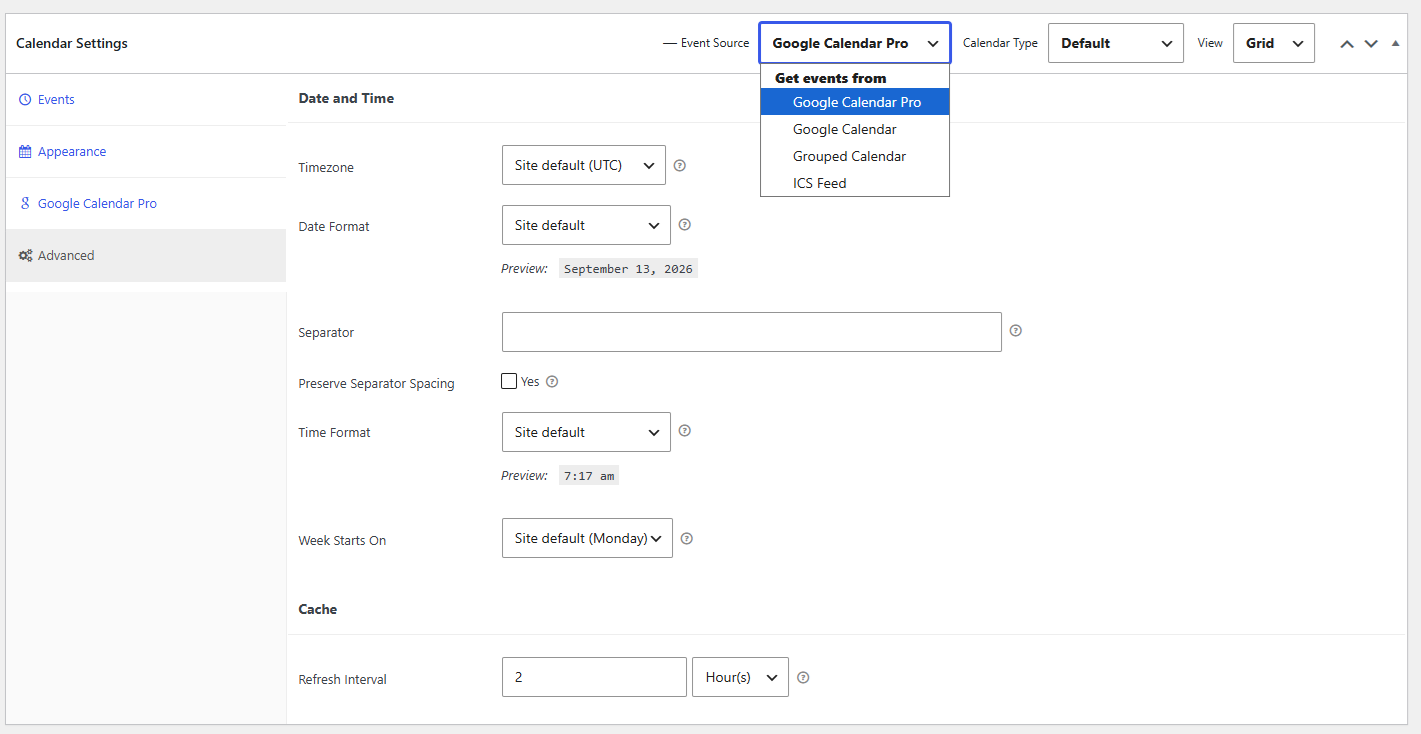
You need to install the free plugin, connect your Google Calendar using either an API key (for public calendars) or Simple Calendar’s built-in 1-click OAuth authentication (for private calendars, available in the Pro addon), and then drop the calendar into any page using a shortcode. Yes, it’s that simple, with full integration ease that you usually struggle with in manual integration methods.
Simple Calendar’s ICS feed expansion (new in 2026)
Simple Calendar is no longer Google-only. The plugin now reads standard iCalendar (ICS) feeds, which means it can display events from Microsoft Outlook, Microsoft 365, Apple Calendar / iCloud, Yahoo Calendar, Zoho Calendar, Proton Calendar, Fastmail, and even project management tools like Basecamp, Asana, ClickUp, and Trello that export ICS feed URLs.
You can upload an ICS file in the free plugin. You can also connect directly to a live ICS feed URL that auto-updates with our Google Calendar Pro addon.
Simple Calendar’s grouped calendars display
It is one of the remarkable and easy-to-use features of our plugin. It is an ideal fit for organizations or individuals who want to merge multiple calendars, irrespective of their source, into a single view. Simple Calendar supports adding multiple Google Calendar IDs and ICS feed URLs to a single calendar display. Events from different sources can be color-coded so visitors can tell which feed an event belongs to.
This is the feature set that makes it the natural choice for multi-location businesses, school districts, churches with separate ministry and facilities calendars, or any organization where events don’t live in one place.
Simple Calendar’s addons and modularity
Simple Calendar follows an API-first, modular architecture. The core plugin is free and lightweight. Also, the free plugin is genuinely functional on its own.
It displays events from any public Google Calendar in responsive grid and list views, supports uploading ICS files from any other calendar application, supports multiple calendars per display, includes template tags for controlling what event data shows, and handles timezone and date format settings.
However, if you want to scale this functionality to be more beneficial as per your requirements, you can easily do it via our opt-in addons described below:
Google Calendar Pro (Simple Calendar addon)
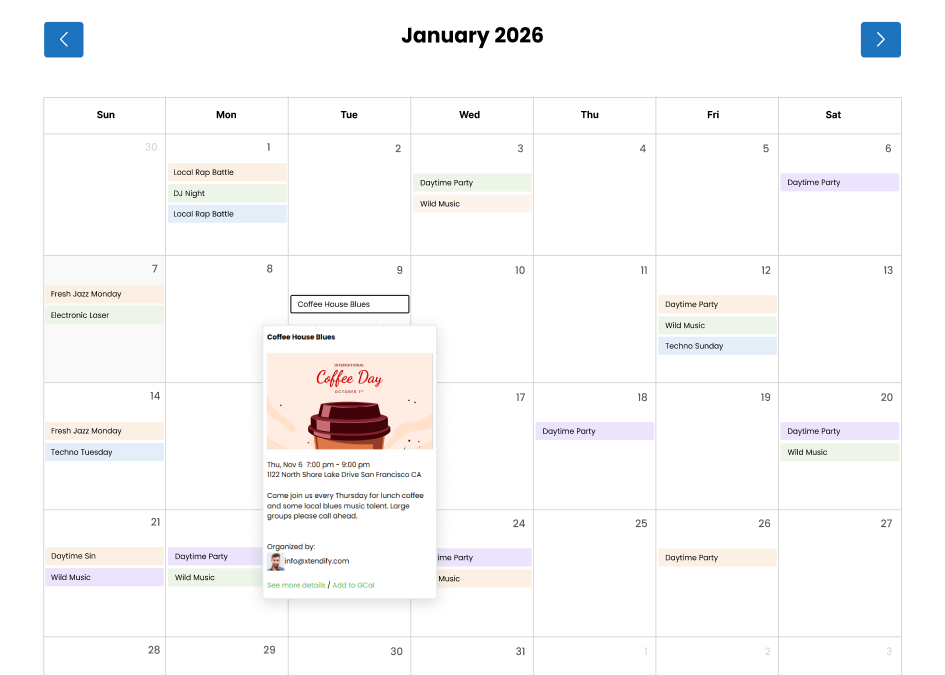 It offers OAuth-based access to your private Google Calendars and supports connecting to live ICS feed URLs. This gives you a more reliable way to keep private or externally hosted calendars synced with your WordPress site. The secure OAuth connection also helps keep private calendar details from being publicly exposed or indexed, making it a better fit when you only want specific audiences to access them.
FullCalendar Extended (Simple Calendar addon)
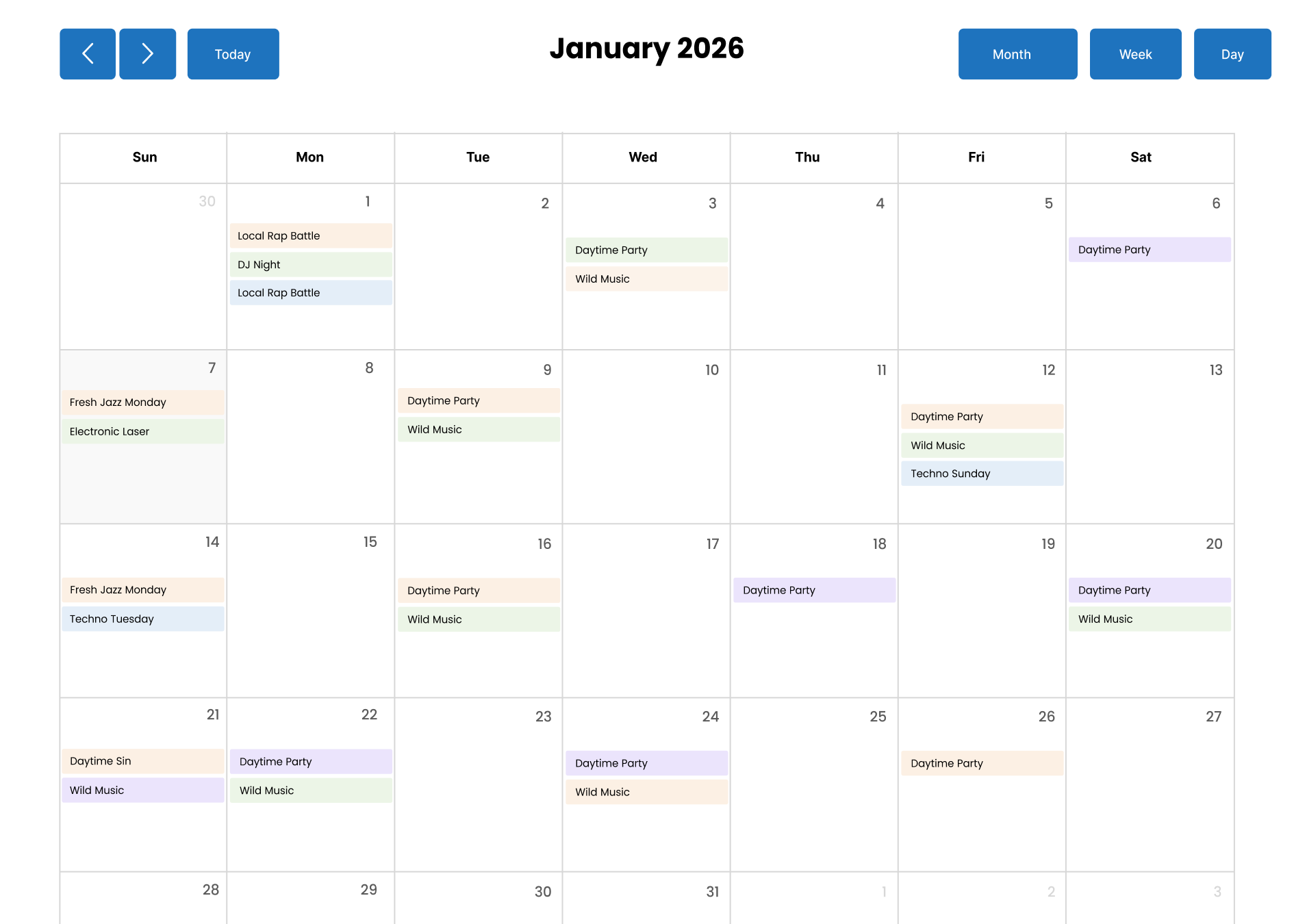
It uses the FullCalendar open-source JS library to provide customized navigation and flexible month, week, and day views. You can choose the view that makes the most sense for your audience and give visitors a clearer way to browse through upcoming events.
Book an Appointment (Simple Calendar addon)
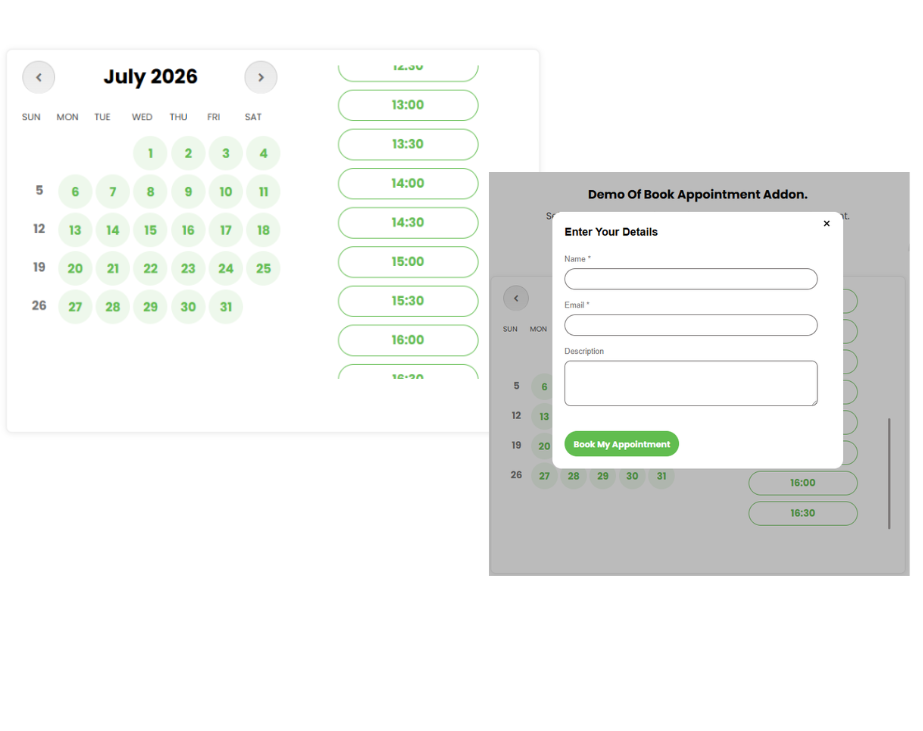
This addon lets your visitors book appointments directly from your website, where you can display available booking slots in the calendar format. And the booked appointments will automatically appear in the calendars associated with it.
→ View Simple Calendar pricing here
ICS Calendar – Best ICS-only alternative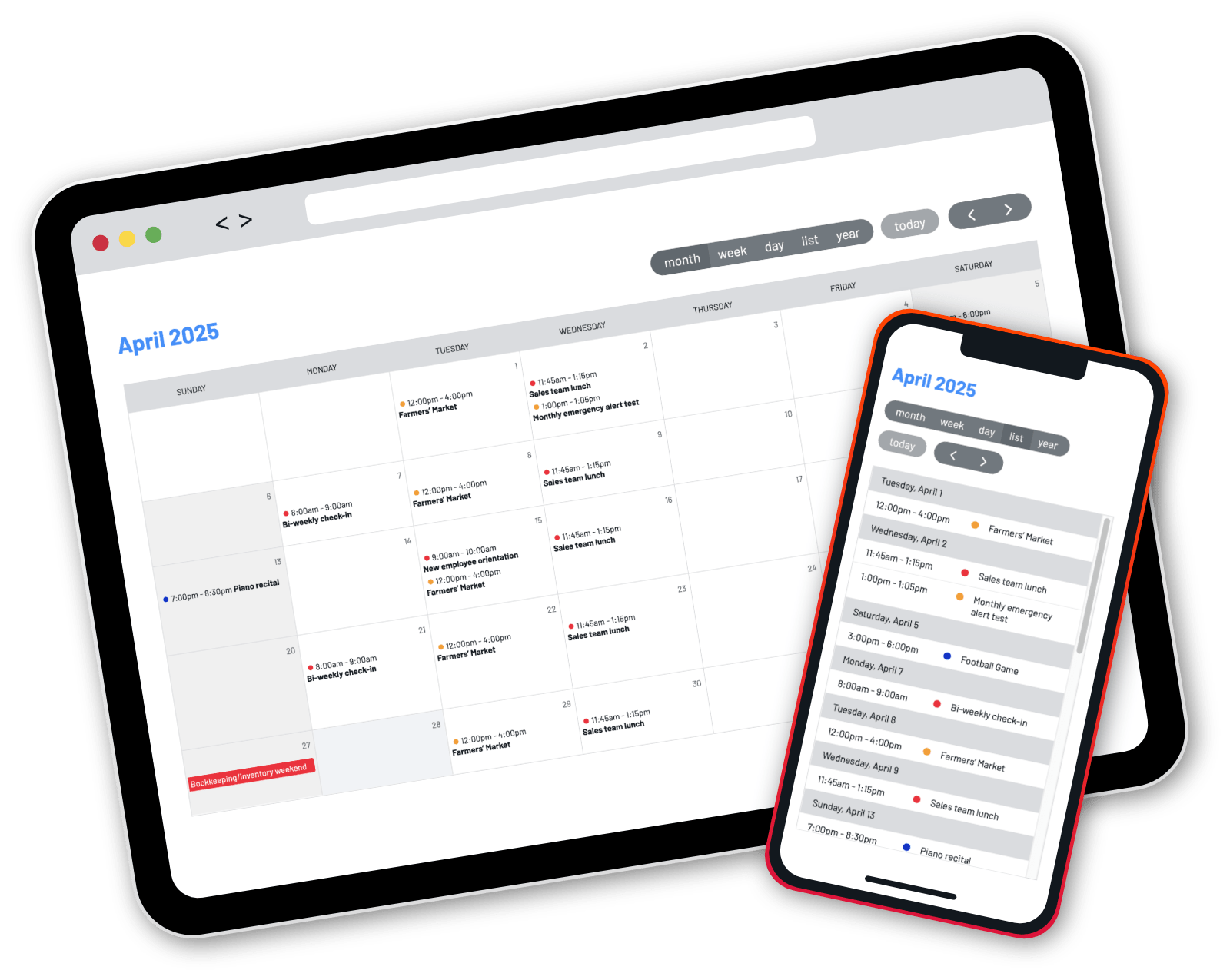
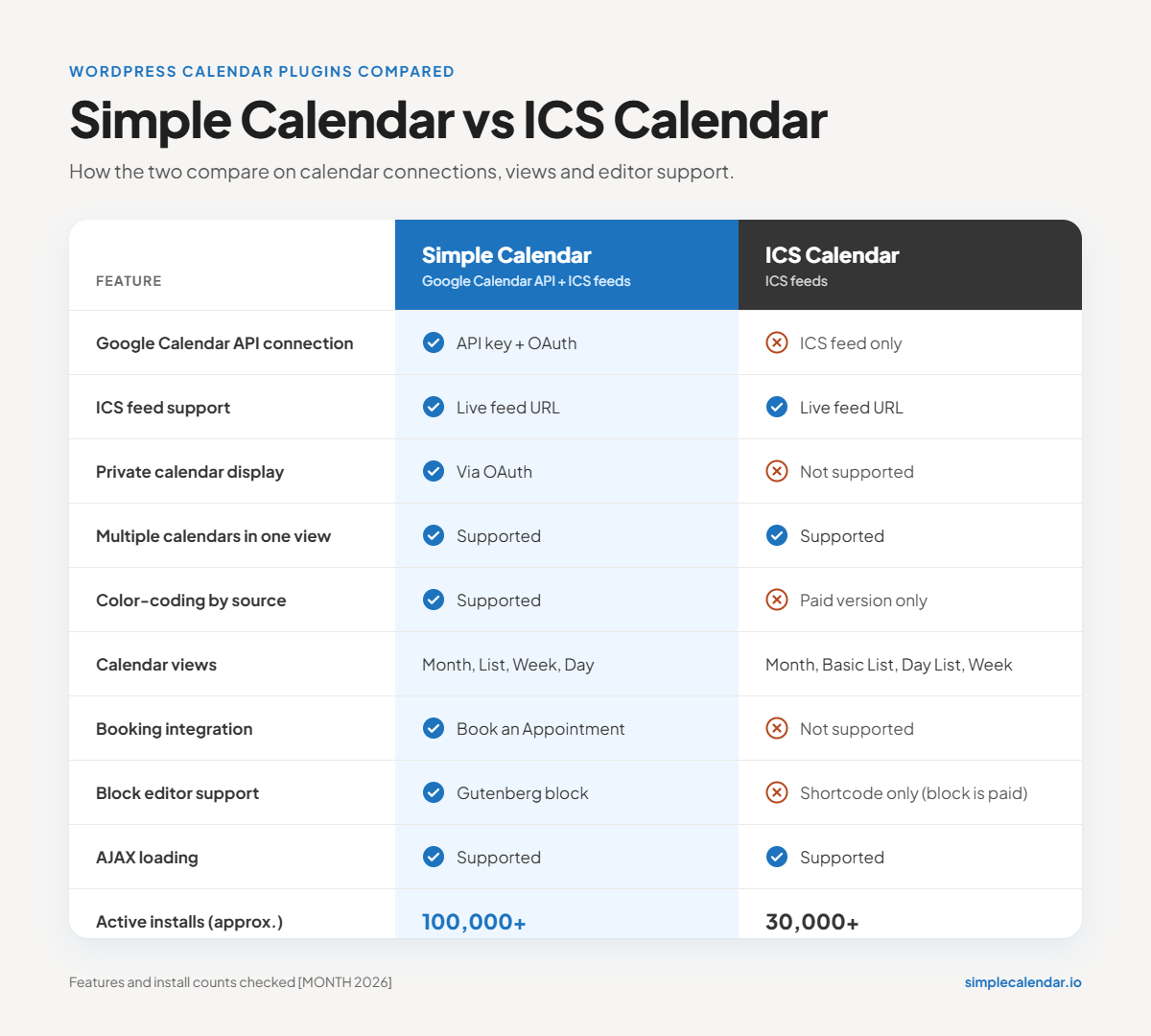
ICS Calendar plugin takes a completely different approach than the Simple Calendar plugin. As the name suggests, it is entirely built around the ICS feed standard without any direct API connections. That single-method approach is its defining characteristic. It makes the plugin easy to understand but also limits what it can do compared to an API-first approach.
How the ICS Calendar plugin works
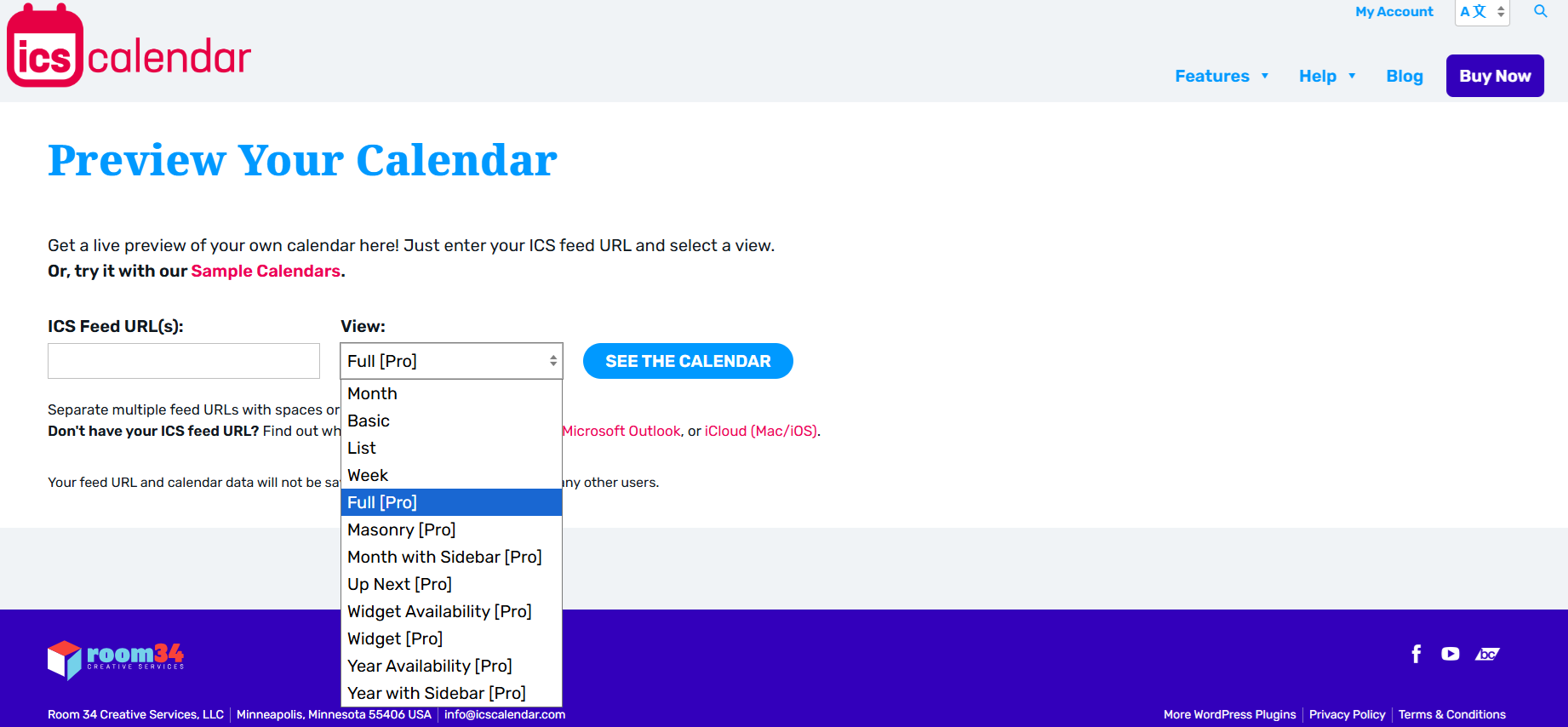
The core setup of the plugin is shortcode-based. You need to grab the public ICS feed URL from the calendar application you already use, generate its shortcode, and drop that shortcode into any page or post. The free version includes four calendar views: a month grid, an event list, a day-by-day list view, and a single-week table view. You can also combine multiple ICS feeds from different sources into one displayed calendar using the same shortcode.
Customization in the free version is handled through CSS. The plugin outputs clean, well-structured HTML with consistent CSS classes, so if you’re comfortable writing a few lines of CSS (or your theme developer is), you can adjust the look without touching plugin settings.
It is ideal for users with a public ICS feed URL who want a no-frills, shortcode-based calendar display without dealing with API keys or authentication. However, integration via API keys is rather more secure and reliable, which is not offered in this ICS-only plugin.
Quick comparison: How to choose a calendar plugin for WordPress for external calendars
Best WordPress calendar plugins for full event management
This section describes plugins if you’ve selected scenario 2 above. It contains reviews of the calendar plugins for WordPress that help you create, manage, and promote events directly inside WordPress with features such as recurring events, venue management, ticketing, RSVPs, and so on. All of these are native event management WordPress plugins that add custom post types to your WordPress install and provide you with a full event management backend.
The Events Calendar – A full-fledged event management plugin
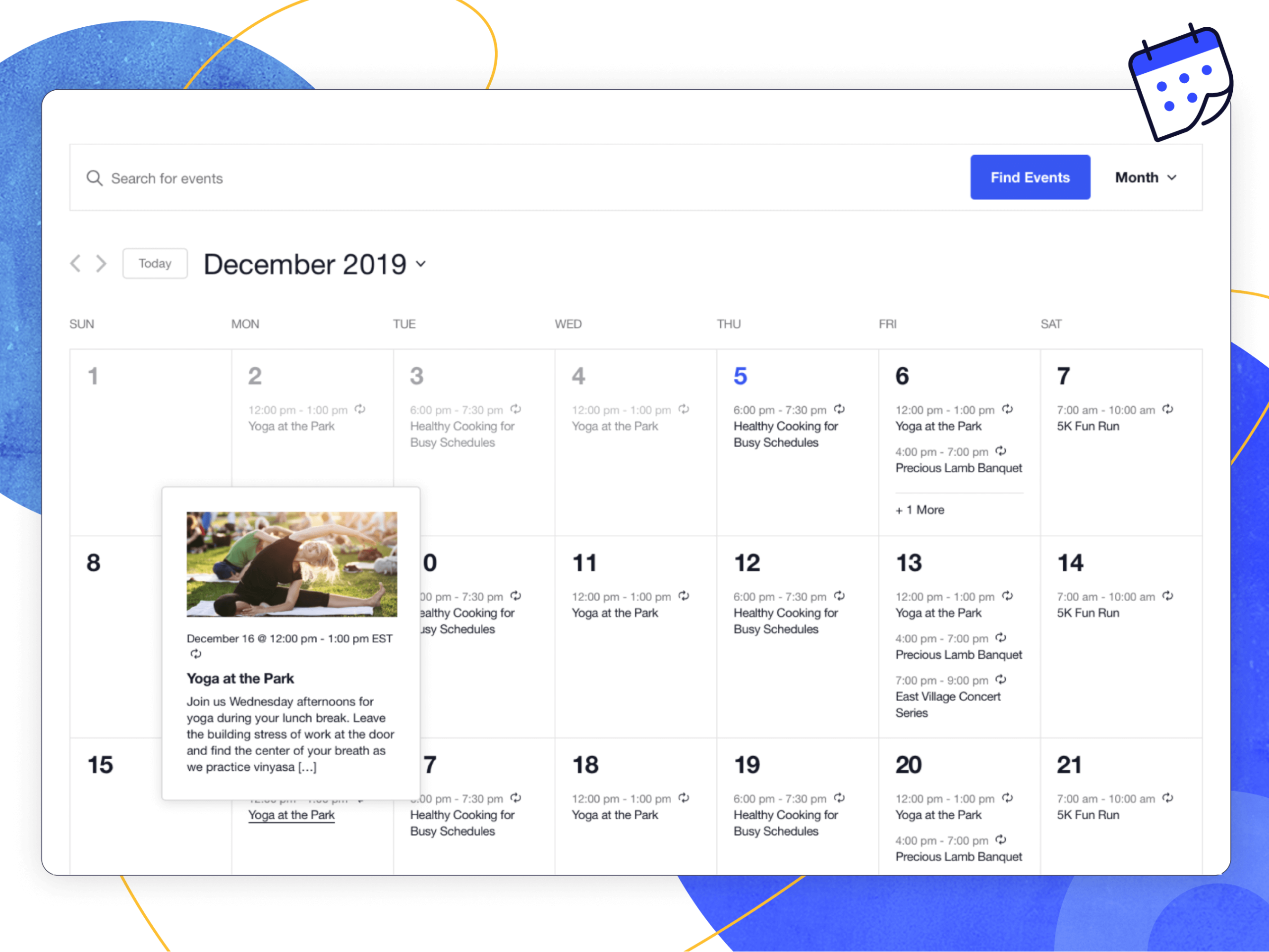
It is one of the widely recognized and heavyweight plugins in the WordPress event management domain. The free core plugin is genuinely capable of basic event management. You get event creation with dates, times, and locations, month/list/day views, venue and organizer post types, Google Maps on event pages, and iCal export.
This plugin’s ecosystem maturity and scalability are agreeable if you’re running large-scale event operations for conferences, festivals, and multi-venue organizations. But the 2026 pricing of this plugin puts it out of reach for small organizations that need just one or two premium features. It means you have to pay for all or nothing. Several WordPress.org reviews and community posts from 2025–2026 also mention inconsistent support quality since the Liquid Web acquisition.
The Events Calendar pricing review
The Events Calendar Pro no longer exists as a standalone $149 plugin. The paid tiers now look as follows:
- Essentials: $259/year — adds recurring events, additional views, event filters, and event importing
- Pro: $399/year — adds ticketing, QR check-in, WooCommerce ticket sales, and community submissions
- Elite: $599/year — adds all features plus premium support
That’s the main reason we never count The Events Calendar as a dedicated WordPress calendar plugin; rather, we call it a must-have event management plugin for larger event handling operations.
Modern Events Calendar – Best design-forward alternative
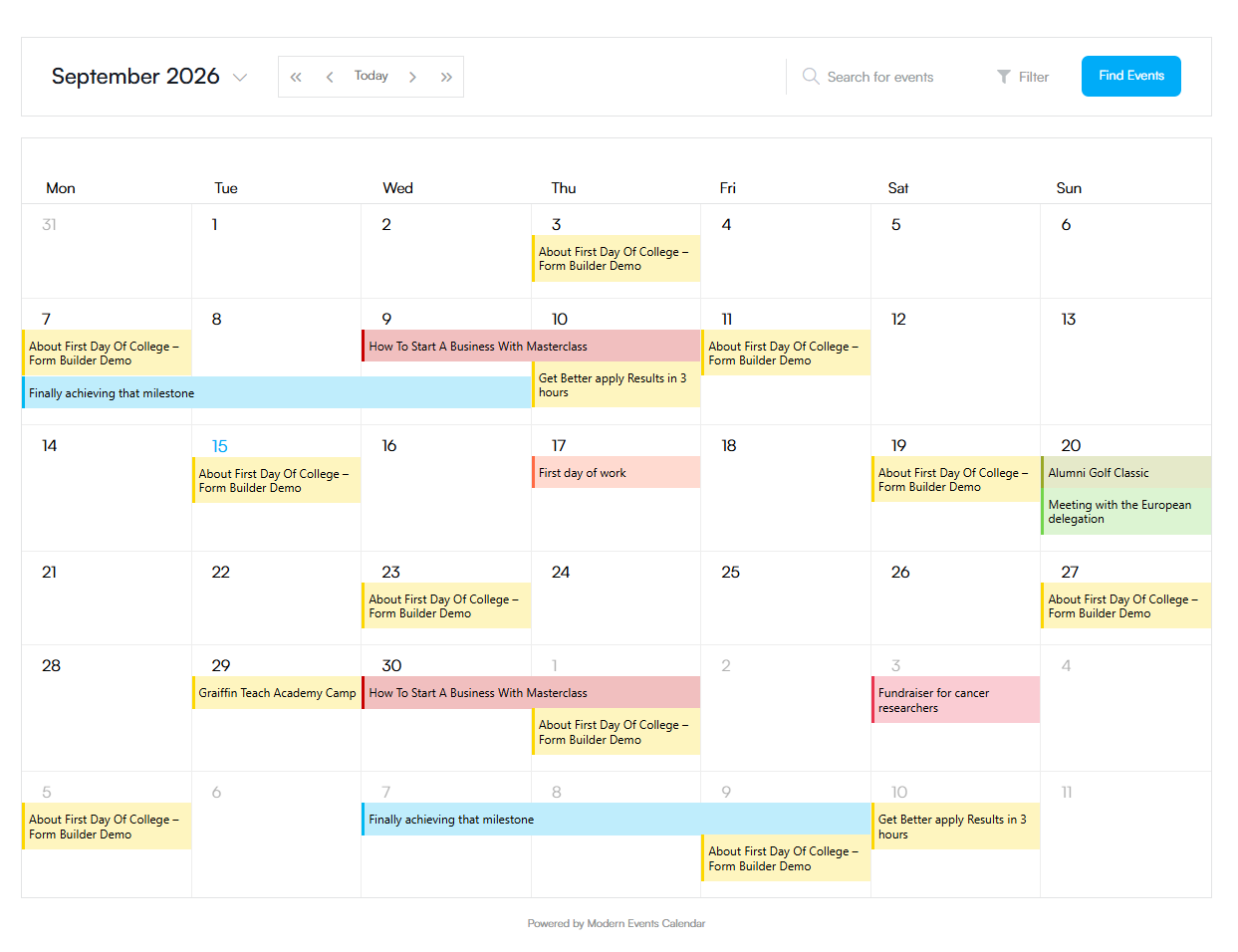
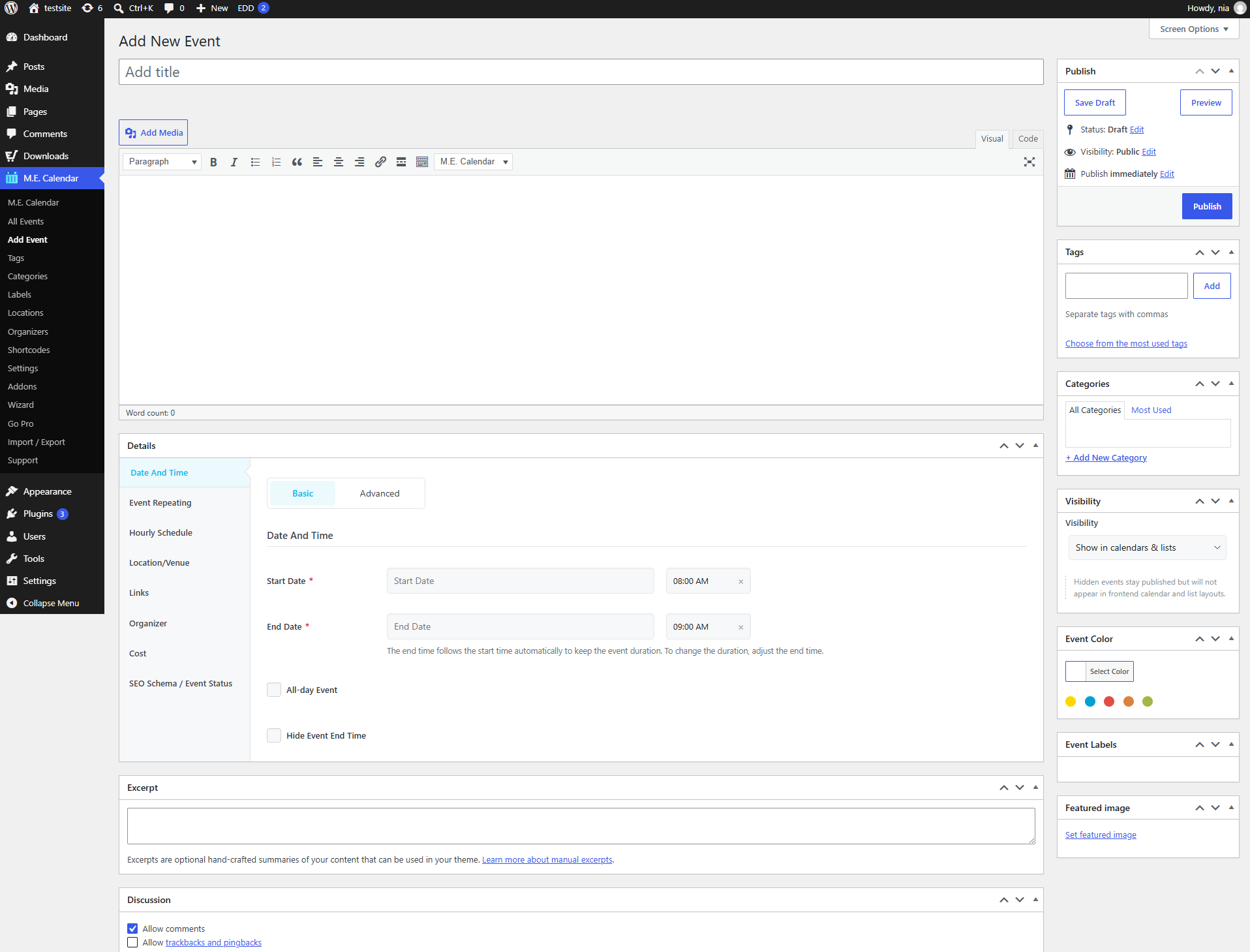
MEC (Modern Events Calendar) is one of the WordPress event management and calendar plugins for WordPress with a limitless number of layout options. It has layouts that you might not even know exist. It has grid, list, timeline, masonry, carousel, map, and more built-in layouts present in the original plugin than gated behind the addons. (Yes, that also means bloat though!) But this may also be a meaningful advantage for organizations where the calendar needs to look polished without hiring a developer to write custom CSS.
Our honest take on the MEC plugin
It is one of the legit competitors for the Events Calendar plugin. It is a budget-friendly alternative plugin for people who want features like ticket selling, location management, event submissions, and more. However, its admin interface is pretty dense, as it packs a lot of functionality into its settings panels. It means you may feel the initial configuration experience a bit overwhelming, especially for non-techies. So, if you’re someone who wants configuration in a matter of minutes without reading documentation, this may not be an ideal option.
How the MEC plugin works
It creates a custom post type for events in your WordPress dashboard. It helps you build events with date/time settings, venue and organizer fields, recurring schedules, category assignments, and ticket/booking configurations all within the WordPress backend. The plugin then renders these events on the frontend through a library of pre-built layout skins.
Our honest take on the MEC plugin pricing
The $99 Pro starting price undercuts TEC’s $259 entry point for a comparable feature set. When you factor in that MEC’s free version already includes recurring events and frontend submissions, which are the features that require TEC’s paid plans, the total cost of ownership for most mid-sized organizations is meaningfully lower with MEC.
Nonetheless, the cost of MEC addons can escalate. While the $99 Pro plan covers booking and core features, the specialized add-ons, such as WooCommerce ticketing, invoicing, seating charts, reporting dashboards, and advanced Elementor builders, are separately priced.
MEC’s own documentation acknowledges that “in very complex setups (for instance, sites with many plugins and heavy WooCommerce usage), MEC can require extra configuration to avoid conflicts.” WordPress.org support threads include occasional reports of view styles needing adjustments after updates, event dates requiring re-saving, and translation string changes between versions.
How MEC plugin compare to the Simple Calendar approach?
MEC and Simple Calendar serve fundamentally different use cases and don’t compete directly. MEC is a Type 2 plugin which creates and stores events inside WordPress, builds individual event pages, and provides a full management backend. Simple Calendar is a Type 6 plugin that connects to your existing external calendar (Google Calendar, Outlook, ICS feeds) and displays those events without storing them in WordPress.
If you need to create events from scratch inside WordPress with ticketing, RSVPs, and venue management, MEC is built for exactly that, and Simple Calendar isn’t. But if your events already live in Google Calendar or another app and you just want them displayed on your site, MEC adds the database overhead you don’t benefit from.
Disclosure: We recently released events as a custom post type in the free Simple Calendar plugin for WordPress. It allows you to create events directly in the WordPress dashboard. Each event gets a title, description, location, start and end time, categories, tags, and a featured image, plus its own page, and visitors can add it to their Google Calendar with one click. It’s a lighter take on what MEC does, without the ticketing, RSVPs, or venue and organizer management.
Sugar Calendar – Simplest native event plugin
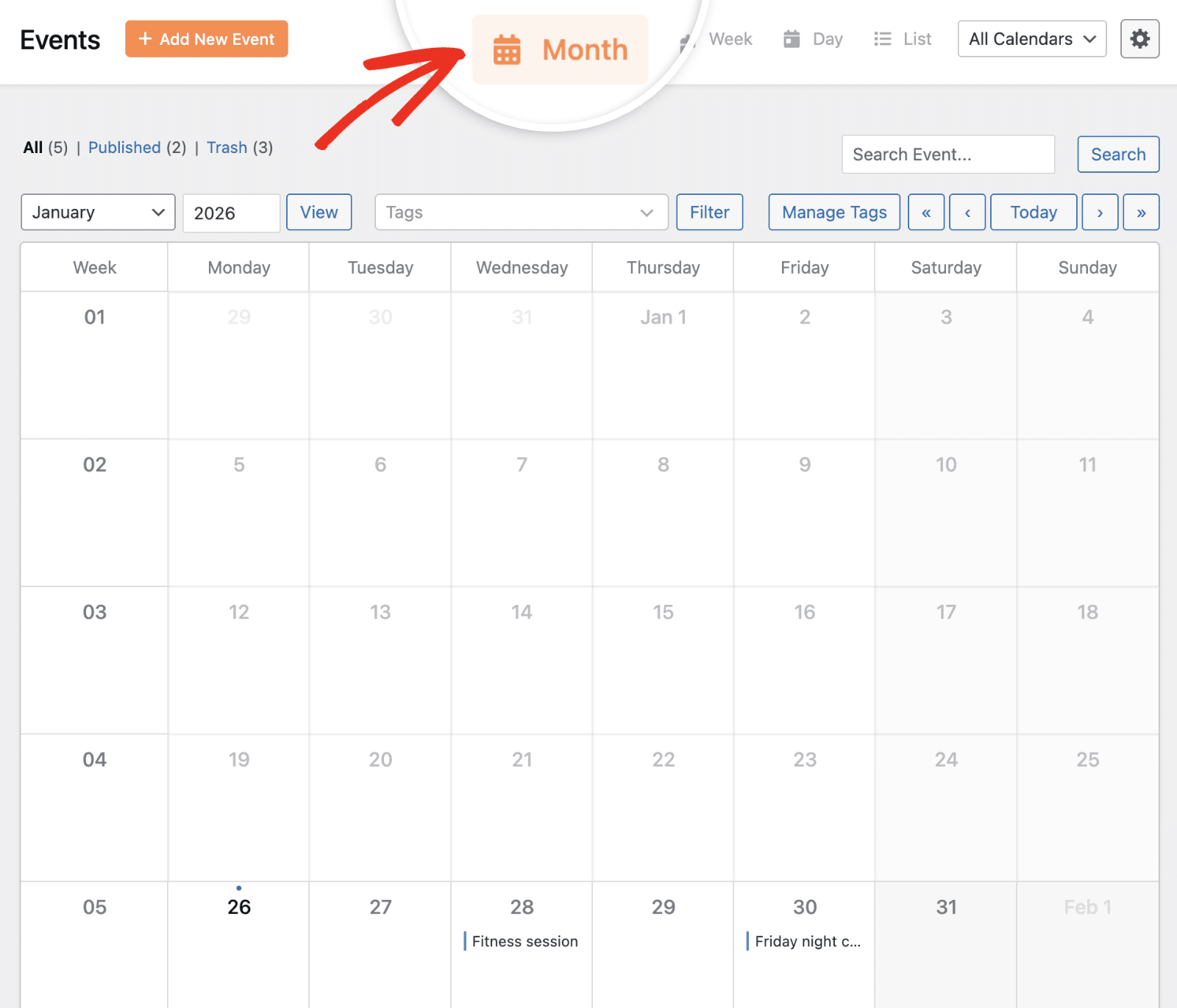
Sugar Calendar is built on a philosophy that sets it apart from both TEC (The Events Calendar) and MEC (Modern Events Calendar). Sugar Calendar is now a suite of two separate plugins rather than a single product, as described below.
- Sugar Calendar Events: It creates and displays events on a calendar or list layout, with recurring events, venue management, speaker profiles, and Stripe-based ticketing.
- Sugar Calendar Bookings: It is a separate appointment scheduling plugin that lets clients book time slots for services, with payment collection and automated confirmations.
These addons are purchased separately, each with its own pricing tiers. If you need both event management and appointment booking features, you’re buying two plugin licenses, which is worth factoring into your cost calculations.
Our honest take on the Sugar Calendar plugin
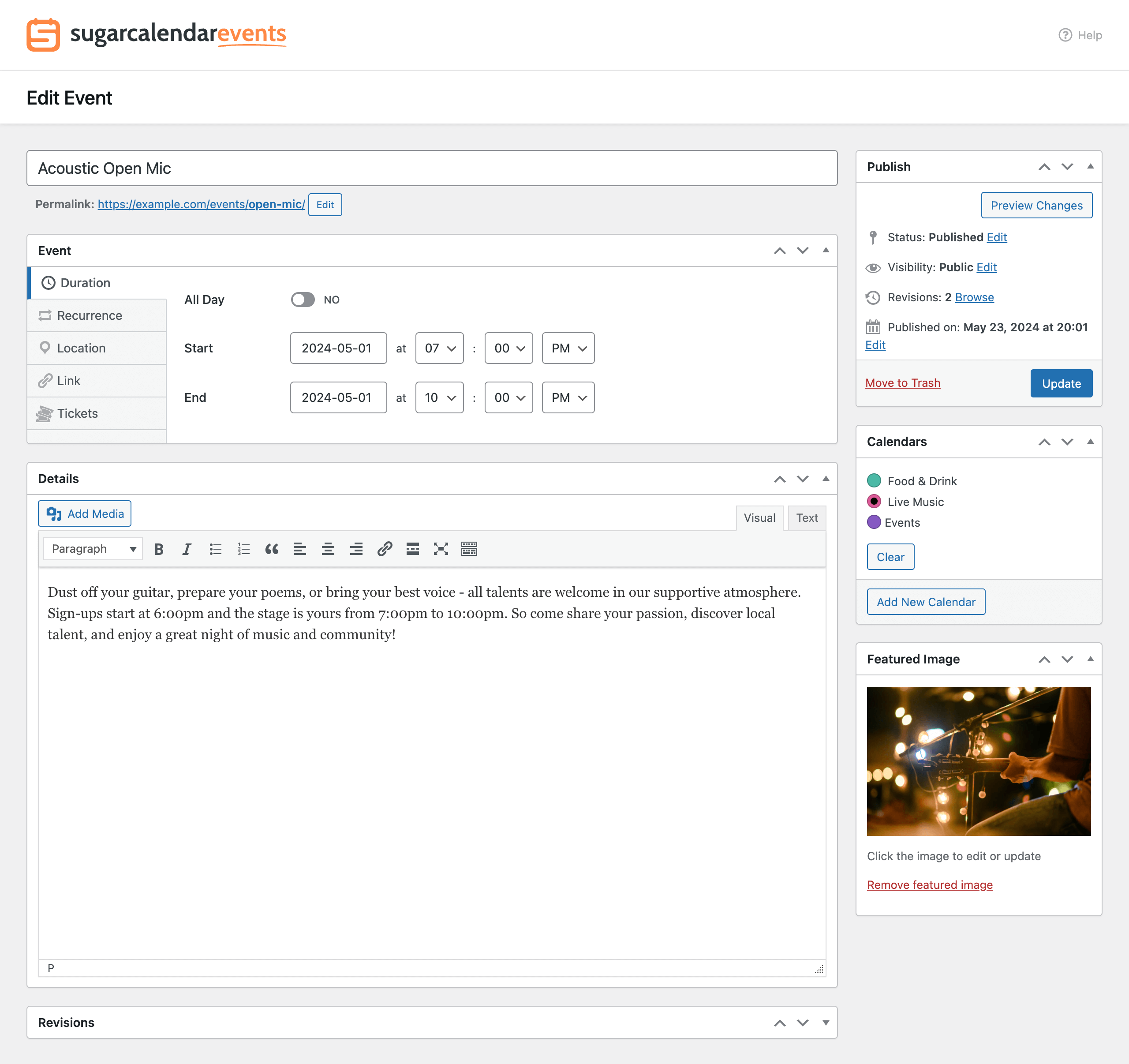
Event creation in Sugar Calendar uses the familiar WordPress block editor; date and time pickers are intuitive, and the overall editing workflow is something any WordPress user can pick up in minutes. For sites where events are a feature (not the entire business model), this low-complexity approach is a genuine advantage over MEC’s denser interface or TEC’s multi-product dashboard. Their calendar feeds and calendar sync functionality are, however, available in the premium versions.
Please note: When you research Sugar Calendar, keep in mind it’s owned by Awesome Motive, the company behind WPBeginner, one of the most-read WordPress sites. So when a WPBeginner roundup ranks Sugar Calendar near the top, you’re reading the owner’s review of its own product.
That doesn’t make the review wrong, but it’s rarely pointed out, and those roundups tend to say little about where competing plugins are the better choice. We’re in the same position with Simple Calendar, which is why we disclose it at the top of this guide and tell you where other plugins beat ours.
Where the Sugar Calendar plugin isn’t your best fit
Sugar Calendar does not connect to Google Calendar, Outlook, or any external calendar for ongoing, automatic synchronization. Even the ICS import feature that we’ve just mentioned above is a one-time upload and is available in the premium versions only. It doesn’t provide real-time synchronization or a dedicated approach to automatic, API-based synchronization as dedicated plugins like Simple Calendar do. That’s the reason we’ve listed it under an event management plugin rather than a WordPress calendar plugin. This is a dealbreaker for anyone who manages their schedule in an external calendar app and wants their WordPress site to stay in sync automatically.
Sugar Calendar’s simplicity in the context of event management has a flip side too. There are no frontend event submissions in the free plugin. The design customization is also limited to what the blocks and theme integration provide. Thus, if you need to scale your event management requirements, you may likely outgrow Sugar Calendar before you’d outgrow TEC or MEC plugins.
EventON – Best budget pick for light event management
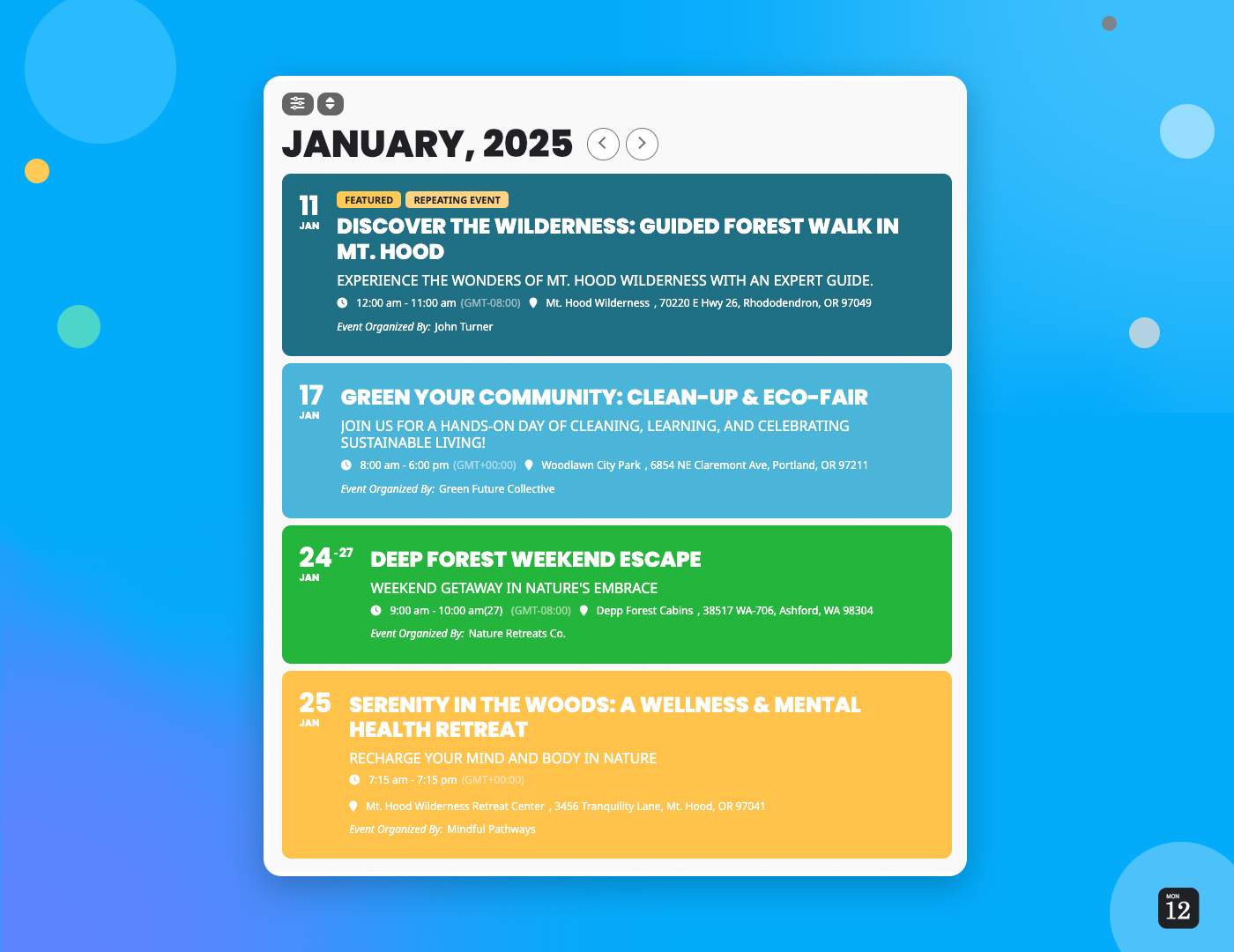
EventON is one of the budget-friendly plugin options with a unique design-focused interface, which is alike most of the free plugins offer in the domain. The free plugin allows you to display events with color coding and custom category organization. The plugin’s visual design is one of its genuine strengths. It features colorful, modern tiles and cards rather than the traditional calendar rows. But beyond the design appeal, there are significant concerns that most comparison posts don’t bother to mention.
Our honest take on the EventON Lite demo
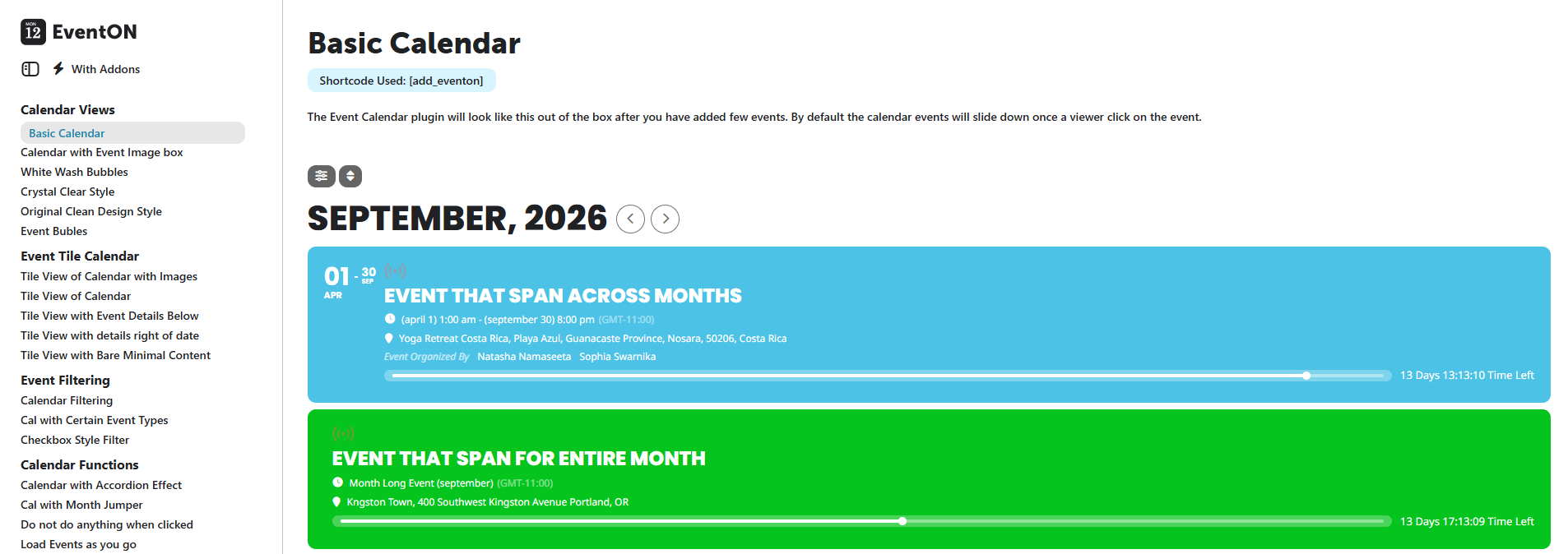
We tested the Lite demo directly. The free version lets you create unlimited events with color options, repeating schedules, categories, location and organizer data, time zones, and basic search/filter functionality. Events can open as slide-downs, lightbox popups, external links, or dedicated event pages. The calendar renders responsively on mobile and supports Gutenberg blocks and shortcodes through the built-in shortcode generator.
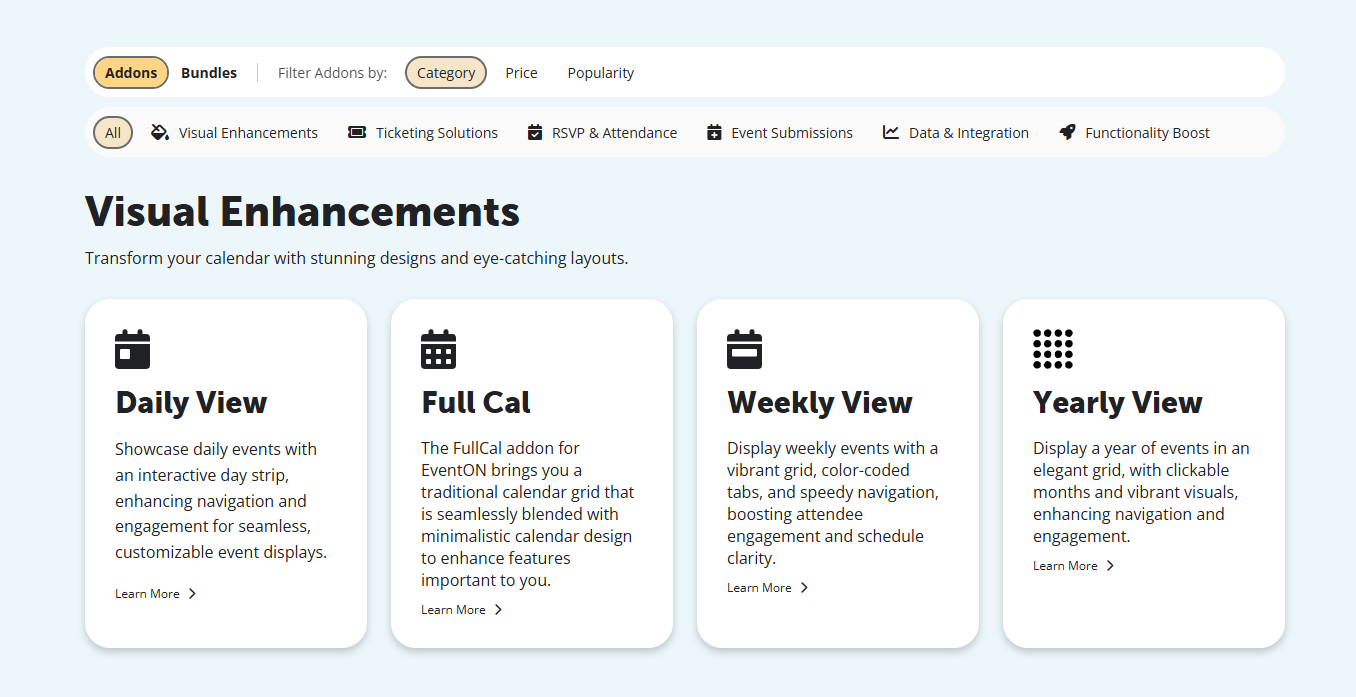
Those are functional baselines, but the limitations of this plugin are where things start to get real. You will only get basic event display features in the lite version. If you want capabilities like ticketing, RSVP, frontend event submissions, full month grid calendar, event photo galleries, advanced filtering, and more, you will have to make a separate purchase for each.
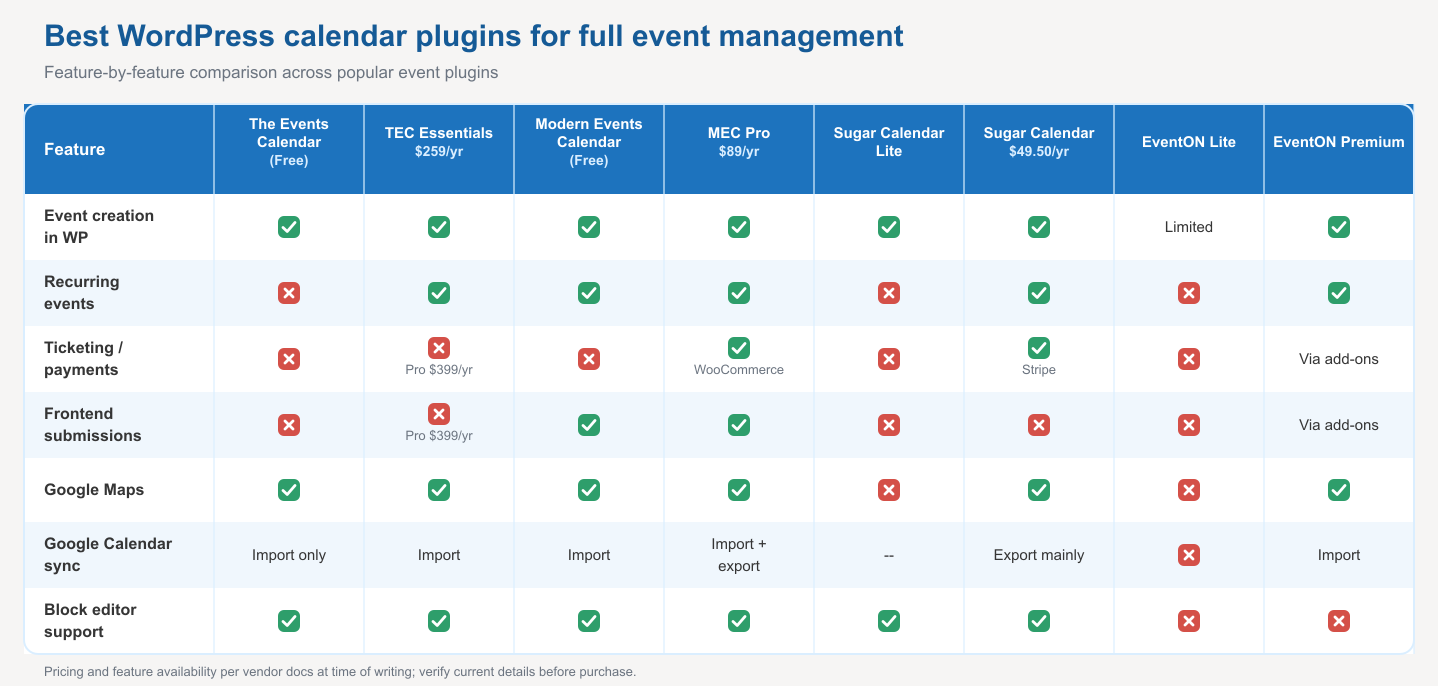
So, the friction in deciding the best WordPress event management plugin with your desired requirements comes at a real effort cost. However, to save your time, we’ve already done that comparison for you below. Please take a look before chasing any of the above-listed event management heavyweight plugins.
Our honest take on EventON plugin reviews
EventON Lite carries a 4.1 out of 5 rating on WordPress.org across 44 reviews, which is decent but notably lower than TEC’s or MEC’s ratings. Their July 2025 review even stated that ‘avoid this plugin at all costs’. It was from a user who has used EventON across multiple client sites. The reviewer reported a PatchStack security vulnerability that wasn’t patched in time, resulting in hacked sites. They also described a support process where tickets were repeatedly assigned to the sole developer with multi-day response times.
On the positive side, more recent 2025–2026 reviews describe improved support responsiveness, with several noting same-day or next-day responses and genuine problem resolution. This suggests the support situation may be improving.
Some limitations of EventON worth checking
- No native Gutenberg block support: While the Lite version added basic block support, the premium plugin still relies primarily on shortcodes and a shortcode generator.
- Tiring addon update process: Multiple users report that addon plugins cannot be updated directly through the WordPress dashboard’s standard update mechanism. Instead, you manually download and reinstall each addon from the EventON site whenever there’s an update.
Thus, EventON is an ideal option for sites that prioritize event presentation above everything else and have simple event needs. However, it may not be an ideal pick for sites that anticipate growing into ticketing, bookings, or community submissions.
Quick comparison: How to choose a calendar plugin for WordPress for full event management
Best WordPress calendar plugins for bookings & appointments
This section is for you if you run a service-based business, or build sites for one, and want customers to book appointments directly on the website. Booking plugins are a different category from the display and event management plugins above, and a deep one. It deserves its own article. So we won’t review every booking plugin here. We’ll look at the top options from one angle: if you came looking for a WordPress calendar plugin and realised you also need bookings, which of these fits, and how well does it work with the calendar you already use?
Amelia – Best booking experience plugin
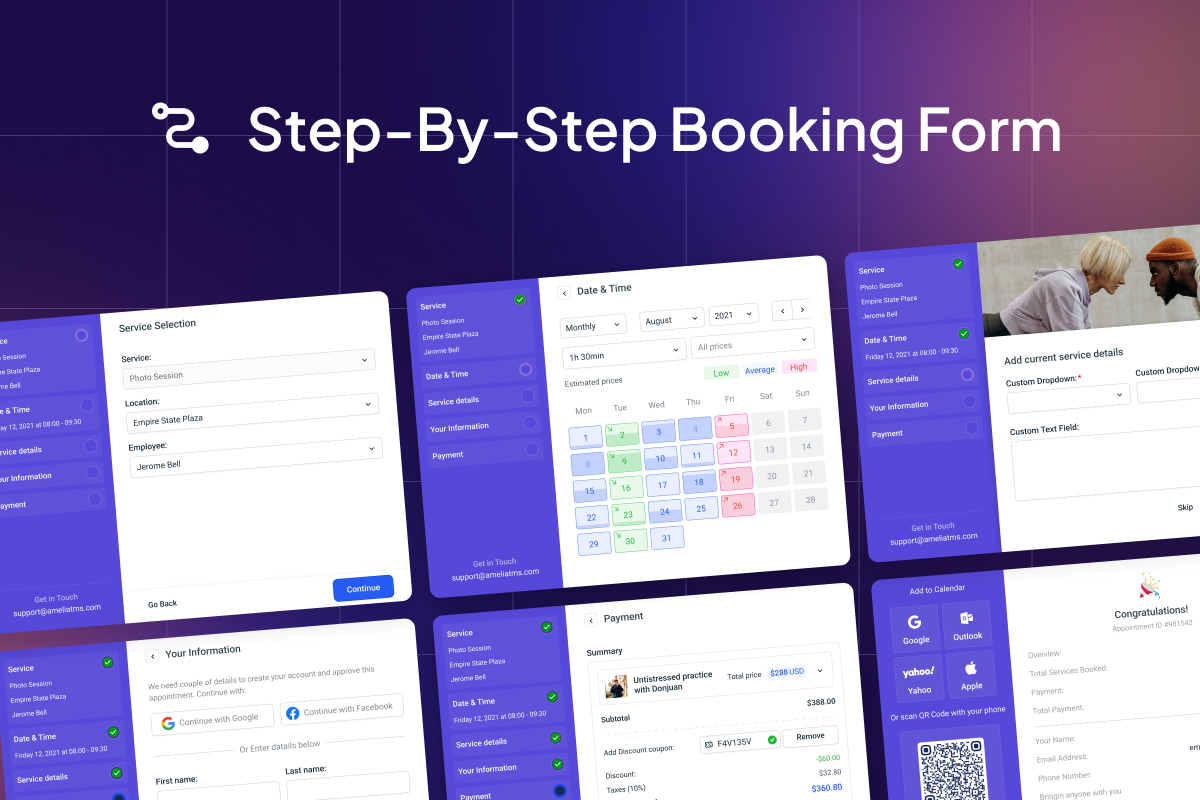
It is one of the frequently recommended booking & appointments-related WordPress calendar plugins, admired mainly for its frontend user experience. It features an intuitive booking wizard that can handle appointment scheduling, event booking, and employee management.
Key features of the Amelia WordPress plugin
- Multi-step booking wizard
- Google Calendar sync (two-way on higher plans)
- Zoom integration
- Custom fields
- SMS/ email notifications
- Stripe & PayPal payments
- Employee/ staff management
- Multilingual booking pages
Our honest take on Amelia plugin pricing
Amelia comes with four pricing plans, including the Starter ($49/year for 1 site); Standard ($99/year for 1 site); Pro ($219/year for 5 sites); and Elite ($399/year for unlimited sites). Their starter plan is a big ‘no’ for a booking plugin where syncing appointments to your personal calendar is arguably the most essential feature after the booking itself. If you are seriously evaluating Amelia for your booking and appointment requirements, their Standard pricing at $99/year for just 1 site is probably your actual starting price.
Our honest take on the overall Amelia WordPress plugin
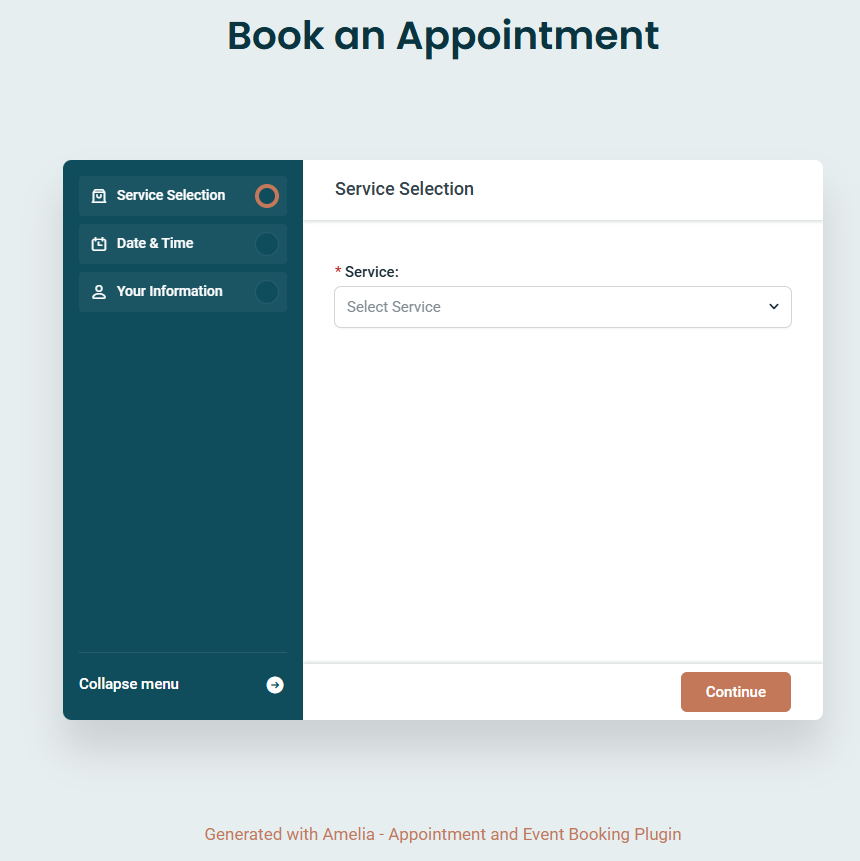
For anyone coming from Scenario 3 in our use-case framework stating that, ‘I need clients to book appointments, and I want those bookings to show up in my calendar‘, Amelia’s Starter plan doesn’t do that. If you’re a solo consultant or therapist who checks your Google Calendar every morning to know what your day looks like, the Starter plan creates exactly the two-system problem you were trying to avoid.
We understand that not every service business needs a full booking platform. If you are simply a person who checks or wants to check their booked appointments in their calendar (which is mostly Google Calendar), you may not need features like staff management, resource allocation, multi-location support, or a multi-step booking wizard.
If your needs are this simple, this is exactly the gap that Simple Calendar’s Book an Appointment addon fills. Our Book an Appointment addon adds booking functionality in the calendar format directly on your site while syncing the booked appointments with your and your clients’ Google Calendar.
It means the person who has booked your appointment and the person, i.e., you, who has been booked can see appointments as automatic events created in your Google Calendar. It’s booking bolted onto the calendar workflow you already have, not a standalone booking platform you have to learn and maintain alongside everything else. This addon is the lighter and most cost-effective path for a solo operator who already lives in Google Calendar than paying more money only to indulge yourself in more complexity.
What the Amelia plugin is best for:
It is an ideal pick for multi-staff service businesses (salons, clinics, studios, agencies) that need a deep booking experience with staff assignment, resource management, and payment collection. Yet, it’s not the most efficient choice for solo practitioners who just need basic appointment booking on top of an existing calendar display.
Bookly – Best for staff management and mobile admin
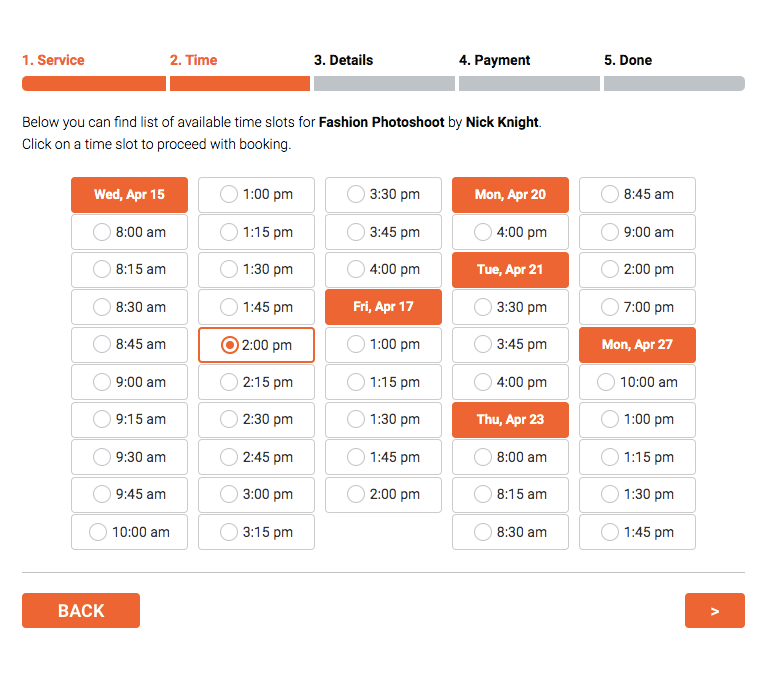
Bookly is also among the growing online scheduling and appointment booking plugin which dedicates itself to the relatable, in-depth features a full booking plugin could ever need.
Key features of the Bookly plugin
- Multi-staff scheduling
- Native mobile apps
- Custom booking forms
- Stripe/ PayPal payments
- WooCommerce integration
- Bookly Cloud
Bookly pricing review
The free version of Bookly is functional for basic testing purposes only. The free version doesn’t include Google Calendar sync, online payments, or deeper scheduling features that most businesses need. Bookly’s paid plans include some of the following key features.
- Pro ($39/yr on sale): It includes a license for 1 site and all the core features, such as Google Calendar + Outlook sync, Stripe/ PayPal payments, recurring appointments, group bookings, deposit payments, staff cabinet, reports, multi-location, custom fields, and more.
- Business ($69/yr on sale): It includes a license for 1 or 5 sites, and all the features of Pro plus the bundled addons.
- Ultimate ($159/yr on sale): It includes licensing for 1, 20, or 100 sites with all the features of previous tiers and premium support.
Lifetime licenses are also available, starting at $99 for Pro, which makes the long-term cost significantly lower than annual subscriptions.
Our honest take on the Bookly plugin
The depth of the feature set in terms of appointment booking and customizable features is genuinely good for the Bookly plugin. That’s why we have mentioned that it includes all the booking-related features that a comprehensive appointment scheduling plugin ever needs to equip itself with. However, the plugin offers you an entire booking-first system where your appointments live in Bookly’s WordPress database as the primary record. Here, Google Calendar is a secondary sync. WordPress dashboard is where you manage everything initially with this plugin, including the appointments, availability, cancellations, and reschedules. So, it’s ideal to choose Bookly if you have multiple staff, need payment gateways, require service packages or coupons, want financial reporting, or need your booking system to be the primary management hub.
Our honest take on the booking flow of Simple Calendar vs. Bookly
If you’re a solo practitioner already on Google Calendar, you can consider a slightly more convenient approach used by Simple Calendar’s Book an Appointment addon. It takes a fundamentally different path. Instead of building a booking system inside WordPress that syncs to Google Calendar, it builds a booking layer that runs on top of your Google Calendar.
Here’s how the Simple Calendar’s Book an Appointment addon booking flow works:
- You can set your available working hours and buffer time between appointments within the Simple Calendar dashboard.
- The frontend displays those open time slots based on the availability you set earlier. Already-booked slots are automatically hidden, so double bookings aren’t possible.
- Whenever an appointment happens, it appears as a confirmed event on the client’s Google Calendar and on your Google Calendar.
Thus, your client gets a real Google Calendar event on your end with the date, time, and details that ultimately reduces no-shows far more effectively than an email that gets lost in their inbox.
However, Simple Calendar’s Book an Appointment addon doesn’t do staff management, doesn’t offer multiple payment gateways, doesn’t have service packages or coupons, doesn’t generate financial reports, and doesn’t send SMS or WhatsApp notifications. If you need any of those, Bookly is the right plugin to go for.
You can choose Book an Appointment if you’re a solo operator, your schedule already lives in Google Calendar, you want bookings to land directly in both your and your client’s Google Calendar, and you’d rather not manage a second system.
BookingPress – Best for separate admin & staff members dashboard
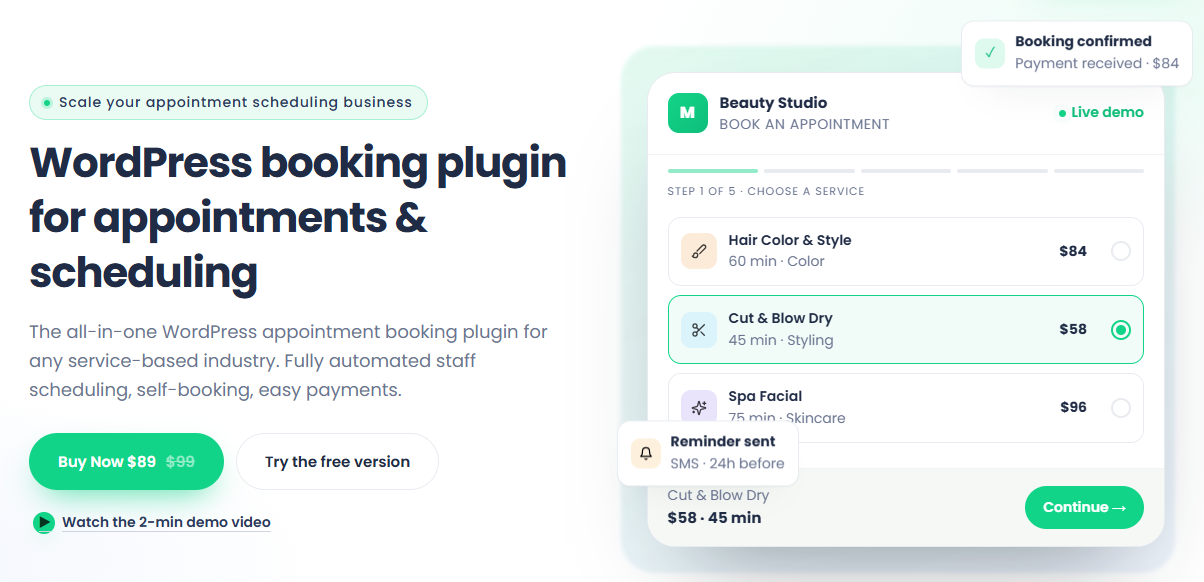
BookingPress bundles 50+ premium addons and 20+ payment gateways into its paid plans, making it one of the most feature-dense booking plugins per dollar spent. However, it was removed from WordPress.org on February 1, 2025. So, you can visit its official site to learn more about the plugin. It also provides two types of dashboards behind the scenes, separately for site admins and staff members. Other key features of the plugin include customizable booking forms, 17+ payment gateways, Google/Apple/Outlook calendar integration, staff management, and an extensive addon library.
Key features of BookingPress at a glance
- Customizable multi-step booking forms
- Staff management with individual availability
- Two-way sync with Google, Outlook, and Apple Calendars
- 20+ payment gateways
- SMS, WhatsApp, Telegram, and email notifications
- Support for solo, group, and recurring appointments
- Multiple location support
- WooCommerce, Zoom, Zapier, Mailchimp, and Elementor integrations
- Coupon management, tax settings, and invoicing
BookingPress pricing review
Its free version with unlimited appointments, unlimited services, customizable booking forms, and PayPal integration is pretty useful. However, its paid plans start at $89/year. The lifetime licenses are also available for the plugin with different tiers.
Our honest take on BookingPress vs Simple Calendar’s Book an Appointment
BookingPress is also one of the great contenders for businesses that need a deep booking system, including multiple services, multiple staff members, payment processing, invoicing, and client management. It’s a booking platform that happens to run on WordPress. However, a lot of people searching specifically for ‘WordPress calendar plugin’ might not need a full booking platform. They may be personal trainers who manage their schedule in Google Calendar, tutors who block off sessions in Outlook, or consultants who already know their availability.
This is where Simple Calendar’s Book an Appointment addon comes in. You’re not setting up services, configuring staff schedules, or connecting payment gateways inside WordPress with the Book an Appointment addon. You’re setting your available hours and buffer time in the Simple Calendar dashboard. After that, the addon reads your Google Calendar, displays open slots on your website, and when a client books, the appointment lands on both your Google Calendar and theirs. The booked slot immediately disappears from the frontend.
The quick way to decide
If what you need is a proper booking system for your business, it’s worth comparing BookingPress with Bookly and Amelia. The free version is a good place to start, especially if you want to test the basics before committing. As your needs grow, you’ll have plenty of addons to choose from. But if all you really want is to let people book time on your Google Calendar from your WordPress site, you probably don’t need a full booking system but a simple addon like Book an Appointment.
Best WordPress calendar plugins for simple calendar display
This section is for you if you have minimal calendar display needs, just like the features of the lightweight WordPress calendar plugins described in the section below. We compared three calendar plugins that keep things small, each in a different way.
Simple Calendar – Best simple WordPress calendar plugin with modular addons
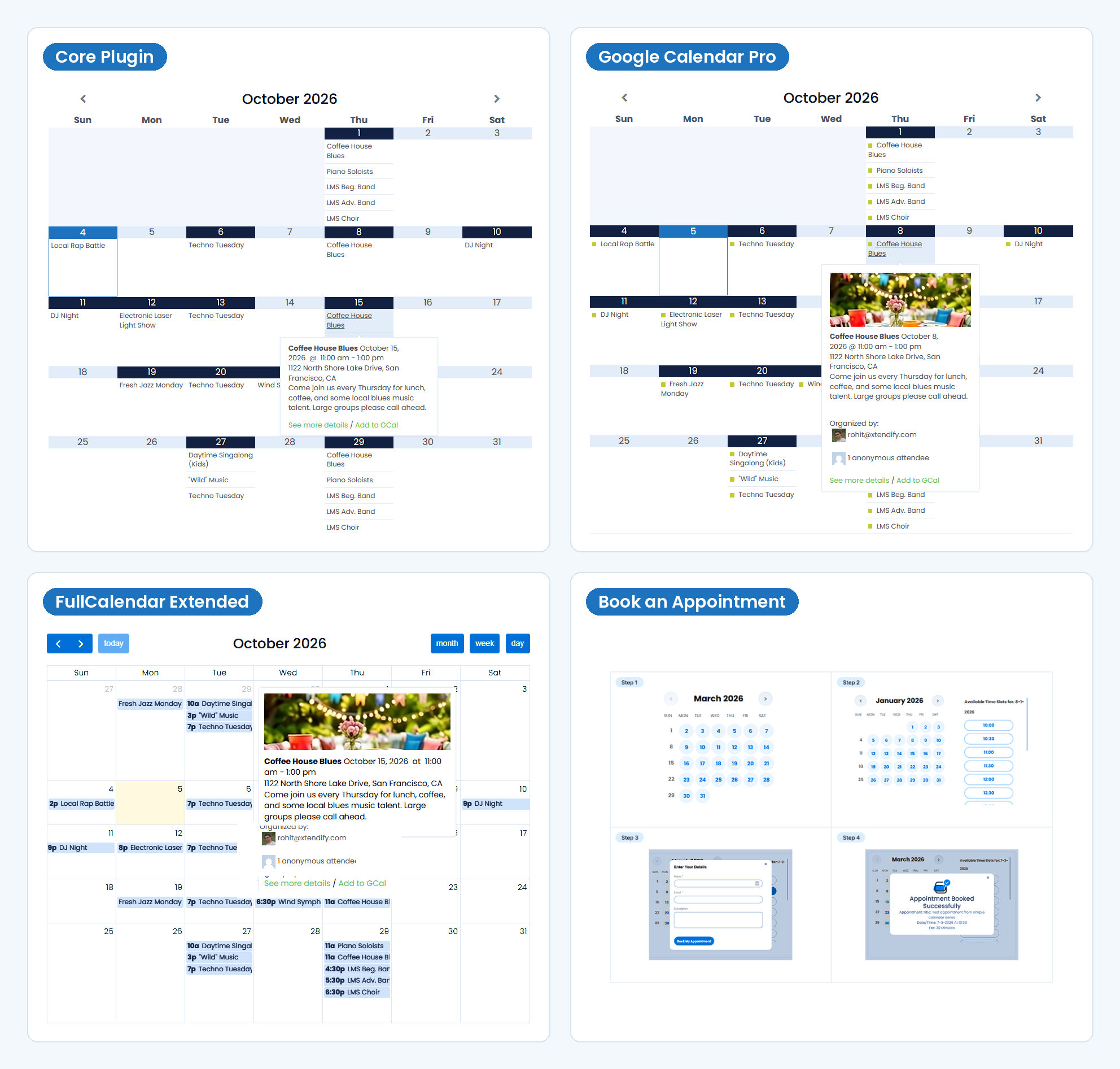
Our plugin, Simple Calendar, started as a way to show a Google Calendar on a WordPress site, and that’s still what most people use it for. The free plugin now also lets you create events directly in WordPress, so you no longer need a Google Calendar to use it. If your needs grow, you add what you need (private calendars, more views, appointment booking) as add-ons, without switching plugins.
Key features of Simple Calendar
- Create events in the WordPress dashboard, each with its own page (free)
- Display a public Google Calendar (free)
- Import events from an .ics file (free)
- Combine several calendars into one view (free)
- Private Google calendars and live ICS feed URLs (Google Calendar Pro add-on)
- Week and day views (FullCalendar add-on)
- Appointment booking that adds bookings to Google Calendar (Book an Appointment add-on)
Where it falls short:
- The free version only has month grid and list views.
- It doesn’t sell tickets or take RSVPs.
- Events you create in WordPress have basic details, including the title, description, location, start and end time. There are no venue or organizer profiles.
Best for: Sites that want a simple calendar today and may later want it connected to Google Calendar or taking bookings.
Pie Calendar – Best for content you already have in WordPress
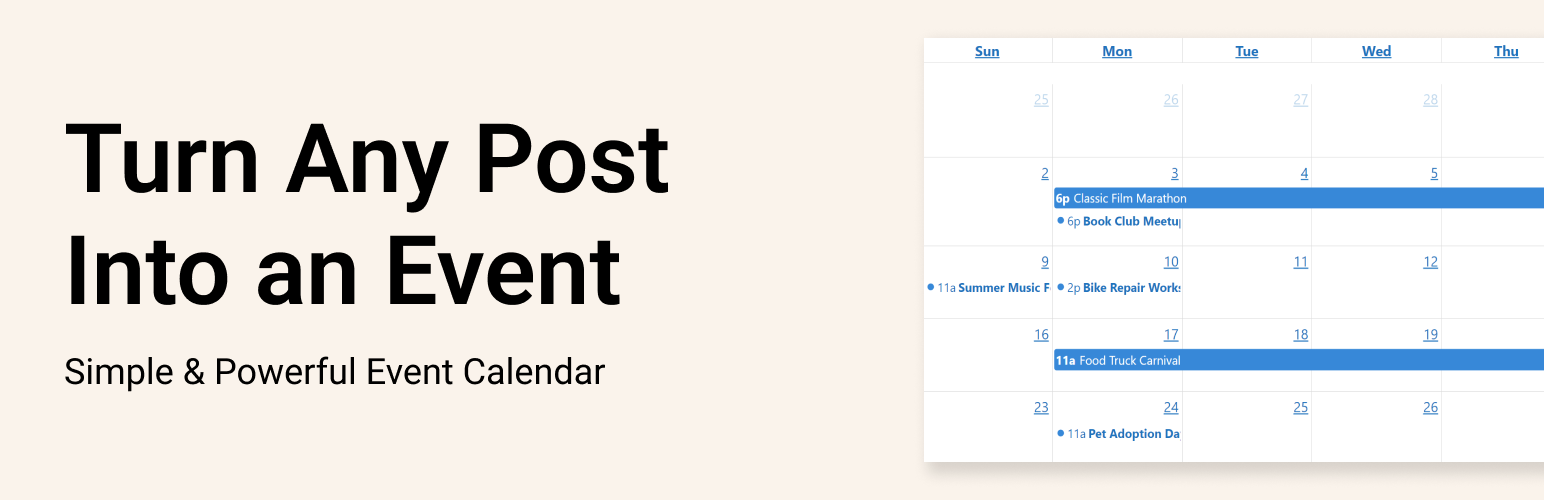
This plugin doesn’t create events of its own or add an events system at all. It helps display any post, page, or custom post type to show in calendar format instead. You can set the date, time, and place of the calendar with a shortcode. It’s a newer and smaller plugin, with around 1,000 active installs.
Key features
- Works with any post type, including custom post types (free)
- Month, week, day, and list views (free)
- Single-day, multi-day, and all-day events (free)
- Reads date fields from Advanced Custom Fields and Meta Box (free)
- Recurring events, color coding, and visitor time zone conversion (Pro)
- Displays WooCommerce and Easy Digital Downloads products on the calendar (Pro)
Where it falls short:
- Recurring events need Pro.
- Pulling in a Google Calendar or other ICS feed needs a separate Connector add-on.
- It has no ticketing, RSVPs, or venue management.
Best for: Developers and site builders who want existing content on a calendar, such as courses, workshops, or products.
My Calendar – Best for accessibility-focused sites
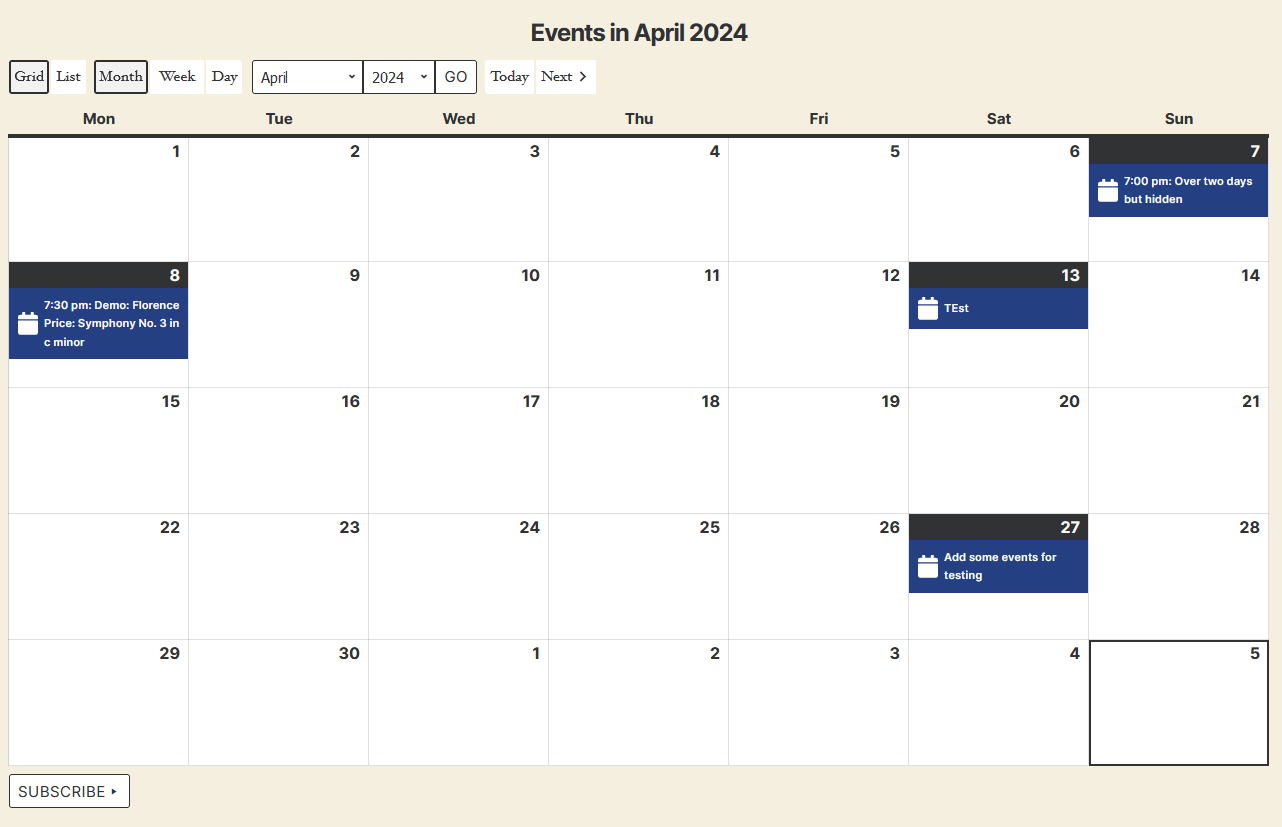
My Calendar is a long-running plugin by Joe Dolson, a well-known WordPress accessibility specialist. It is designed with accessibility in mind, and both the visitor-facing calendar and the admin screens are tested with assistive technology. It also lets you describe the accessibility services available at an event or venue.
Key features
- Grid, list and card views by month, week or day (free)
- Recurring events, with the option to edit a single date (free)
- Locations, categories and a mini-calendar widget (free)
- Let visitors subscribe to or export your events to their own calendar (free)
- Visitor-submitted events, .ics and .csv import, and custom fields (Pro)
Where it falls short
- It has more settings than the other two, so setup takes longer.
- It can’t display a Google Calendar directly. Importing external events is a Pro feature.
- It has no built-in ticketing.
Best for: Government, education, and nonprofit sites with accessibility requirements.
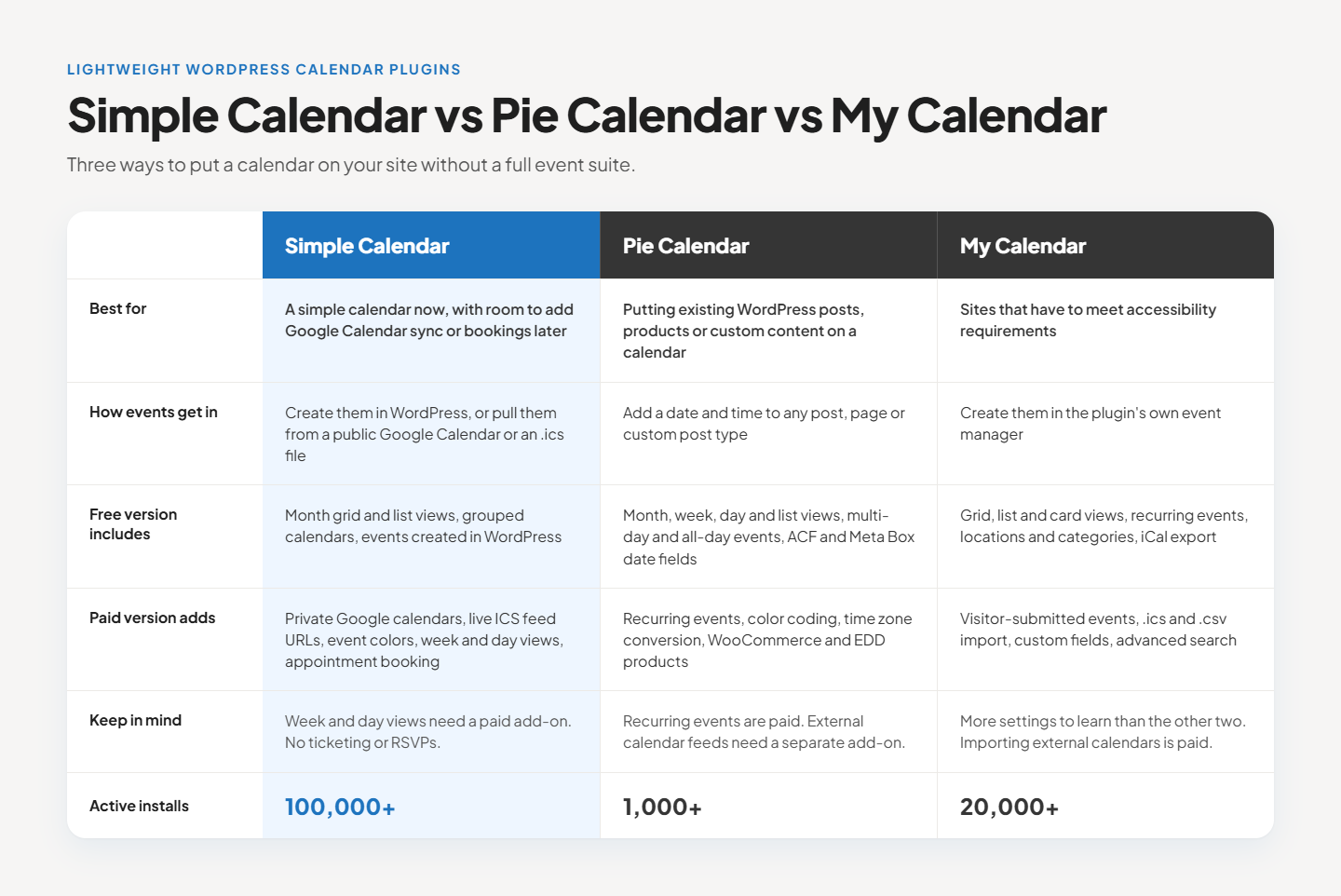
Quick comparison: How to choose a lightweight calendar plugin for WordPress
How we tested these calendar plugins for WordPress
We didn’t pick these calendar plugins for WordPress from other roundups and rewrite their descriptions. We tested each free version first and tried to complete the core requirement of each plugin, which specifically includes displaying a calendar, creating an event, or accepting a booking.
We’ve also tested premium features by spending a significant amount of time reading through each plugin’s official documentation, changelogs, comparison pages, and support forums. We also cross-referenced WordPress.org reviews and independent sources to make sure we weren’t just echoing what each plugin says about itself.
What this guide covers and what it doesn’t
This guide is focused on helping you choose the right WordPress calendar plugin for your specific use case. It is not an exhaustive directory of every calendar plugin available, as there are 50+ calendar-related plugins in the WordPress ecosystem, and covering all of them would dilute the value of the recommendations.
These plugins were shortlisted and comprehensively compared mainly across the five use-case categories, their active installation counts, recency of updates, and their real-world adoption signals, including community discussions, forum activity, and their presence in other comparison posts.
Select the WordPress calendar plugin that matches your needs
We get that it’s a long post! But it had to be a long post because ‘best WordPress calendar plugin’ is genuinely not a single question. It’s five completely different questions wearing the same search query.
And there’s no single best calendar plugin, either. There’s a best one for you, and it depends entirely on what you want to achieve. We have tried our best to organize this whole guide around your situation first, and plugins second.
Also, please note that the plugin may raise prices, shift ownership, add features, or drop support. We’ll try to keep this guide updated as much as possible. However, please do let us know if you spot something outdated before we do.
Summarize with:
Frequently asked questions
This is your ultimate answer if you’re looking for which online calendar plugins sync best with Google Calendar. You can easily achieve this using Simple Calendar’s free plugin, which connects to any public Google Calendar via an API key and displays it in responsive grid and list views.
It all boils down to what a calendar means to your specific use case. If you are looking for a free WordPress calendar plugin with most of the functionality and you decide to scale functionality later on, we believe Simple Calendar is the ideal choice unless you’re looking for deep event management or booking features. Simple Calendar core can handle basic event management, Google Calendar sync, booking appointments, and other ICS feed import features.
Yes, you can embed Google Calendar using an iframe, but it comes with limitations. It only works with public Google Calendars, uses Google’s default styling, isn’t responsive on mobile, and every small change requires re-embedding.
A free plugin like Simple Calendar solves all these issues while conveniently syncing your Google Calendar via the API or a 1-click OAuth connection, or via supporting import of ICS from other calendar applications.
It’s rarely a good idea. Each plugin adds its own CSS, JavaScript, and potentially database tables. Running a display plugin (like Simple Calendar) alongside a booking plugin (like Amelia) is a common and valid combination, since they serve different functions. But running two event management plugins simultaneously is asking for conflicts.
Related posts
Simple plugin. Pro features. Easy from day one.
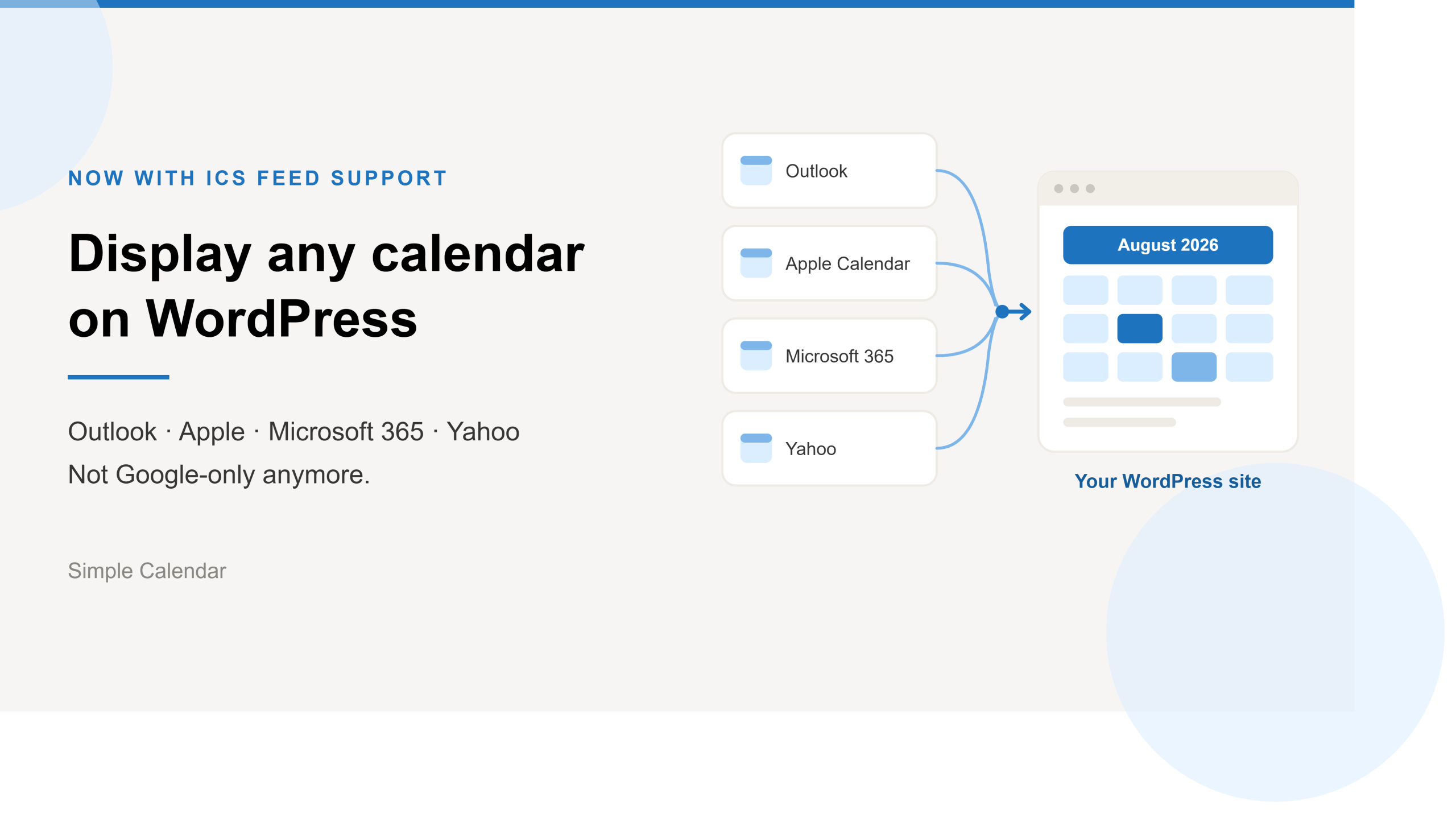
Simple Calendar now imports ICS feeds and connects live ICS feed URL. Learn step-by-step workflows for displaying Outlook, Microsoft 365, Apple, and Yahoo calendars.
After 13 years of building a WordPress calendar plugin, we know a Google Calendar embed looks like the easy answer. But it rarely stays that way. It’s only after you embed the Google Calendar manually and open the page on your mobile that you realize the calendar decided to live by its own rules. A […]
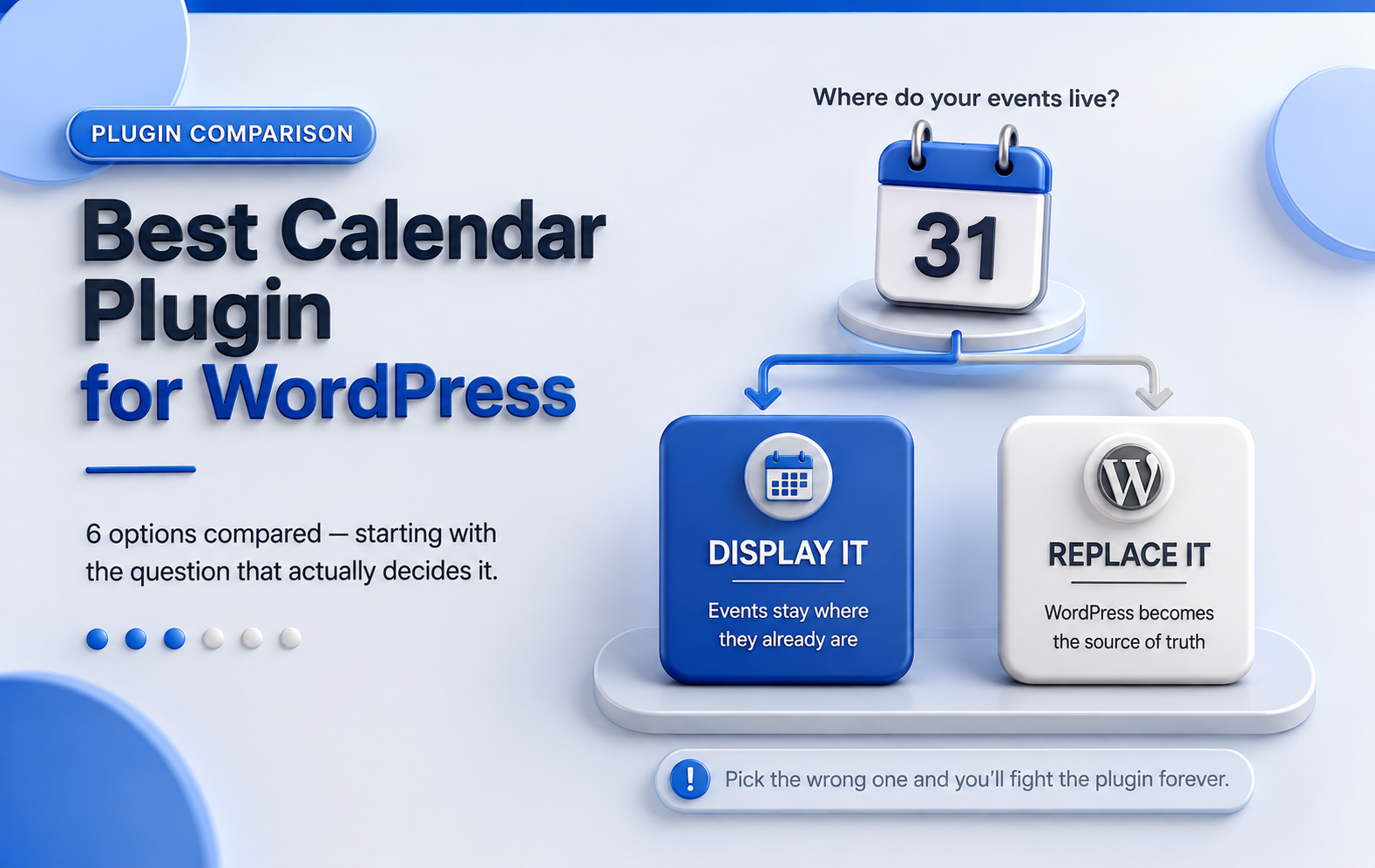
Best WordPress Event Calendar plugins, compared Search ‘best calendar plugin for WordPress‘ and you’ll get ten posts recommending the same three plugins. Not because those three are wrong; they’re genuinely good- but because most roundups are written by ranking plugins against each other in the abstract, feature column by feature column. Whether you’re searching for […]