
TL;DR
This guide covers everything you need for WordPress Google Calendar integration, including three practical ways to integrate Google Calendar in WordPress. Whether you want a quick 5-minute free setup or a fully private, color-coded, interactive calendar, this Google Calendar WordPress integration walkthrough has you covered, no coding required.
Creating an event or team schedule using Google Calendar embedded or integrated in WordPress can sometimes be problematic. The embedding can look old-fashioned, and there can be many display issues, especially on mobile. You’re not alone if you’ve encountered the same problems as everyone else.
Fortunately, you don’t need to be a programmer to embed and customize Google Calendar in WordPress. This guide walks through three levels of integration with the WordPress plugin for Google Calendar, from a five-minute free setup to a fully private, color-coded, interactive calendar system.
Where can your standard Google Calendar embed fall short?
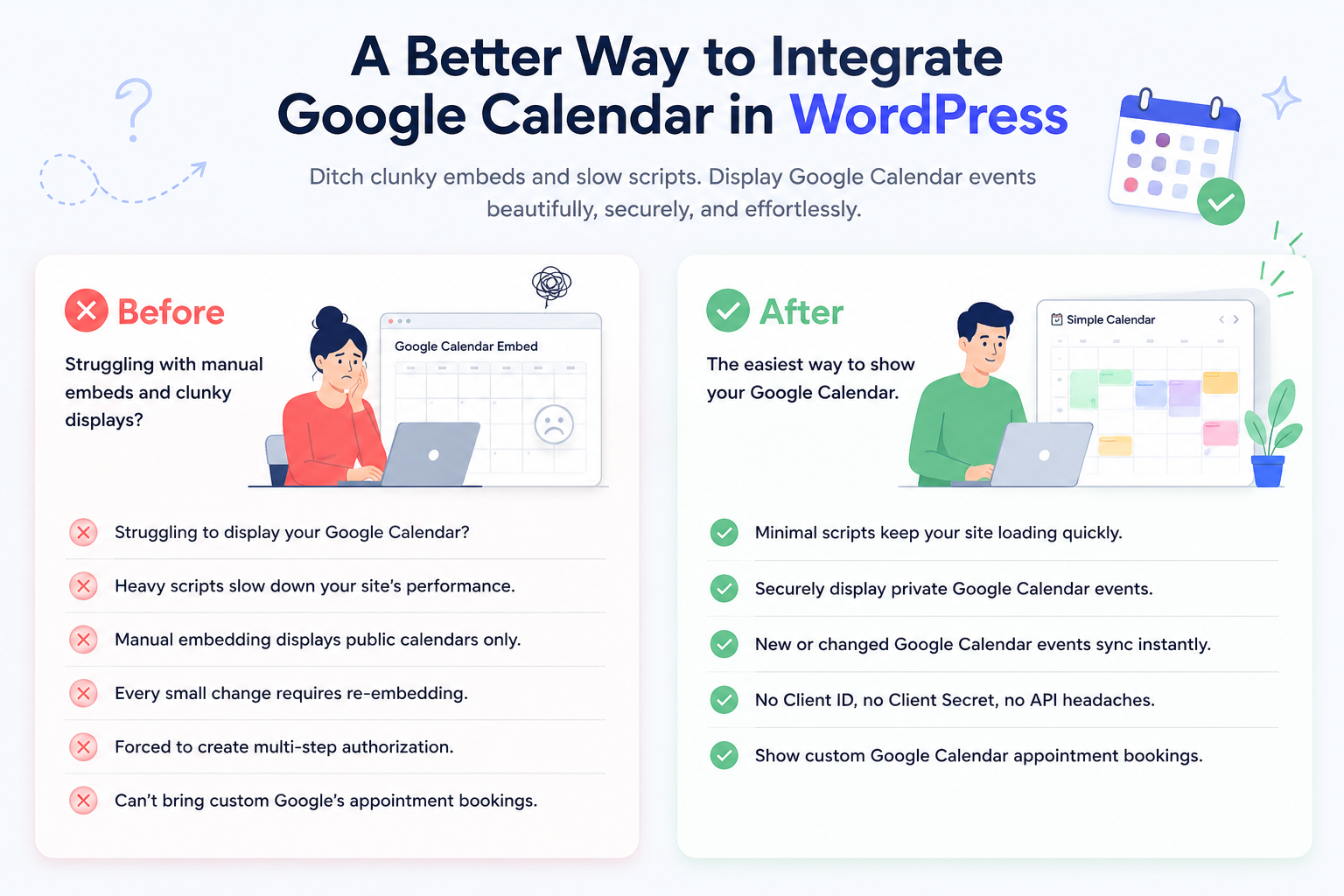
Google’s built-in “Get shareable link” code is functional, but you should know about a few of its limitations:
- Lack of private calendar integration: Only public calendars are supported. If a calendar is private, you can make it public, but that wouldn’t work in a client, team, or member site that doesn’t want its events to be indexed on Google for public search. And that also came out due to certain security reasons.
- Lack of customization: You are restricted to Google’s design. There is no customization to fit your theme.
- Lack of responsiveness: Mobile support can be a problem. When you embed an iframe, users will likely have a poor experience due to the scrolling and zooming.
This is the precise problem a dedicated Google Calendar plugin for WordPress was made for. It’s no longer necessary to embed Google Calendar manually because there is now a WordPress Google Calendar integration plugin specifically for WordPress.
Method 1: Basic Integration with Simple Calendar (Free)
The free version of Simple Calendar handles the most common use case: pulling in one or more public Google Calendars and displaying them natively on your site.
What you will get:
- Display events from any public Google Calendar without needing to create events separately in WordPress.
- Fully responsive monthly grid and list views that adapt to any screen.
- The ability to combine multiple calendars into one display, either explicitly or by category.
- Custom tags to control exactly what event content shows, with no coding required.
- Advanced settings for time zones, date/time formats, and which day the week starts on.
Setup Steps
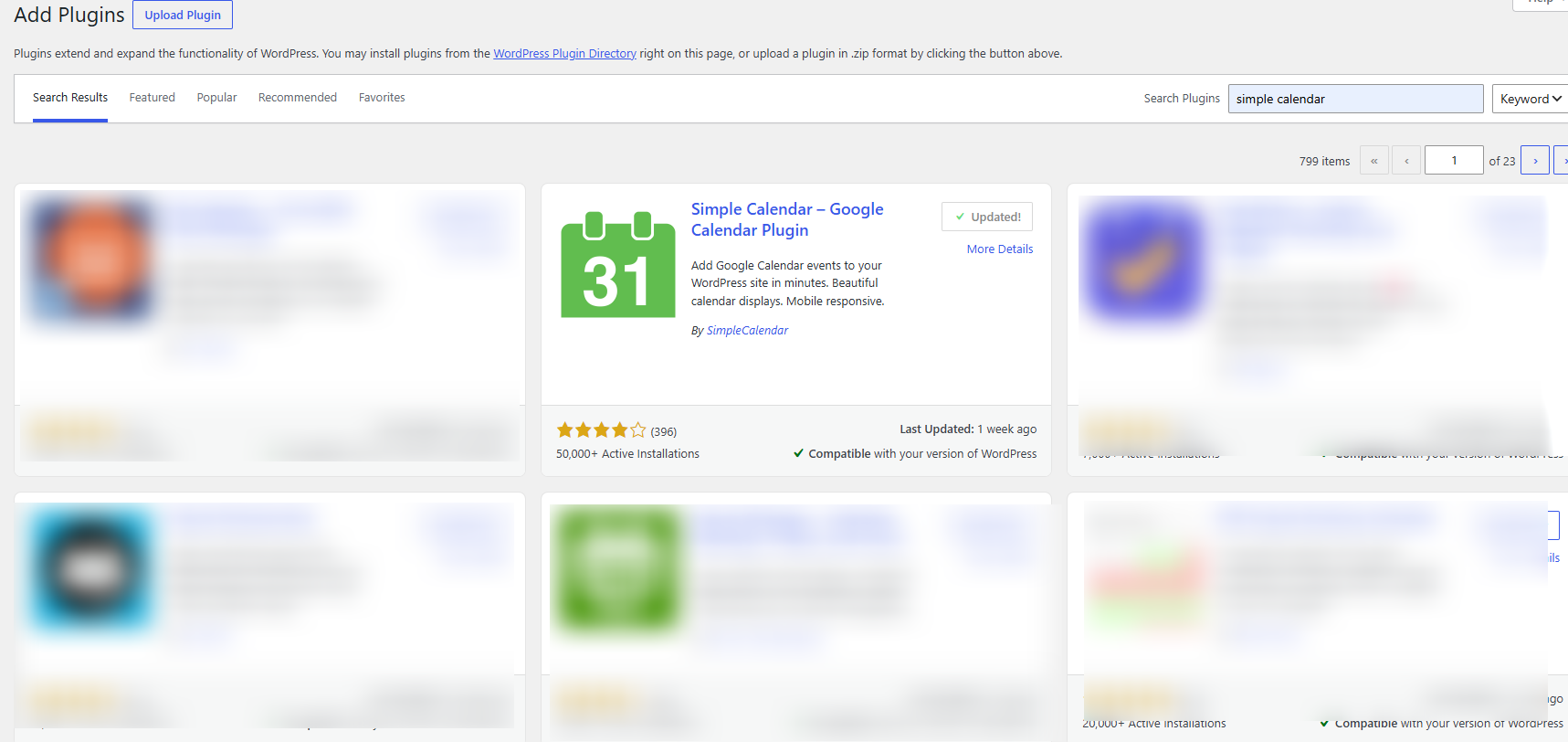
Step 1: Install and activate Simple Calendar from the WordPress plugin directory.
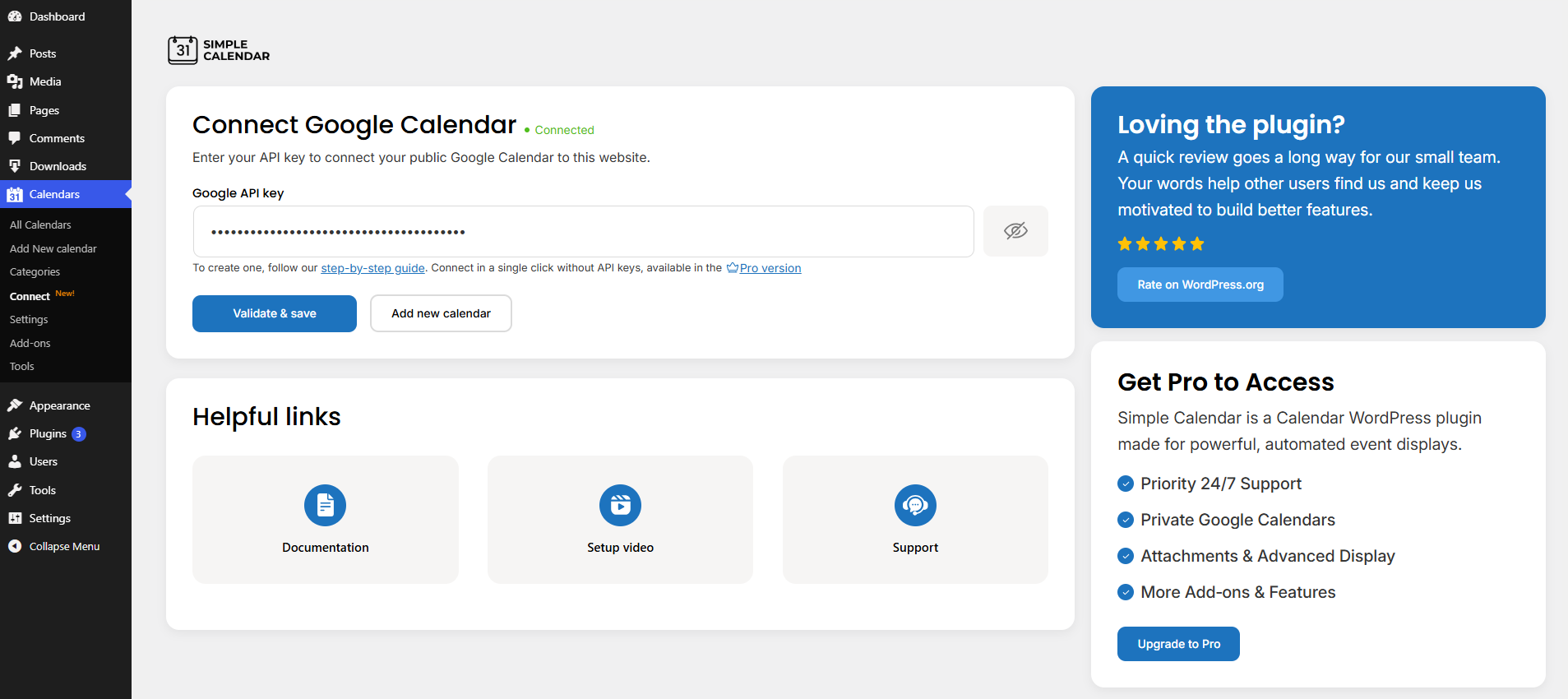
Step 2: Go to the calendar settings and connect your public Google Calendar
Step 3: Choose your display style — grid or list.
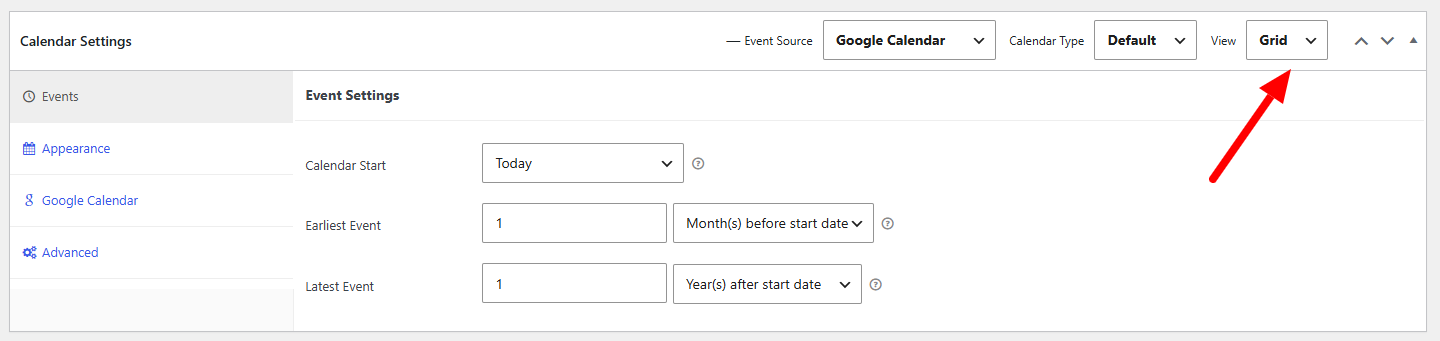
Step 4: Drop the shortcode or block into any page or post.
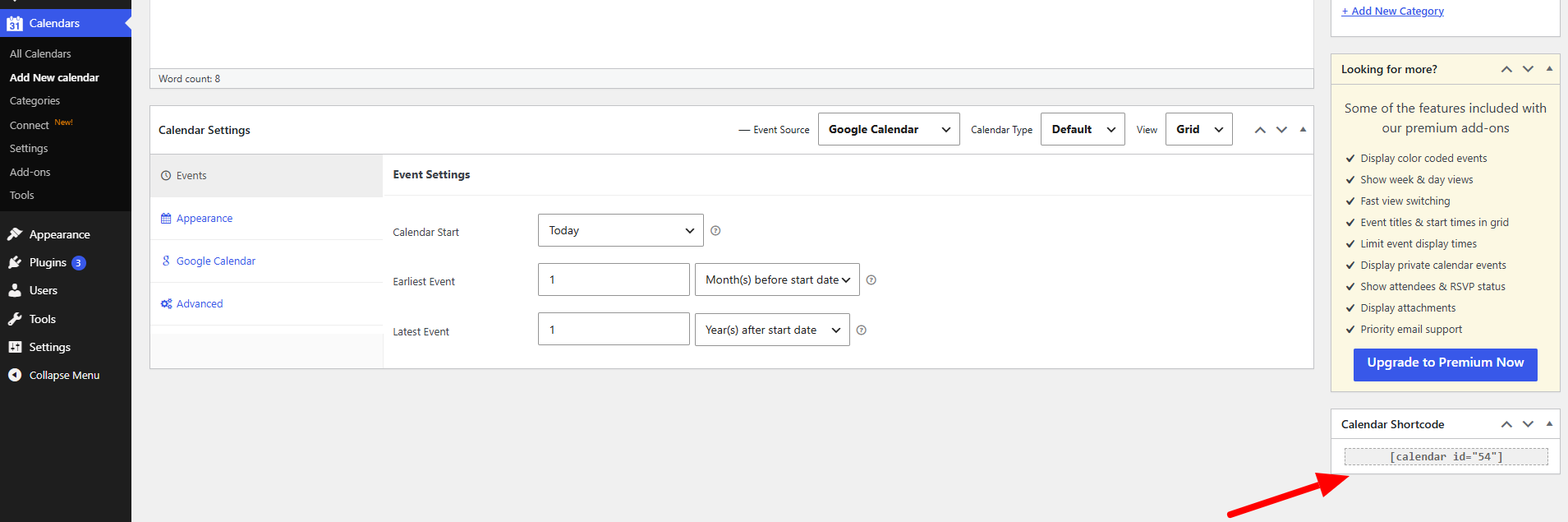
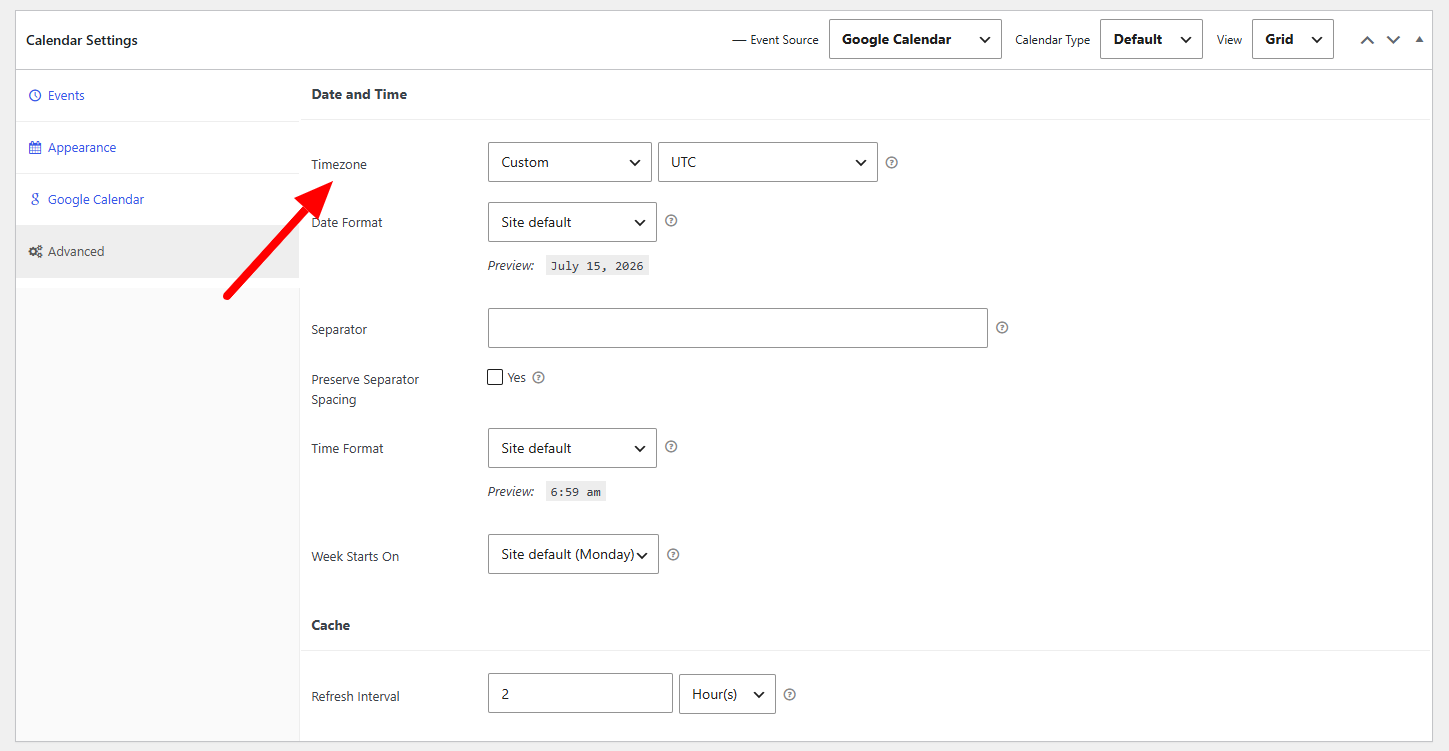
Step 5: Adjust the time zone and week-start settings to match your audience.
This addresses the fundamentals of integrating Google Calendar in WordPress for posting publicly available schedules, i.e, a nonprofit’s event calendar, a class schedule, a store’s opening hours, etc. However, once you require private calendars, attendee information, or a more dynamic design, customization, and other enhanced features, you must explore one of two add-ons of Simple Calendar, as defined below
Method 2: Private Calendars and Rich Event Data with Google Calendar Pro
This is where most sites actually need to land. If you’re managing internal team schedules, client-only bookings, or member events, you can’t make the calendar public just to display it. The Google Calendar Pro addon exists specifically to solve that with even more functionalities.
Simple Calendar resolves lengthy authentication into a few clicks
Typically, connecting a private Google Calendar to a third-party application involves setting up a Google Cloud project and creating a client ID and secret, along with an API key.
It is a cumbersome process for most non-developers. Google Calendar Pro replaces all of that with authentication with the Simple Calendar option, which is built on Google’s OAuth system. You sign in once, approve access, and you’re done, without needing to add public calendar IDs or manage complex API settings.
What you will get with the Google Calendar Pro addon
Beyond authentication, this addon is what turns a basic calendar into something closer to Google Calendar itself, embedded natively in WordPress:
- Displays events from both private and public Google Calendars.
- Automatically syncs the exact colors you’ve already assigned to events in Google Calendar, so nothing needs to be re-categorized on the WordPress side.
- Shows attendee names, avatars, and RSVP status for any event, private or public
- Displays event organizer information
- Lists attachments with links back to their source
- Adds image previews on hover, so visitors get a visual snapshot of an event without clicking into it
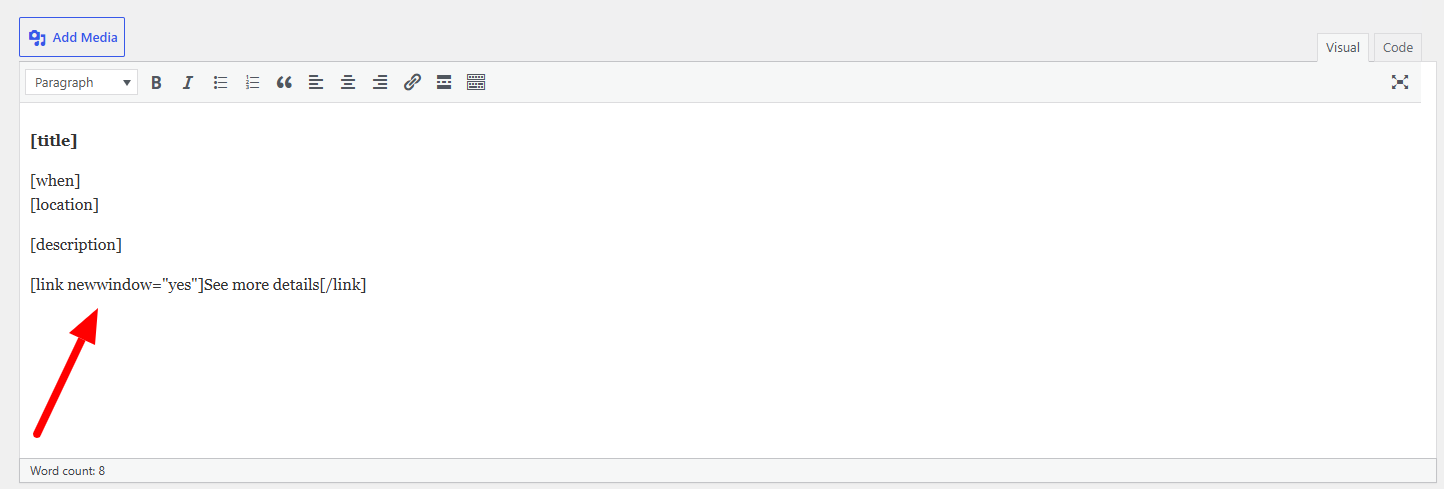
- Uses simple, shortcode-like tags so you control exactly which fields — titles, descriptions, links appear on the frontend
Practically, this means a private team calendar can now show who’s attending a meeting, what color category it falls under, and any linked files, all without exposing the raw Google Calendar link to the public web. This is the method to use if you want to integrate Google Calendar in WordPress without ever making a calendar public, since private calendars are only ever accessed through secure authentication, never via embed code.
Setup Steps for Google Calendar Pro
Step 1: Install Google Calendar Pro alongside the core Simple Calendar plugin.
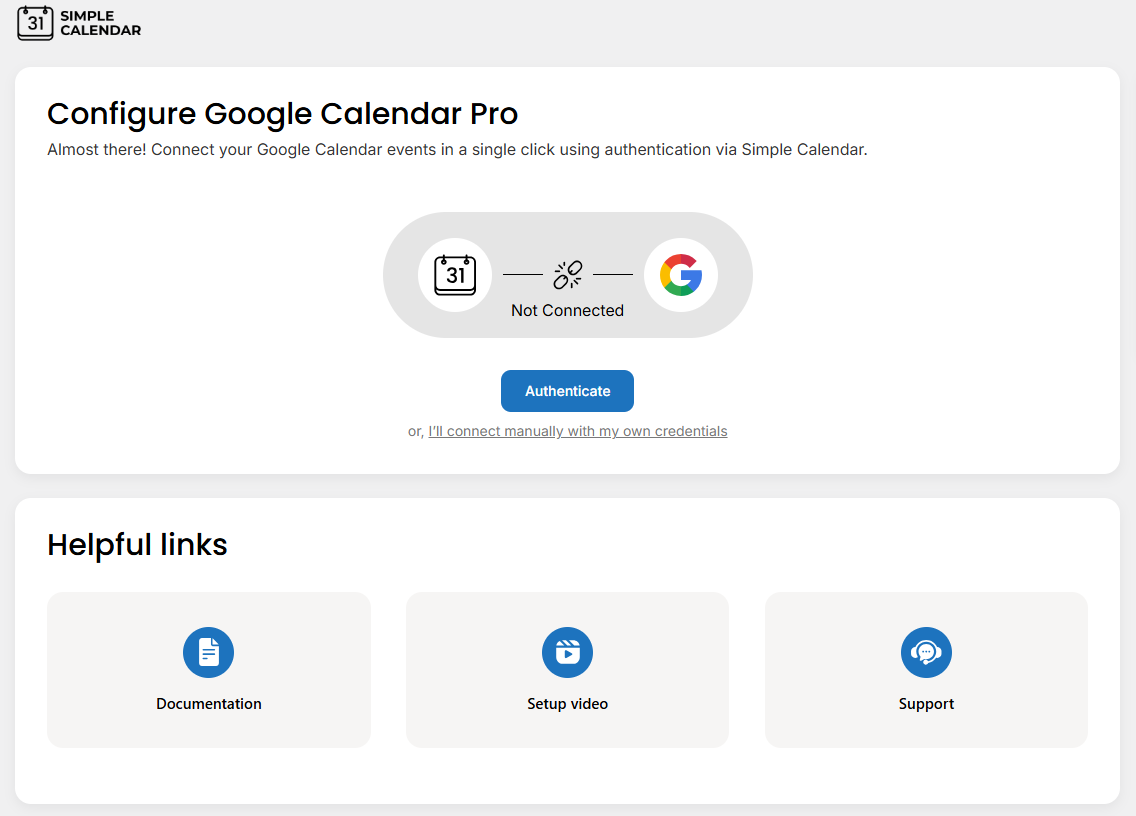
Step 2: Open the addon settings and click Authenticate.
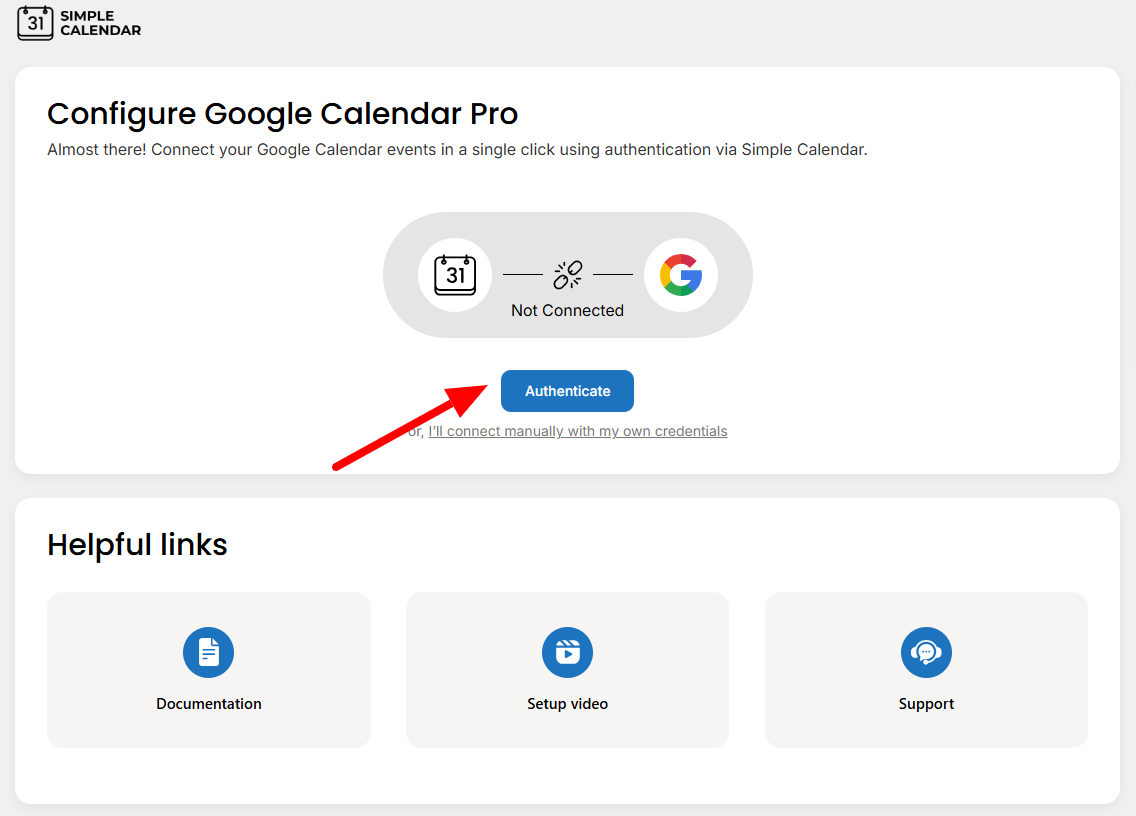
Step 3: Approve Google’s OAuth permission request.
Step 4: Select which calendars to pull in.
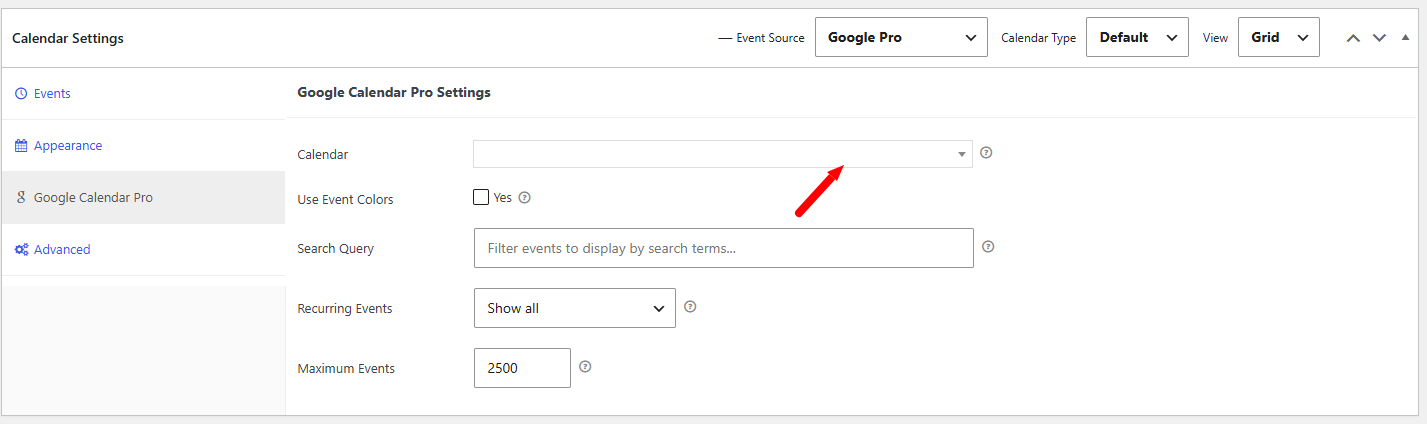
Step 5: Use the built-in tags to choose which event fields to display.
Method 3: Interactive Month/Week/Day Views with FullCalendar Extended
Now that your (public or private) data is connected, you may want to consider how it’s displayed. In many cases, the basic grid or list views may suffice, but due to the nature of many use cases, visitors may instead expect to have some control to toggle between views.
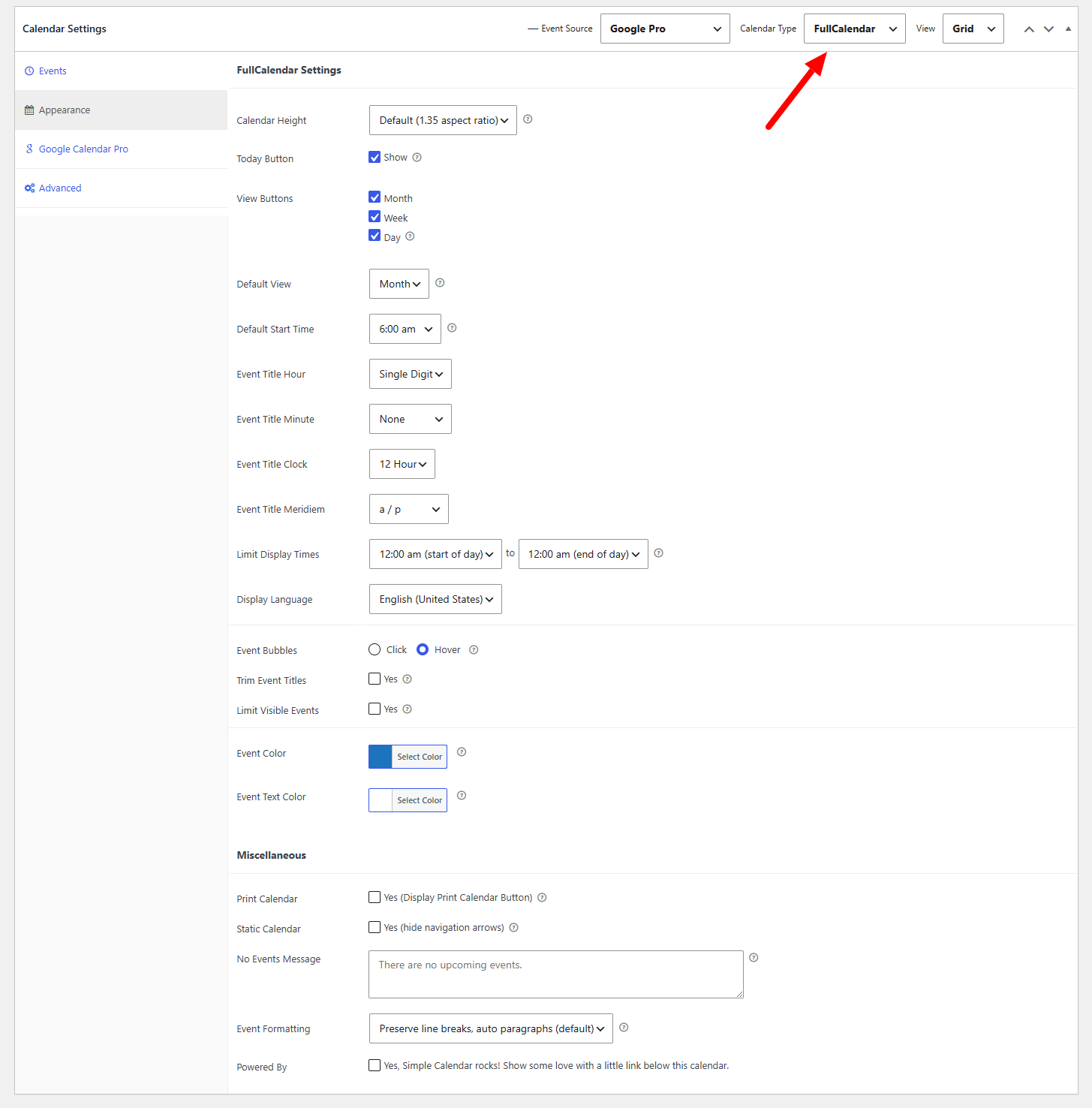
This is where the FullCalendar Extended addon comes into play. FullCalendar Extended is built on the trusted, open-source FullCalendar library and allows you to embed a customized Google Calendar experience directly into your WordPress site. Unlike the traditional static layout, users can toggle between month, week, or day views, providing a more interactive experience while navigating through events.
This, combined with Simple Calendar and Google Calendar Pro, provides a full experience beyond aesthetics. Google Calendar Pro works with the FullCalendar addon to provide a seamless color-coded experience, carrying the color scheme through every view. So a visitor switching from a month to a week view will see the same color logic, not a reset layout.
Quick Recap: Integrating Google Calendar into WordPress
- Start with the free plugin for any public-only calendar.
- Add Google Calendar Pro the moment you need private calendars, attendee data, or synced event colors — OAuth authentication removes the technical setup entirely.
- Add FullCalendar Extended when you want visitors to switch between month, week, and day views, or when you need multi-language support.
- Combine both addons for the most complete WordPress Google Calendar integration — private data, rich event details, and flexible interactive views in one place.
Manually embedding Google Calendar will always be the harder, more limited road. If you’re serious about a clean, secure integration of Google Calendar in a WordPress setup, the plugin-based route gets you there faster, and it keeps working as your needs grow. You can see the full feature breakdown on the WordPress plugin for Google Calendar homepage.
Frequently asked questions
Is it possible to embed a private Google Calendar in WordPress?
Yes. A standard Google embed only supports public calendars. To display a private calendar, you need a plugin like Simple Calendar’s Google Calendar Pro add-on, which connects via secure OAuth authentication rather than a public embed link, so the calendar stays private while still displaying on your site.
Do I need any coding skills for WordPress Google Calendar integration?
No. Simple Calendar and its add-ons are built for non-developers. You just need to install the plugin, connect your Google account, and drop a shortcode or block into any page. No API keys or custom code are required once you’re using Google Calendar Pro’s built-in authentication.
What’s the easiest way to integrate Google Calendar in WordPress for free?
Install the free Simple Calendar plugin, connect a public Google Calendar using its URL or ID, and add the calendar to any page or post with a shortcode or block. This covers most public-facing use cases, like a school, nonprofit, or store schedule, without needing a paid add-on.
Summarize with:
Related posts
Simple plugin. Pro features. Easy from day one.
Looking to add Google Calendar to WordPress without a plugin? Google’s embed code provides a free way to display a public calendar on your site. Still, it also comes with several tradeoffs that can affect customization, mobile experience, and future scalability. In this guide, you’ll learn how to embed it and when a dedicated calendar […]
Learn how to embed Google Calendar in WordPress using 3 methods: iframe, plugin, and API. Compare pros, cons, SEO impact, and ideal use cases.
An overview In the past, choosing a WordPress calendar plugin was a no-brainer. However, that’s not the case anymore due to the increased complexity of plugins as well as changing user dynamics across mobile devices. Today, your calendar plugins need to be an integral part of site performance, especially when mobile performance is critical. If […]