
TL;DR
- Three ways to get a Google Calendar onto WordPress: Google’s iframe embed, a shortcode, or the widget.
- The iframe is free but rigid. Your calendar has to be public, you’re stuck with Google’s styling, and it doesn’t cope well with narrow screens.
- A shortcode puts the calendar on one page. Best when you want a proper events page that people go to on purpose.
- The widget puts it in a region — a sidebar or footer. That means it shows up across your whole site without you touching a single post.
- Simple Calendar is free, and there’s no code involved. You need a theme with at least one widget area, then it’s a couple of minutes in Appearance → Widgets.
- Quick rule: widget if your events are useful but not the main draw. Shortcode if the calendar is the reason someone’s on the page.
After 13 years of building a WordPress calendar plugin, we know a Google Calendar embed looks like the easy answer. But it rarely stays that way. It’s only after you embed the Google Calendar manually and open the page on your mobile that you realize the calendar decided to live by its own rules.
A basic iframe doesn’t play with your site’s rules, as it won’t automatically adapt to your theme, match your styling, or behave like a natural part of the page.
There’s a better option sitting in your dashboard. The Google Calendar widget for WordPress is built into the plugin you’d install anyway, and most people skip past it because it looks too simple to be the right answer. This is a walkthrough of when the widget is the right call, when it isn’t, and how to set it up without hitting the snags that catch most people out.
Widget vs. shortcode vs. Google’s embed code: What each one solves
As I’ve stressed earlier in our posts, there are several ways to add a Google Calendar to a WordPress site. And none of the ways are competing against each other; it all boils down to what your ultimate goal is, while keeping in mind the ease of setup and customization, etc.
Google’s iframe embed
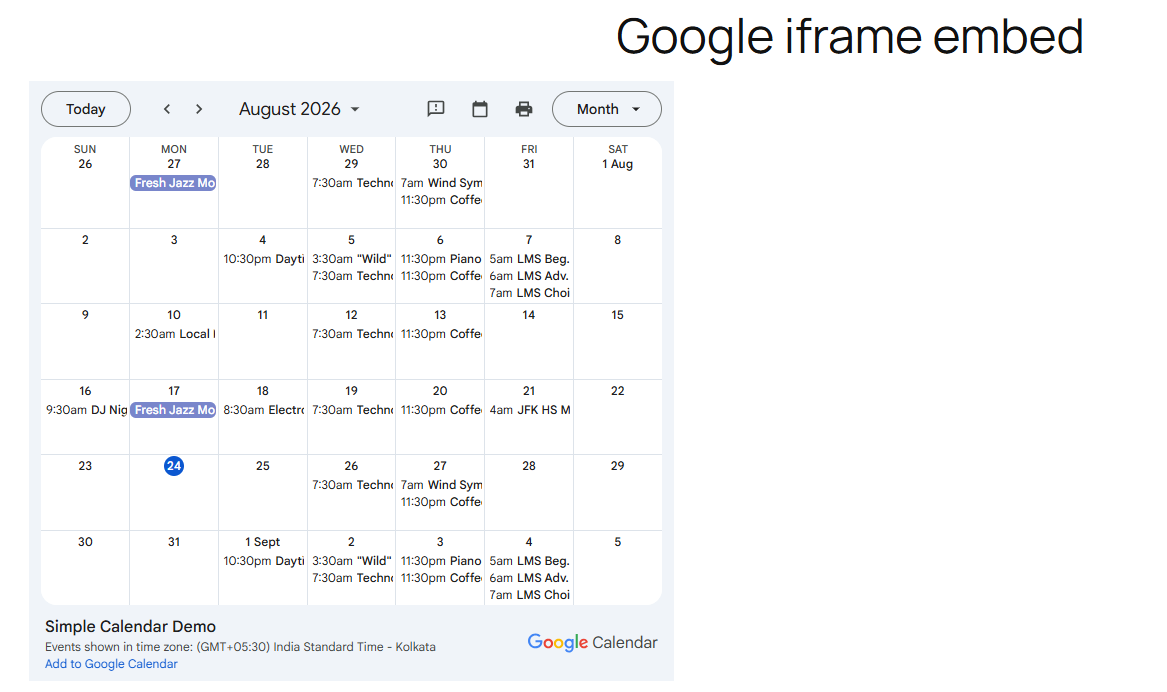
It is free and doesn’t require a plugin. However, it requires your calendar to be public, gives you Google’s styling instead of yours, and handles narrow screens badly. So it’s fine for an internal page nobody’s judging. On a page a customer lands on, it shows.
You can paste an iframe into a page, post, or custom HTML widget, but it renders the same way everywhere with fixed dimensions, Google’s styling, and a lack of adaptation to a narrow column. You can’t switch it to a grid, list, or widget-style layout, and if the calendar is private, Google simply won’t render it at all.
A shortcode
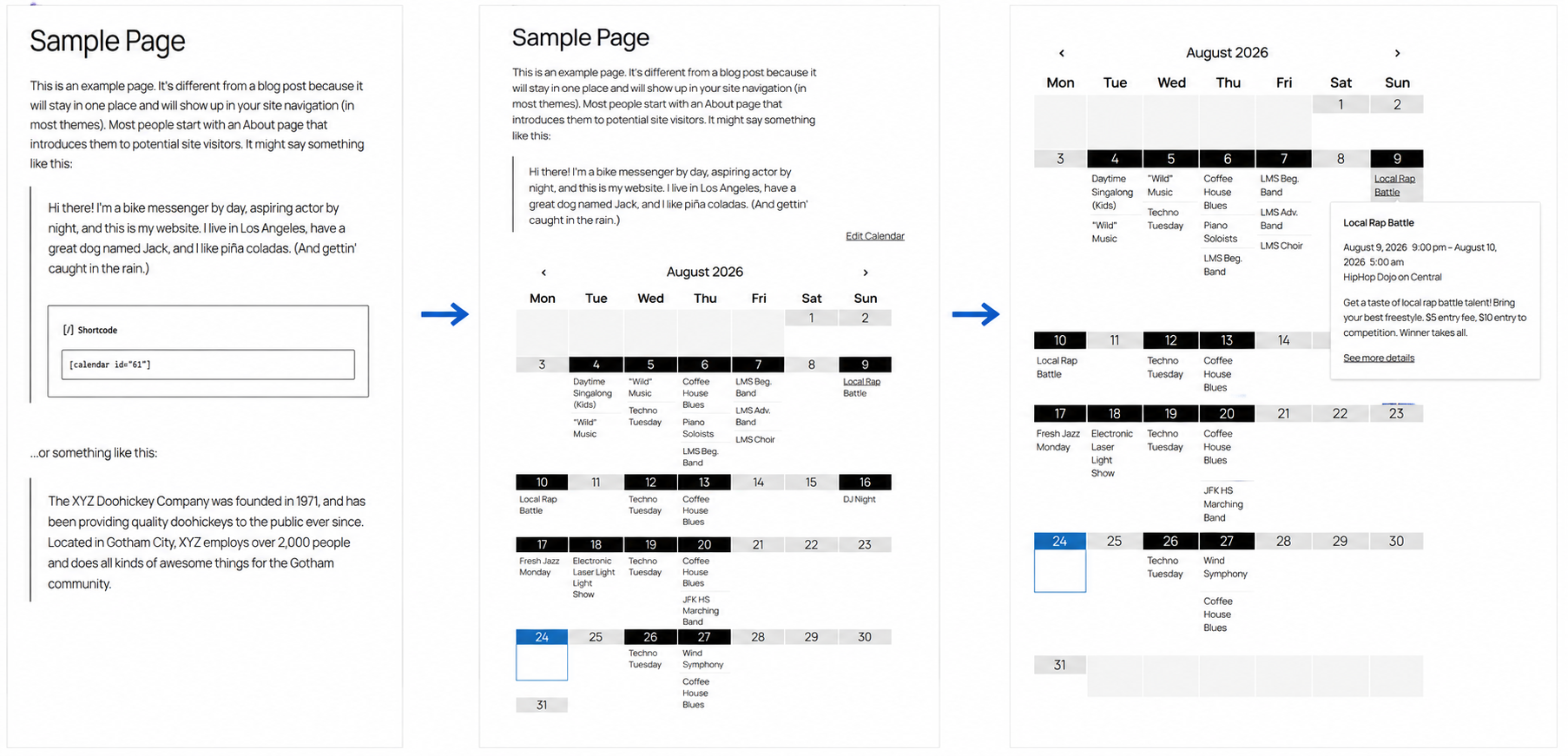
It puts a calendar in one specific place, such as a page or a post. It is an ideal solution if you want a dedicated events page or a class timetable that lives at its own URL with full width and attention.
It’s a far better option than an iframe, as the output will be 100% responsive. With our Simple Calendar plugin, you get a ready-made shortcode for each calendar you create.
The Simple Calendar widget
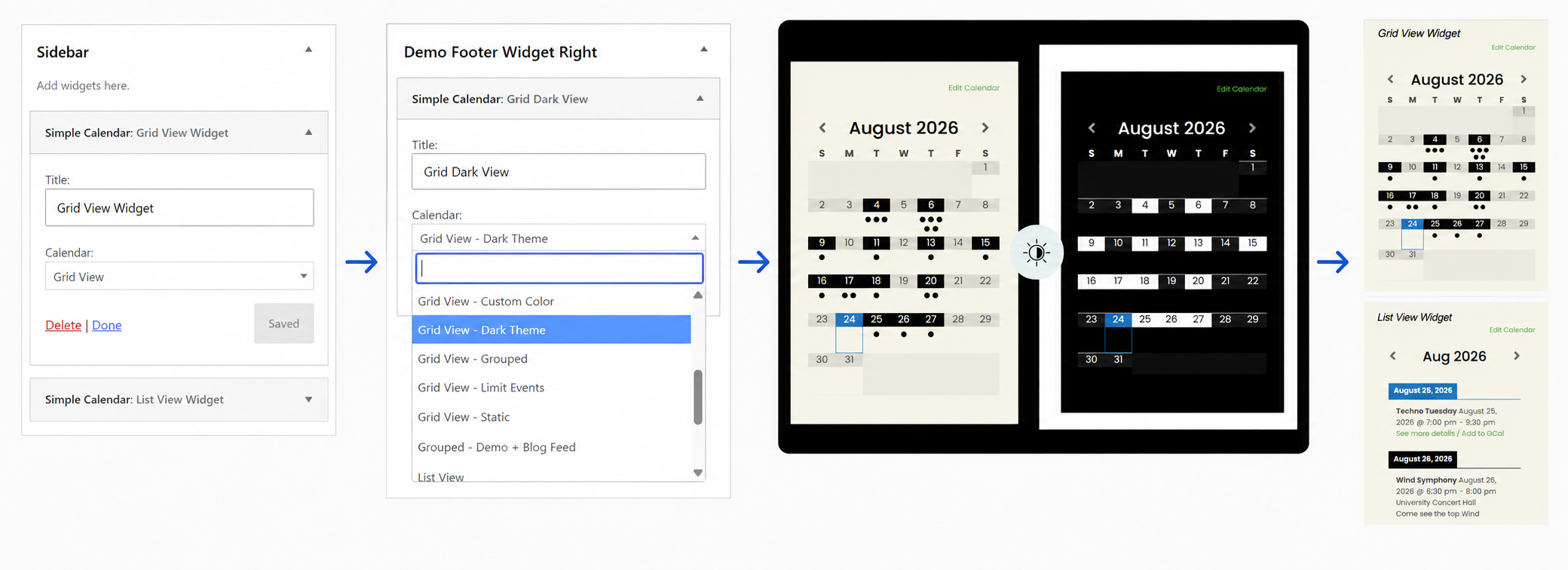
It puts a calendar in a region instead of a page. The region can be a sidebar, footer, or wherever your theme registers widget areas. It then appears on every page that renders that region, without you touching a single post.
And the best part is that the widget ships with the free Simple Calendar plugin.
When is a calendar widget for WordPress the right choice?
The widget earns its place in four fairly specific situations. If none of them describe your site, a shortcode is probably the better option.
Displaying events is not the main aim
Let’s suppose you run a blog that runs a monthly workshop, a consultancy with the occasional webinar, or a studio with a class or two a week! In this scenario, using the Simple Calendar widget is also an ideal option to place your integrated calendar in the sidebar or footer, making the information readily available to readers who are already on your site.
Predicting where visitors will land is difficult
When visitors arrive on your website from various sources, such as search, Facebook posts, printed flyers, and word of mouth, you may not know where they will ultimately land. Someone might land on your about page, a 2023 blog post, or the homepage.
If you can’t reliably funnel people to your specific calendar page (unless you do the proper SEO & marketing), don’t gamble on them finding it. Put the calendar in a region that renders everywhere, which is a widget, and let it find them instead.
Needs to display in the footer
This one’s underrated. Footers get treated as a dumping ground for contact details and a copyright line, so a calendar down there has no competition for attention.
You get sitewide visibility without the calendar fighting your main content for space, and the footer ends up holding something people actually use.
Already maintains a specific calendar page
Widgets and shortcodes aren’t an either/or. Sometimes, the most useful setup is often both. You can display the full calendar on its own page with a shortcode.
Then, the compact list widget is also an ideal option if you want to show the next few events in the sidebar or footer while linking to the full calendar page you’ve created via shortcode.
How to add the Simple Calendar widget to a sidebar or footer
There are two prerequisites to adding a Simple Calendar widget to a sidebar or footer.
You’ll need at least one widget area in your theme. Most themes have one, but block themes manage widget areas through the Site Editor instead of the classic Widgets screen, so it’s worth checking which type of theme you’re using.
You’ll also need a calendar already set up, since the widget displays an existing calendar rather than creating one for you.
Next, follow the steps below:
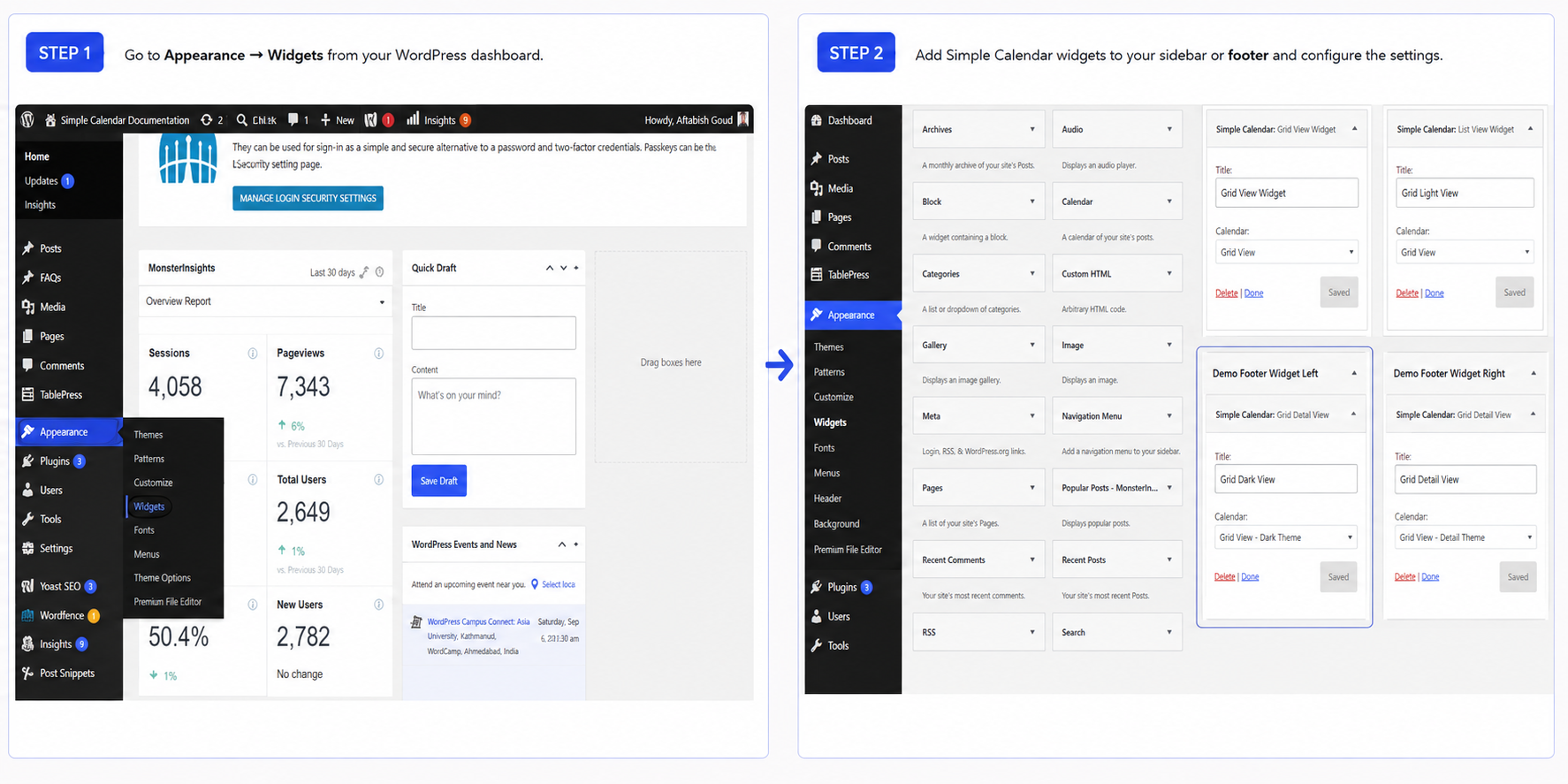
- Go to Appearance → Widgets
- Find the widget labelled Simple Calendar
- Place it in the widget area you want
- Give it a title and pick which calendar to display
- Save
Here’s one thing that’ll save you some confusion later: the widget stays connected to the calendar you choose. So, if you change that calendar’s view, colors, or event limit, those changes show in the widget. You’re managing one calendar, not maintaining two separate versions.
One thing to avoid: don’t paste a Simple Calendar shortcode into WordPress’s default Text widget and expect it to work. Shortcodes are meant for post and page content. If you’re working in a widget area, use the actual Simple Calendar widget instead.
Grid or list view: which layout works in a narrow column
The widget gives you two ways to show events: a compact grid or a simple list.
The grid is the familiar month-at-a-glance view. It works nicely when you only have a few events, but in a narrow sidebar, things can get cramped if nearly every day has something going on.
The list skips the grid and puts your events one after another. The calendar list view is an ideal fit for a sidebar. Narrow spaces work well with vertical lists, and most people checking a sidebar want to see what’s coming up next.
The widget demo shows both views live. Resize your browser and see which one fits your site better.
Google Calendar widget for WordPress: common questions
Is the calendar widget free?
Yes, it is available with the free Simple Calendar plugin.
Can I show more than one calendar in a widget?
You can add multiple widgets to any widget area, but you can select only one calendar per widget. Alternatively, you can select a calendar group to display multiple calendars in a single widget.
Do I need to write any code?
No. Everything on this page, such as adding the widget, picking which calendar it shows, or choosing grid or list, happens in the WordPress dashboard.
The only place code comes up is if your theme has no widget area at all, which is rare but does happen with some minimal or heavily custom themes. In that case, you’d need a developer to register one.
What’s the difference between the widget and a shortcode?
The widget places a calendar in a region like a sidebar or footer, where it shows across your site. A shortcode places it inside a specific post or page.
Will it work with my theme?
It needs a theme with at least one widget area, and most themes already have one.
Why is my calendar showing without styling?
If it happens, it means the lazy loading feature of the plugin isn’t detecting the calendar properly on that page. You can disable the lazy loading toggle under Advanced settings. It will usually get your styling back in place.
Summarize with:
Related posts
Simple plugin. Pro features. Easy from day one.
We read the top 10 Google results for ‘best WordPress calendar plugin’ in September 2026. 8 of 10 recommended an event-management plugin to readers who only needed a display. But you already know it’s not enough for the specific choice you need to make. And that advice generally falls apart when you realize that each […]
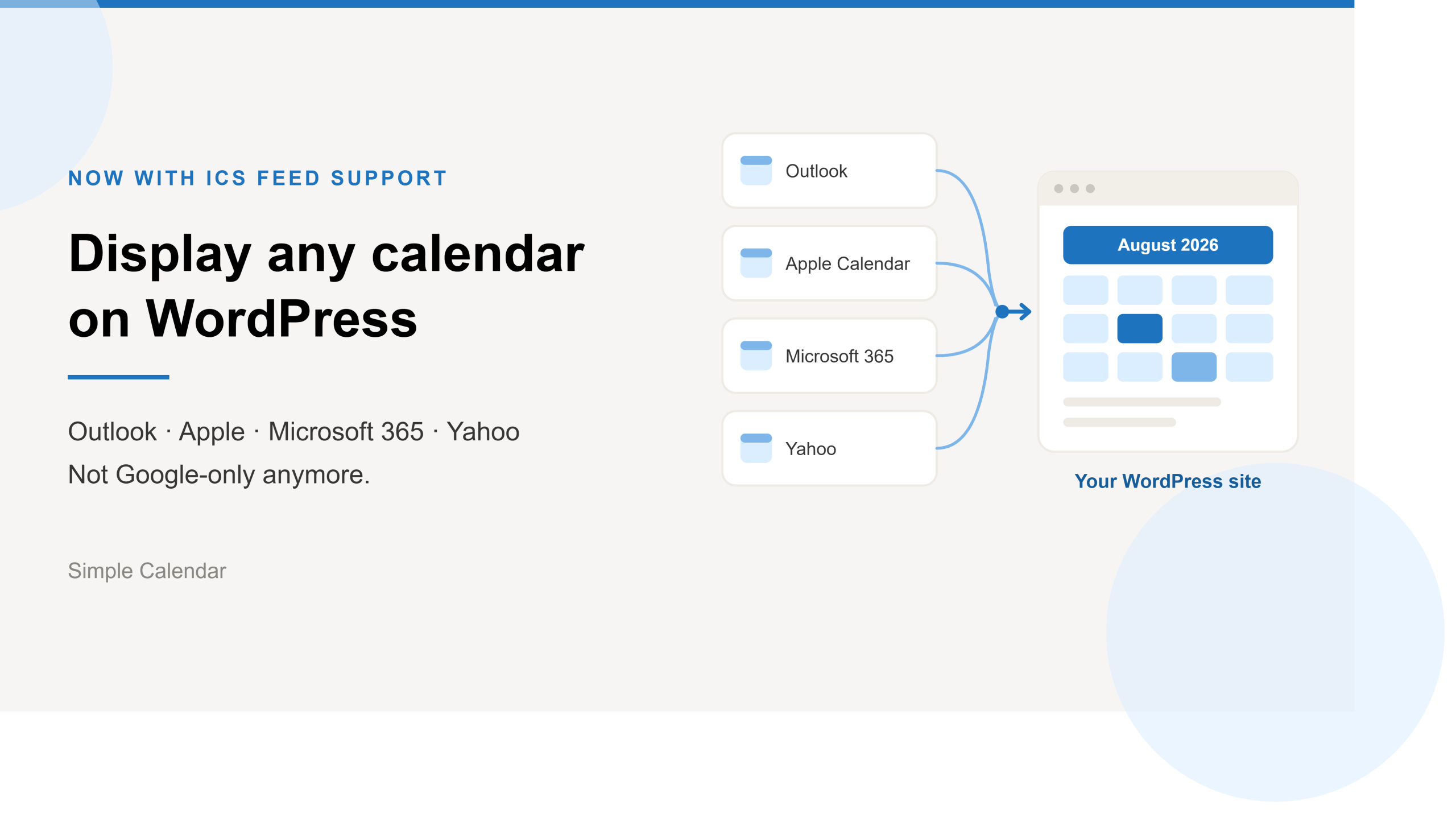
Simple Calendar now imports ICS feeds and connects live ICS feed URL. Learn step-by-step workflows for displaying Outlook, Microsoft 365, Apple, and Yahoo calendars.
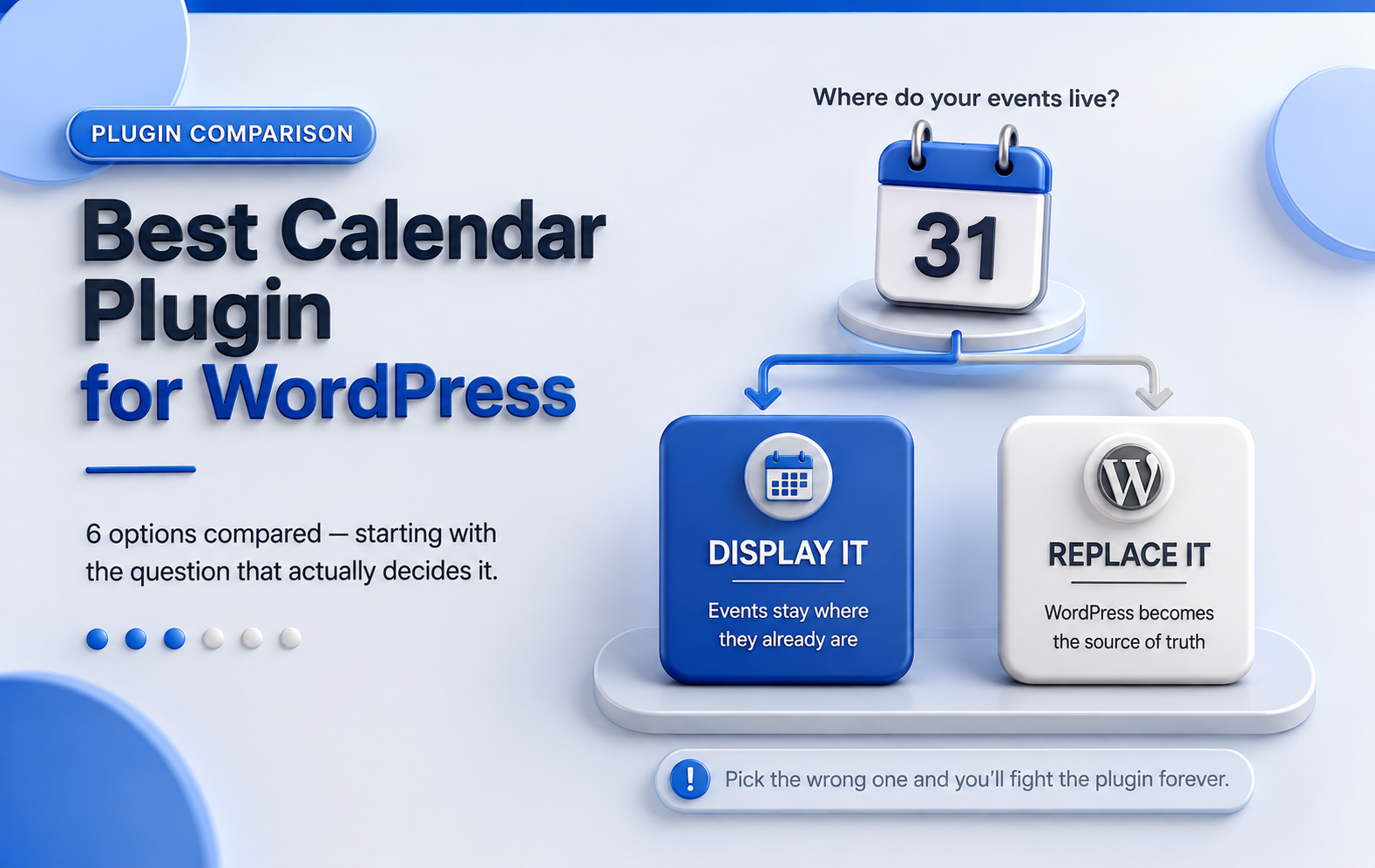
Best WordPress Event Calendar plugins, compared Search ‘best calendar plugin for WordPress‘ and you’ll get ten posts recommending the same three plugins. Not because those three are wrong; they’re genuinely good- but because most roundups are written by ranking plugins against each other in the abstract, feature column by feature column. Whether you’re searching for […]